How to Give & Delete your working availability on a Mobile Devise or Desk top
Step 1 - Log into Nextra on either the phone or desk top
(For steps on saving the phone app to your phone click here)
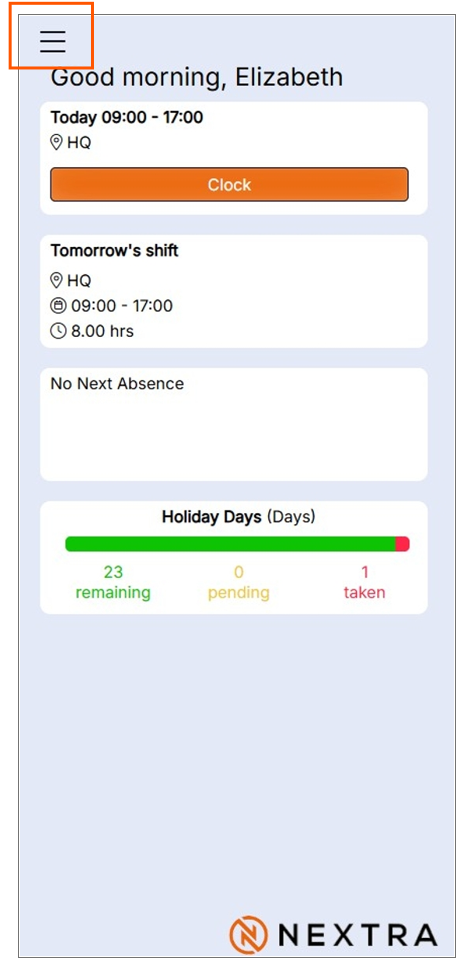
Once logged in you will see the home screen (the view shown below is from an iphone.
Step 1 - open the menu screen by clicking the 3 line menu (top left of the screen)
Step 2 - Click on the Self-Service menu
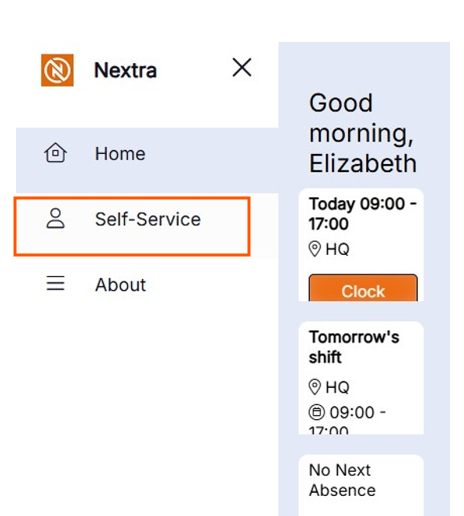
The menu options will be displayed according to your business set up so may not look exactly the same as they do here.
Step 3 - Open 'My Availability'
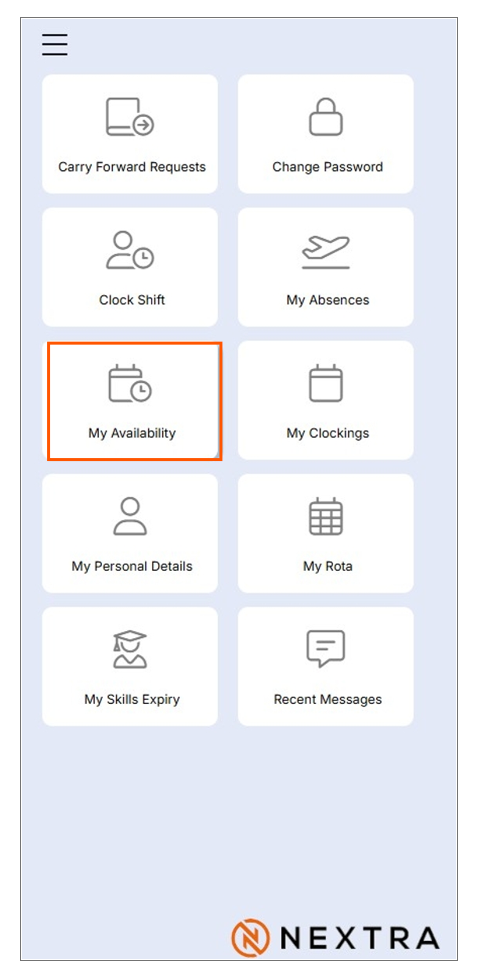
This will open up the 'My Availability' screen.
The screen will look like below if no availability has been set
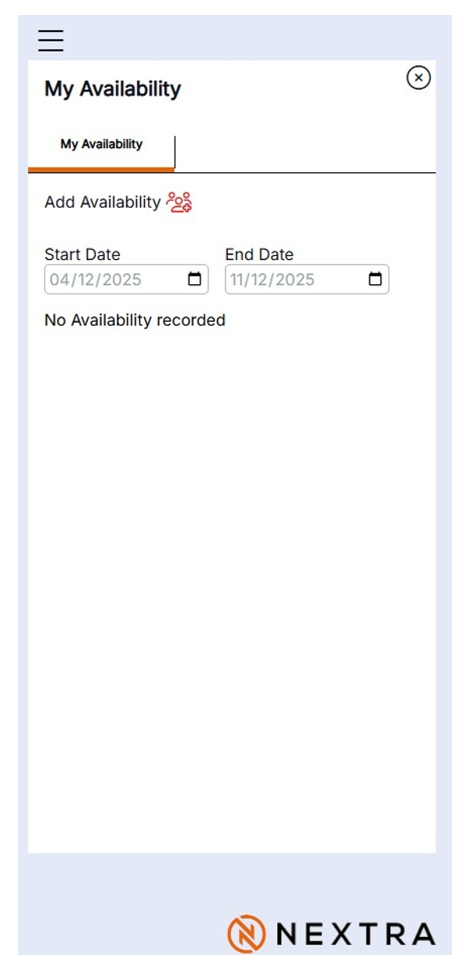
To add availability click the Add Availability - The screen will then open up for the information to be added.
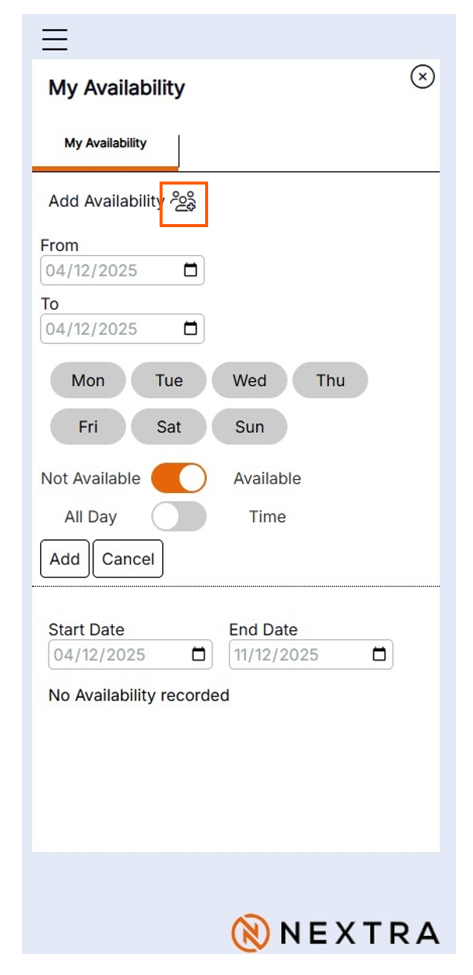
Information to add -
i) The Date From and To you are giving availability for,
ii) The Days you are available to work - click on each of them and they will highlight orange.
iii) A time range can be set for the date range selected - leave to all day if this applies
Press the Add - to add your availability
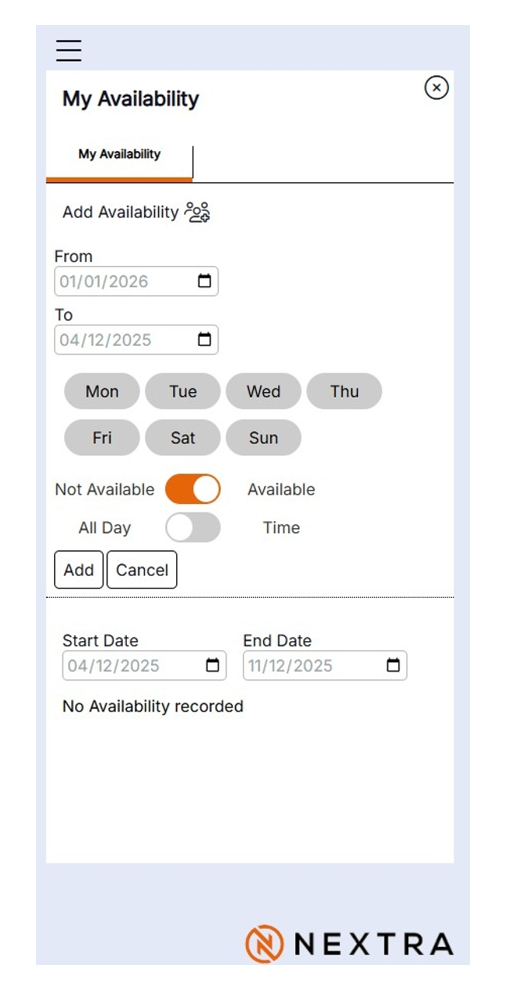
In the example below, availability has been set from 1st January 26 - 31st January 2026, Monday to Friday - 9am - 10pm
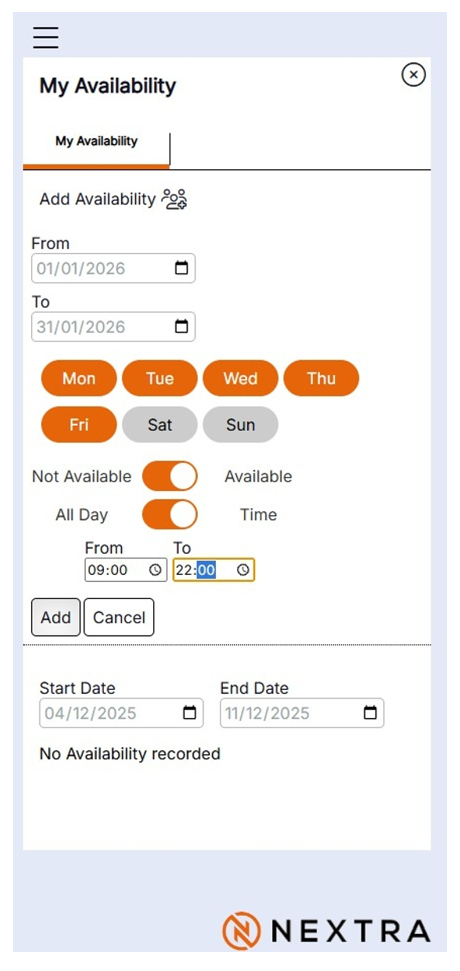
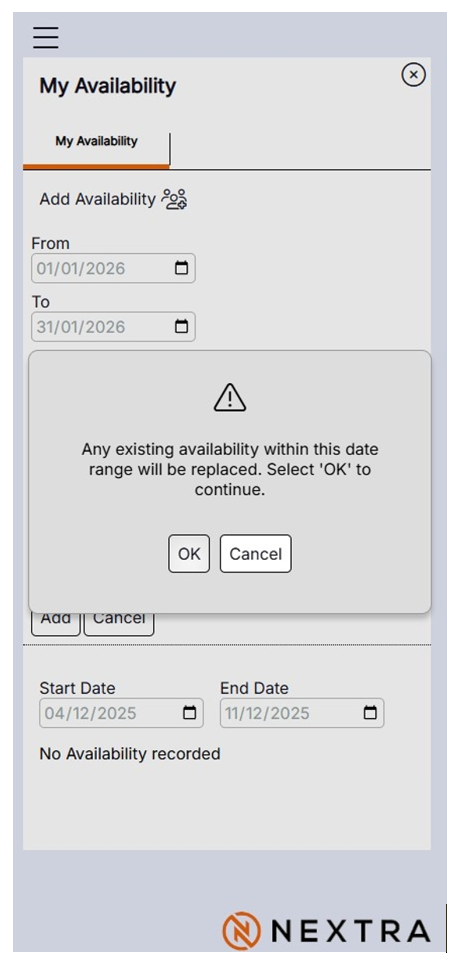
On Adding the availability a pop up warning will show to advise that any availability already set will be over written. Press OK to update
The following instructions will advise on how to see Availability already give and how to delete
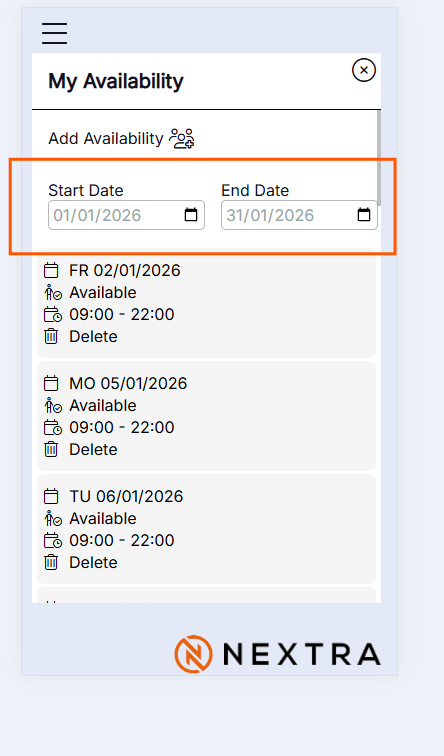
Step 1 - Open My availability, Enter the start and End Date the availability is being viewed for.
Click on the screen and the availability which has been sent will then show on the screen
If an availability needs to be deleted or amended click on the delete button and if being changed go back to Add Availability with the new details.