
Forgotten password
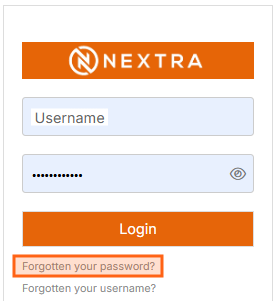
Step 1- If you have forgotten your existing password please select "Forgotten your password?" from the login screen.
Step 2 - Enter the email address held in the NEXTRA system and select Send. If the email address matches an email address held in NEXTRA and email will be sent.
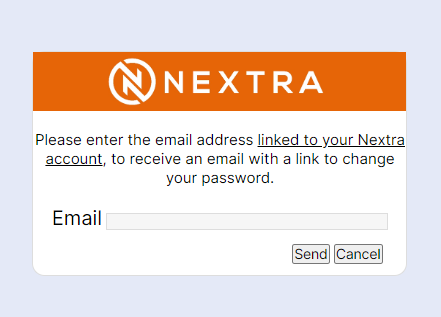
Handy Hint: The email address entered must match the email address stored on the Personal section your user record, and a valid Contact Preference must be set. If you do not receive an email, please contact your System Administrator or Manager to check if a valid email address and contact preference is held in your account.
Step 4 - Select the "Reset password here" link provided in the email.
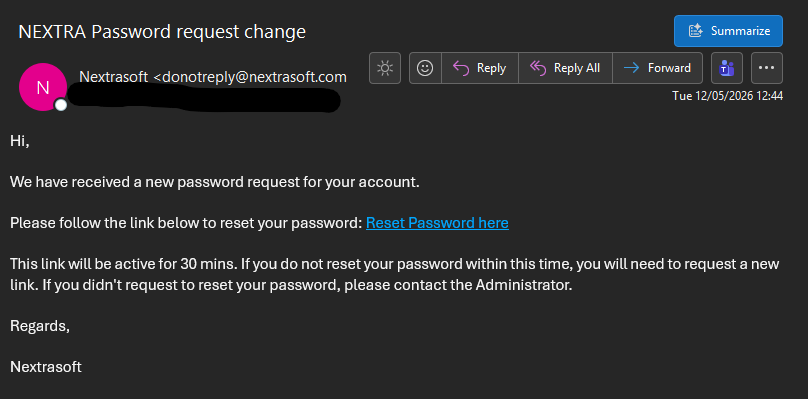
HANDY HINT - The link in the email to reset your password will expire after 30 minutes. If you miss this window, follow steps 1 -4 again to receive a new link.
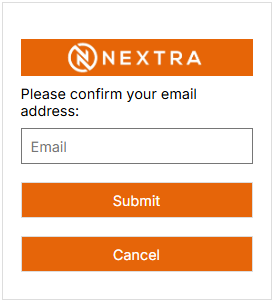
Step 5 - Confirm your email address and select Submit.
Step 6 - Enter a new password, ensuring all security criteria is met, and select Submit.
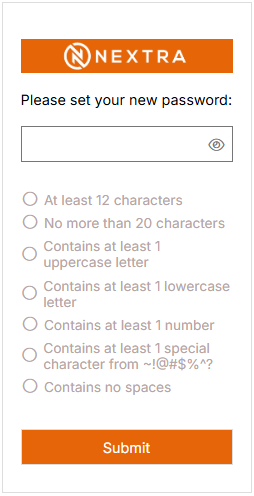
Handy Hint: Please ensure you have used one of the defined special characters.
Step 7 - Select OK on the confirmation po-up and you will be returned to the log in screen.
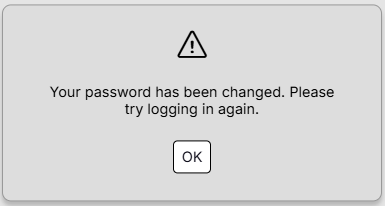
You can now access the system using your new password.