How to cancel an existing absence request
In order to cancel an existing absence request, follow these steps below.
Step 1- From the home page select "Self-Service" from the navigation menu.
Step 2- Select the "My Absences" tile from the available tile list .
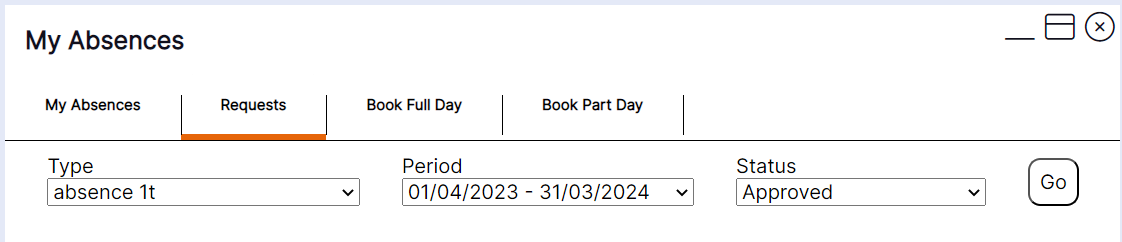
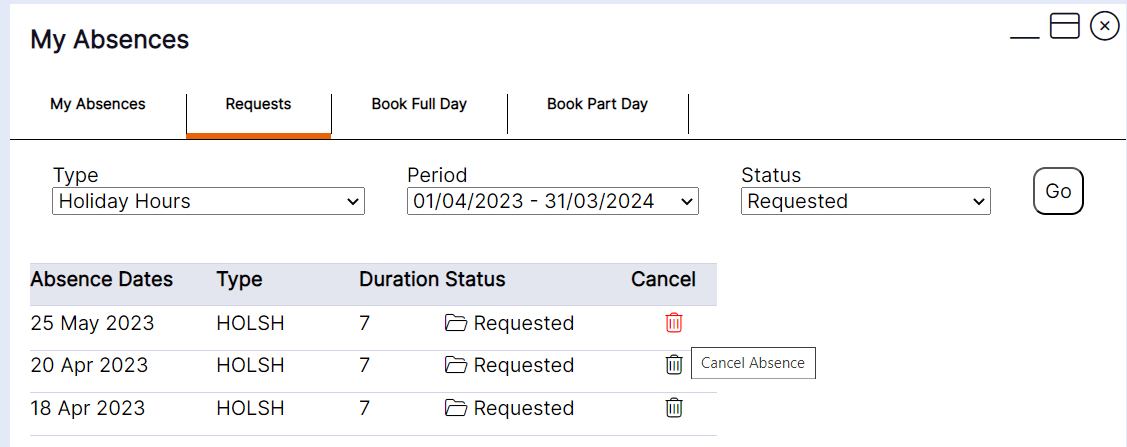
Step 3- Select "Requests" then from the drop down menu choose your "Type", "Period", "Status" then select "Go".
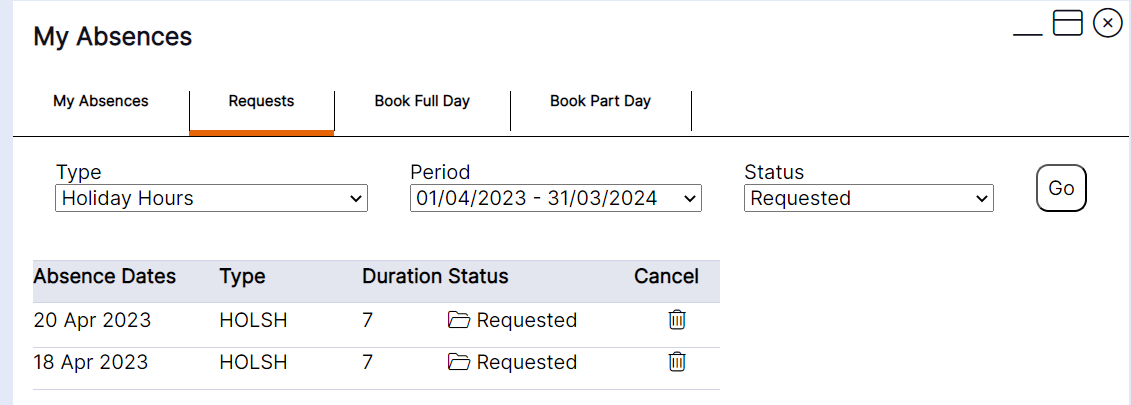
Step 4- The system will then default to the "Requests tab" as follows, and a summary of all your requests will display with the most recent request at the top of the list as per this example.
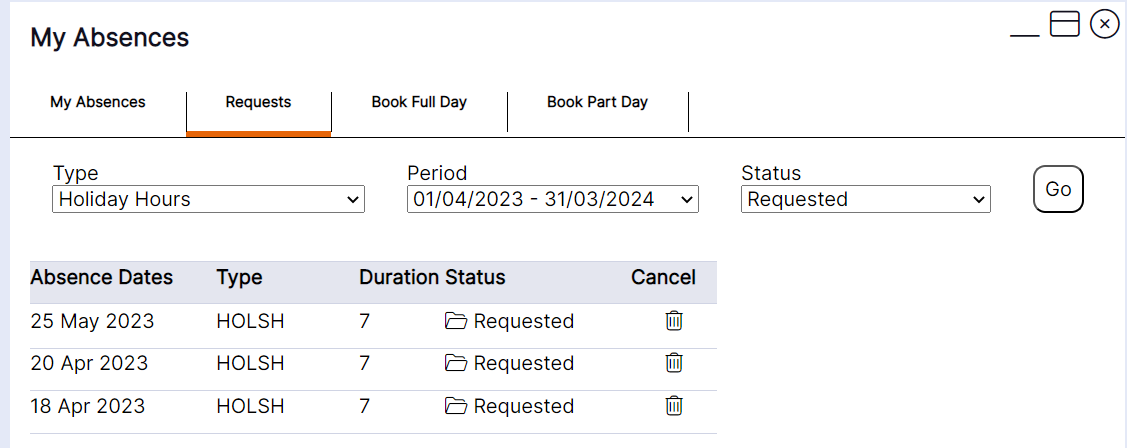
Step 5- To cancel requested leave, select the bin icon below "Cancel".
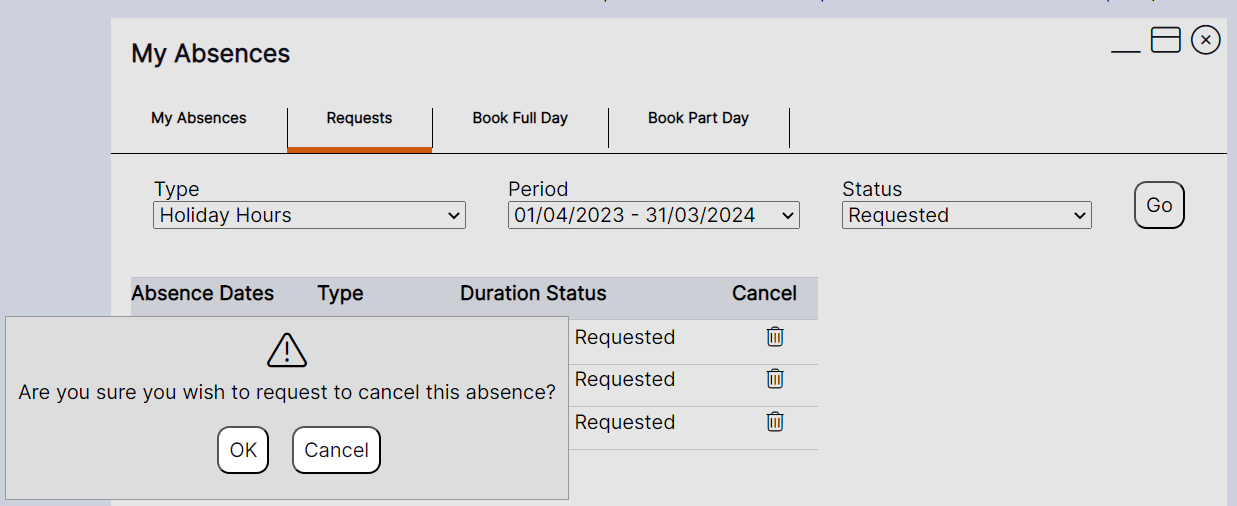
Step 6- Once you have selected to cancel your request, a pop up will show asking if you're sure you wish to cancel the absence.
Step 7- Select "OK" if you wish to cancel.
Step 8- After selecting "OK" another pop up will appear with the below message.
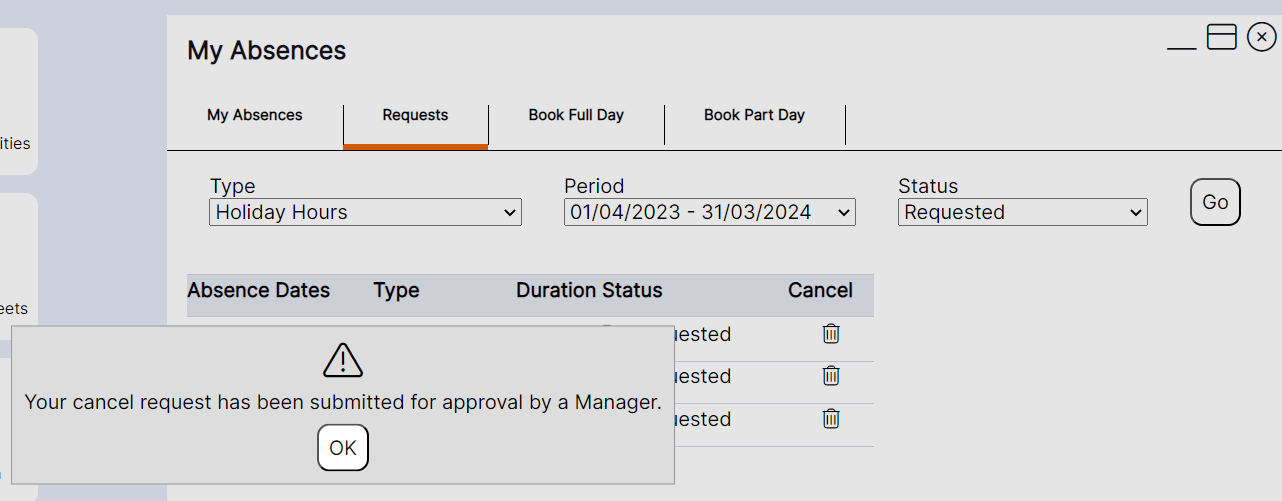
Step 9- After selecting "OK" you will see that the request has been removed.