
Attendance Info tab- Clockings
You will be able to report on the history of the handling of the staff members "Clockings" (i.e., the actual start and end times reported by the staff member for work using the clockings devices) for a staff member by using the "Attendance Info" tab on staff member records. To report on a history of the handling of a staff member’s clockings, users should follow these steps below.
Step 1 – On the homepage select the "Admin" option from the navigation menu.
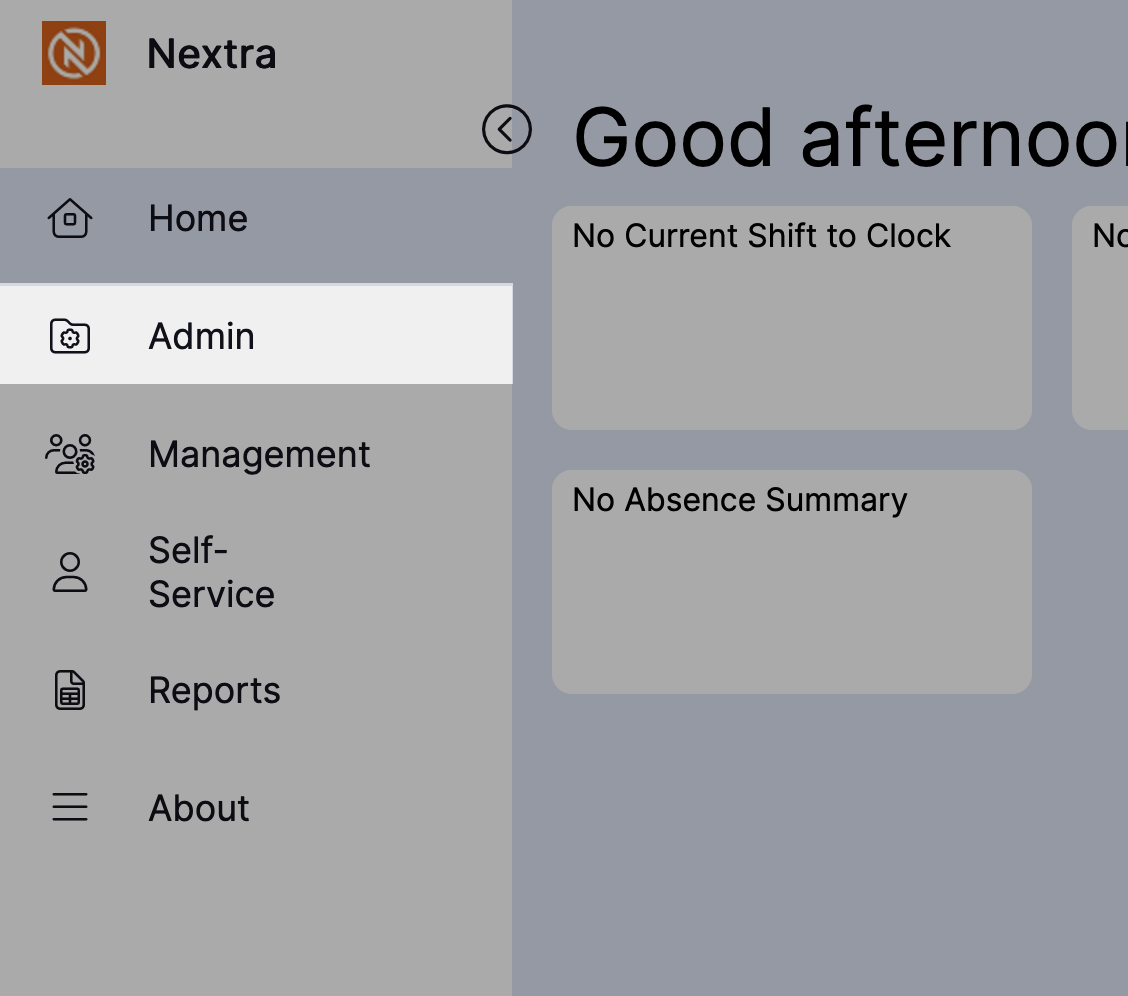
Step 2- Select the "Staff Admin" option from the navigation menu.
Step 3- Select the "Staff" sub option from the navigation menu.
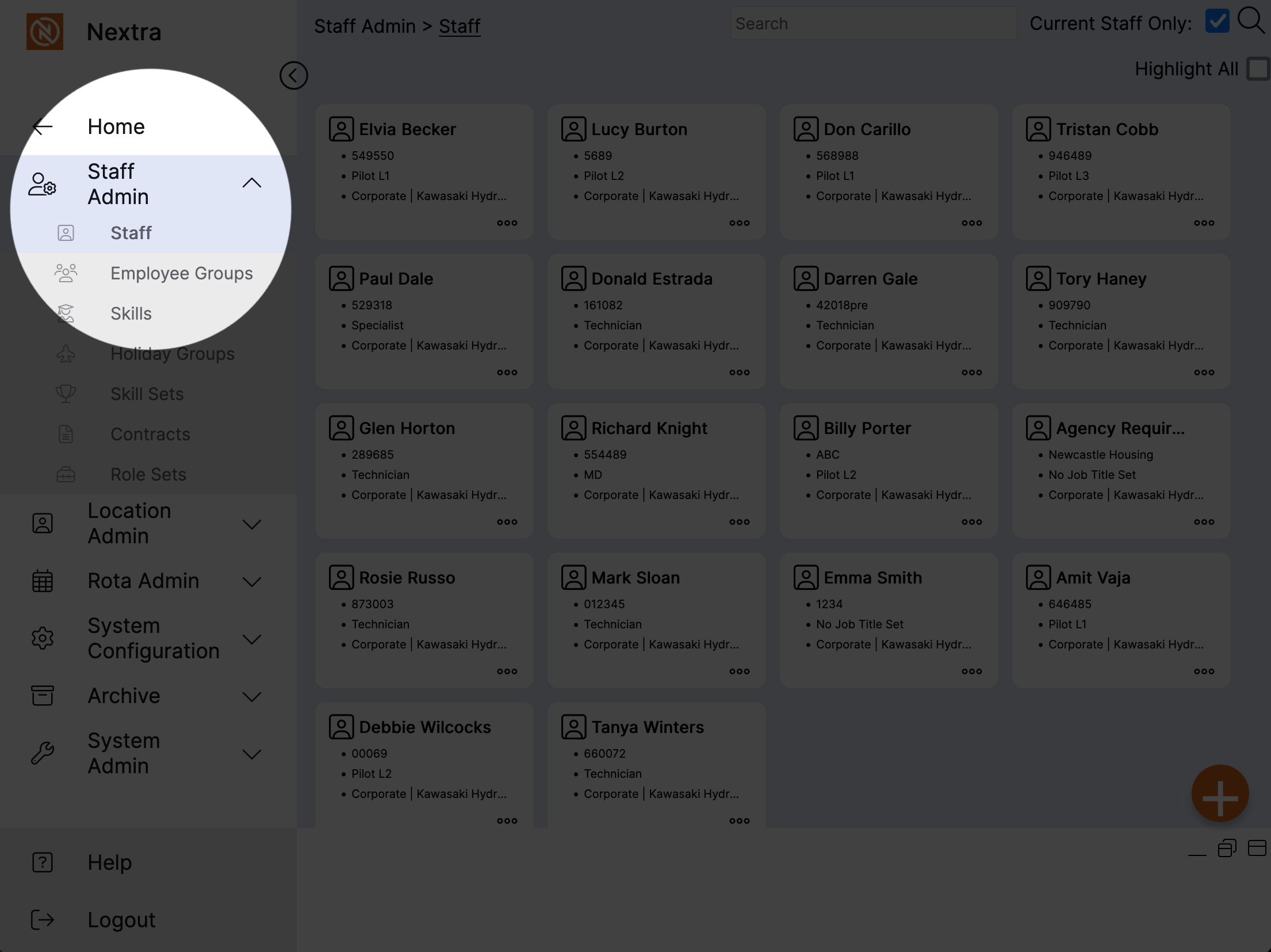
Step 4- Look for your staff member and select their card either using the three dots in the bottom right hand corner or the staff icon in the top left corner.
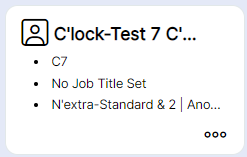
Step 5- Select the three dots, this will give you a drop down menu.
Step 6- Select "Attendance Info".
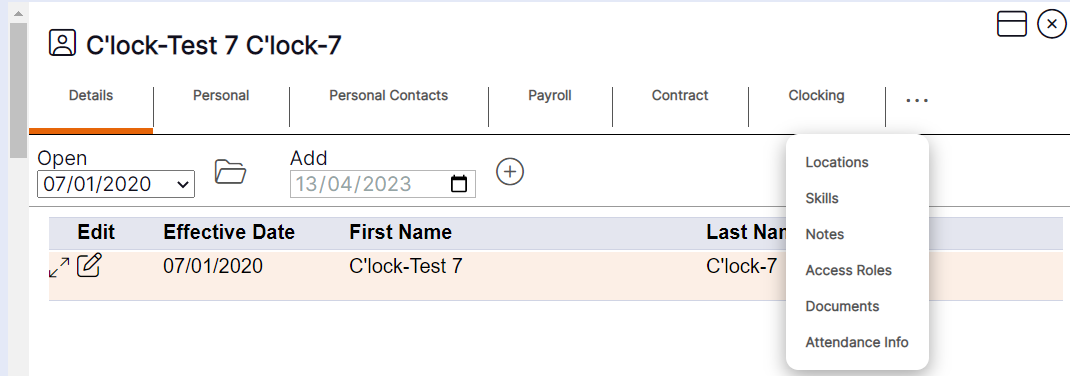
Step 7- Select "Clockings".

Step 8- Select the date you wish to report on clockings received for the staff member in question. You can either enter this manually or you can select the calendar icon and choose a date from there.
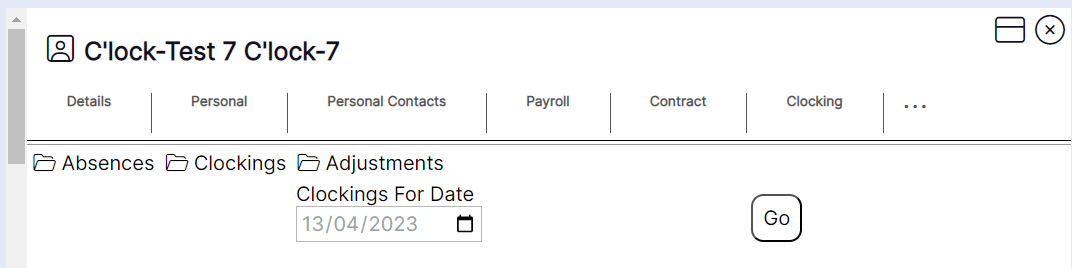
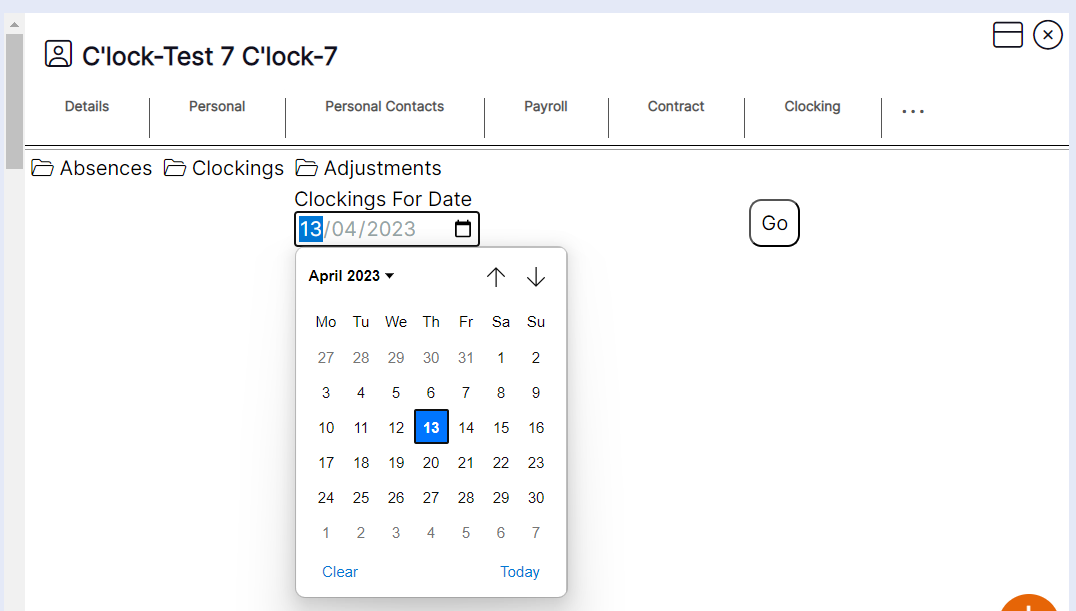
Step 9 – Select "Go".
HANDY HINT: You can only report on "Clockings" one day at a time from the "Attendance Info" tab.
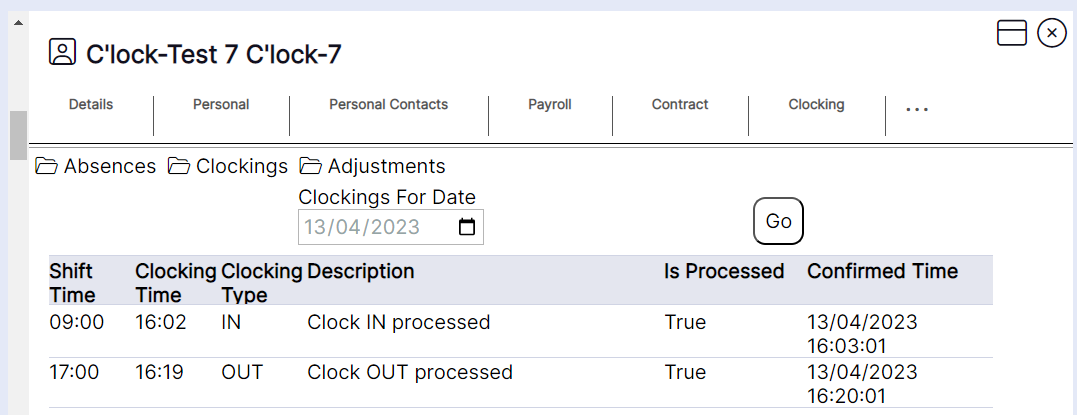
The report for this staff member’s clockings will then load as per this example:
HANDY HINT: The report shows the user a full history of when the clockings were received and processed for the staff member on the day in question.
Where the description states and created" on the end, this indicates this was the first time clockings have been received.
The "Is Processed" status advises the user of the following:
False – indicates adjustments (differences between planned shift and actual clocking times) are not yet calculated, i.e., only 1 ‘Clocking’ is received at this stage (for example the clock IN and the staff member is currently at work) or ‘Approve’ has not been pressed by a user on the ‘Clocking’ screen if the system is set to not auto-approve clockings.
True – indicates adjustments have been calculated, i.e., the auto-approve process has run after a clock OUT has been received, or a user has pressed ‘Approve’ on the ‘Clocking’ screen to generate the adjustments.