
Attendance Info Tab- Absences
Attendance Info Tab – Absence audit history and reporting by an individual staff member.
You will be able to report on the absence bookings that have been made in the system for a staff member by using the "Attendance Info" tab on their staff member record. To report on their absence bookings, follow these steps below.
Step 1 – On the homepage select the "Admin" option from the navigation menu.
Step 2- Select the "Staff Admin" option from the navigation menu.
Step 3- Select the "Staff" sub option from the navigation menu.
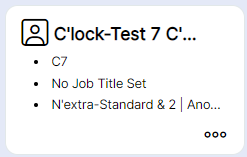
Step 4- Look for your staff member and select their card either using the three dots in the bottom right hand corner or the staff icon in the top left corner.
Step 5 - Select the 'Attendance Info' tab. You may need to select the three dots to see all available tabs if your screen size is small.
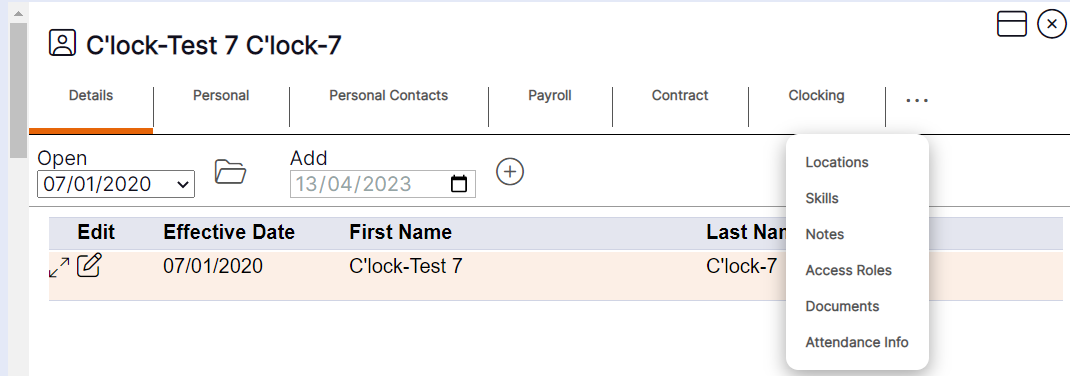
Step 7 - Select "Absences".

Step 8- Select the absence 'Type', 'Period', 'Location' and 'Status', followed by 'Go'.
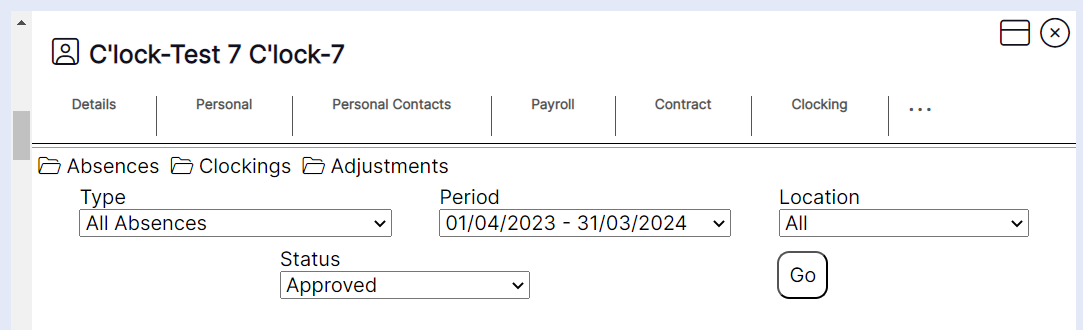
HANDY HINT: If the 'Absence Types' available to report are not as expected, check the absences assigned to the 'Absence Type Group' set on the staff member's 'Contract'. Where a staff member has a different 'Contract' for a previous or future date, the 'Absence Types' associated with this 'Contract' will also appear as an option for selection.
The leave periods available to select will be generated by the leave periods that have been set up in the system and will show the first leave period available for the staff member based on the start date entered on the 'Contract' tab of their record, and up to 24months in the future.
Status Options:
Approved – to report on any absences currently booked and approved for the staff member.
Requested – to report on any absence requests the staff member has made which are pending approval.
Cancelled - to report on any absences which were approved and have subsequently been cancelled.
Absence information for the selection the user has made will then load as per the following example.
Please note: The most recently booked, cancelled, or requested absence will appear at the top of the 'Absence Type' selection chosen.
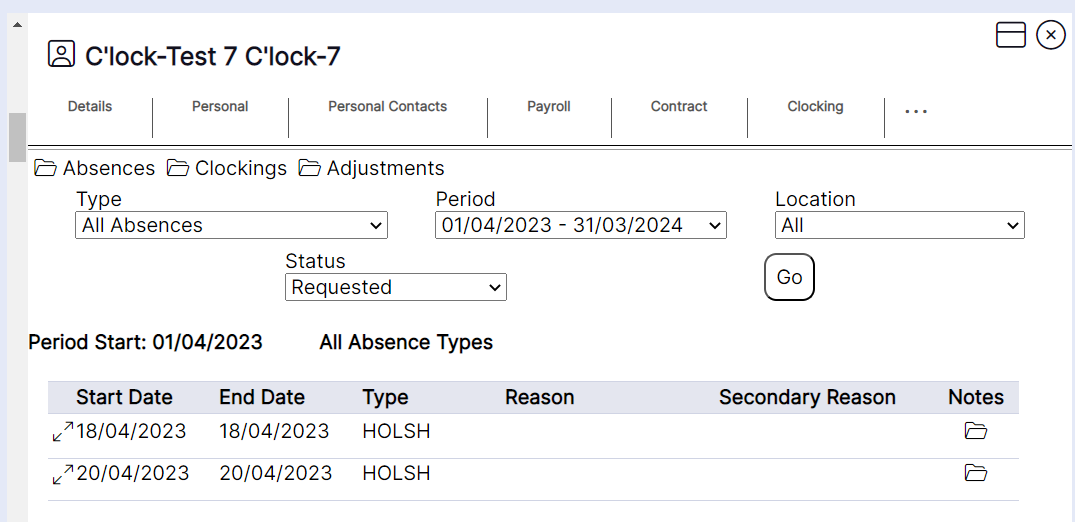
Step 9 - When you have loaded the requested information you will see the leave period start date and the absence balance. For absences with an allowance this will be the remaining balance, otherwise this will show the amount taken.
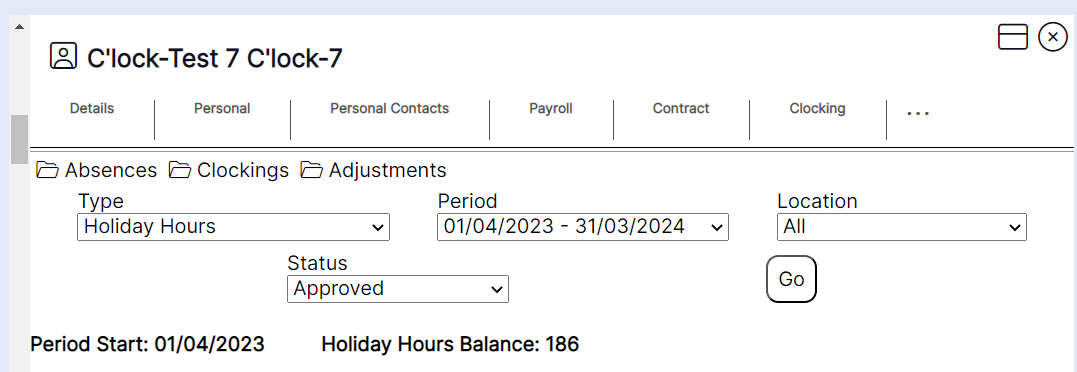
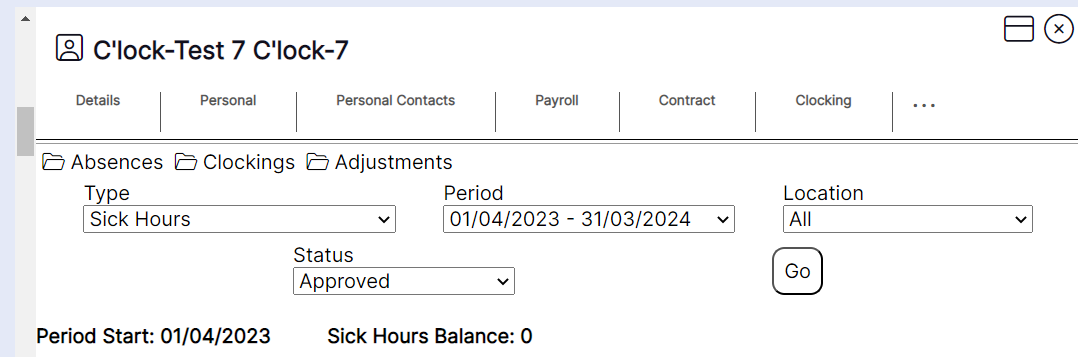
HANDY HINT: You can use this guidance to help you with an explanation of the display:
Type – this will display as per the default subject assigned to the ‘Absence Type’ that was used to make the booking.
Reasons and Secondary reasons can only be chosen to assign to a booking if it is a manual booking made on the rota, but it is not mandatory. Self-service requests also cannot have reasons assigned; therefore, this may appear blank on some bookings.
Duration – the first figure displays the amount taken from the staff members' allowance or the amount that will be attributed to the absence when counting up the instances of bookings for the booking in question. The figure in brackets is a running total of the bookings so you can see how the balance or running total of bookings has been reached by the software.
Comments will only display if a comment was added on a manual absence booking made via the rota.
The cancel icon will only display if your user type has been given access to cancel absences. If required access to cancel on this screen, please seek assistance from an administrator.