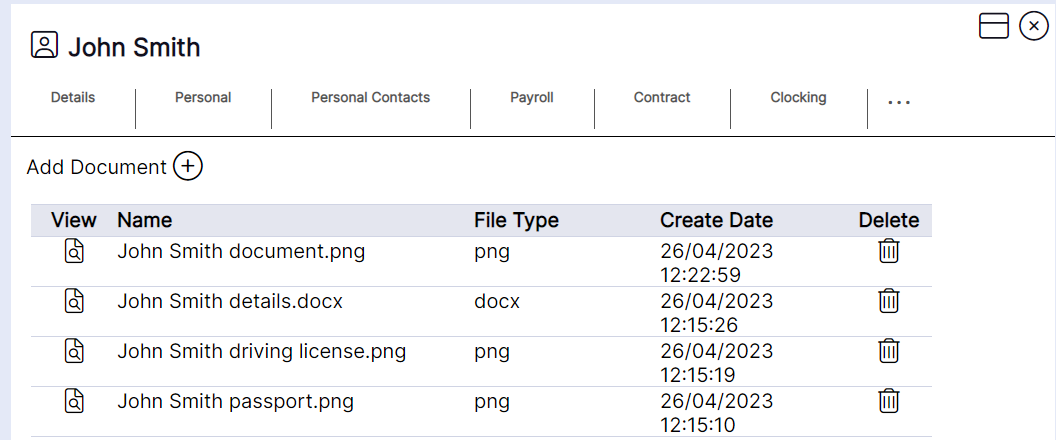
Staff Member Documents Tab – adding new documents to staff
New documents that are not required to be associated to a skill or a note, can be uploaded to the staff member record using the documents tab. Please follow these steps.
Step 1 – Select the "Add Document" icon from the drop down list.

The documents tab will then load as per the example below.
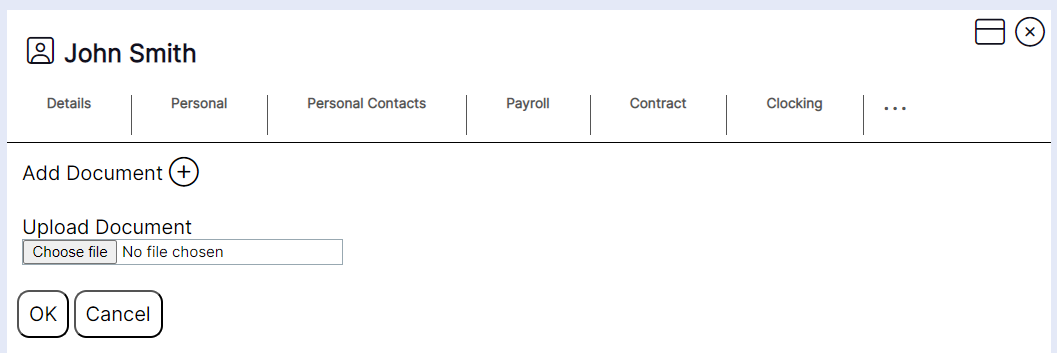
Step 2 – Select "Choose File".

Step 3 – Select the file you wish to upload.
Step 4 – Select "Open"
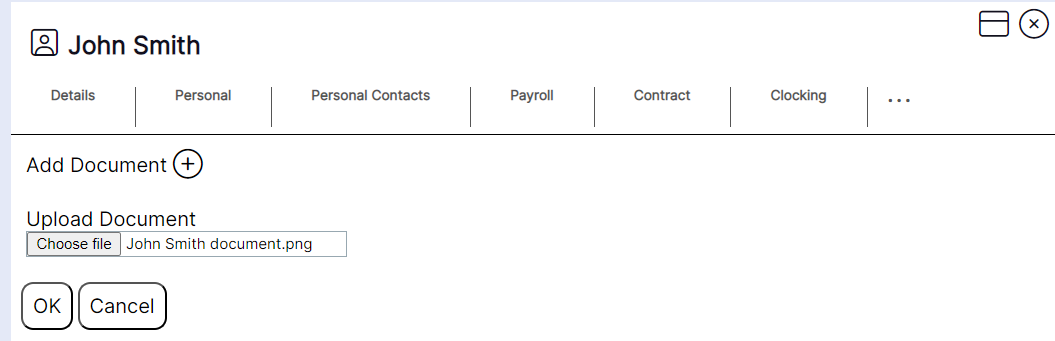
Step 5 – Select "OK" to upload the file.
The chosen file will then appear after the "Choose File" button so the user can see it has been selected.
The user will then be returned to the "Documents" tab and uploaded documents will display.