
Creating a new record for the Payroll tab of a staff member record
In order to create a new record on the payroll tab of a staff member record, you can follow these steps below.
Step 1– Use the calendar icon to select the date the changes are effective from for the staff member in question. Once selected this date will populate in the "Add" field.
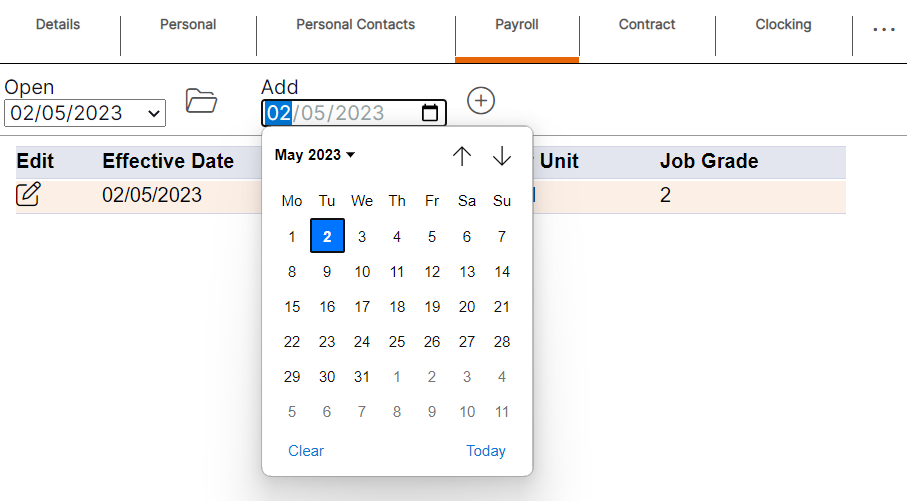
Step 2- Select the plus icon to generate a new record.
HANDY HINT: When creating a new record, the fields will automatically populate with the details entered on the most recently dated previous record for the staff member. This is useful where only one change is required, meaning the user does not have to re-type all the staff members details to create a new entry. If there is no previously dated entry before the effective date entered, the fields will appear blank.
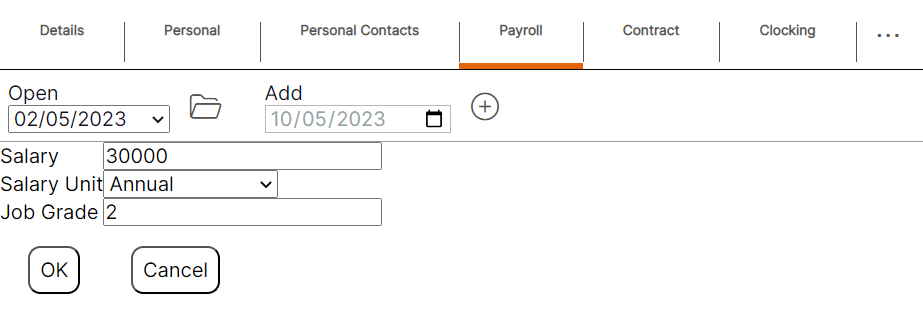
Step 3- Select "Ok" to save the new record.
Please note: Once a new record has been saved, it will be available to select in the ‘Open’ drop-down menu and as an entry on the summary screen, showing the effective date that was entered by the user.
Payroll Tab Guidance
Salary – Information only, however, may be used as part of a payroll export if you have requested this when agreeing your time and attendance rules.
Salary Unit – Information only.
Job Grade – Information only, however, may be used for integration purposes if you have integrated your NEXTRA system with a payroll system.