
Updating an existing record on the Details tab of the staff member record
Please note: NEXTRA recommends that should a user need to make any change to a staff member record, that a new record is created. This can be particularly important for payroll purposes and paying staff correctly as of a defined effective date in the software, and to ensure that an accurate audit history is held of changes made to your staff member records. Records should only be edited if a mistake has been made when initially creating it. In order to edit an existing record, please see the steps below.
Step 1– Select the Edit icon on the record you wish to update from the summary table.
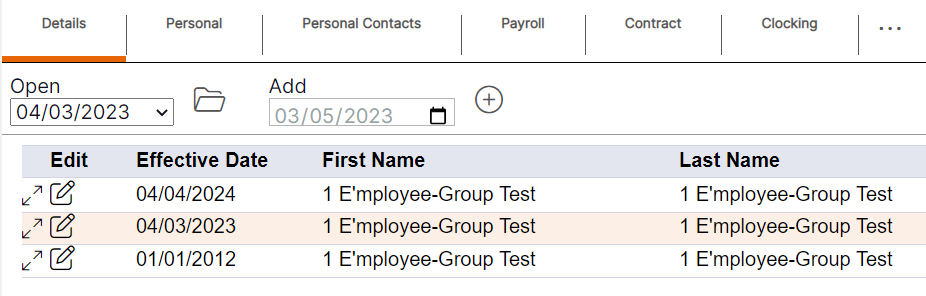
The record will open as shown below.
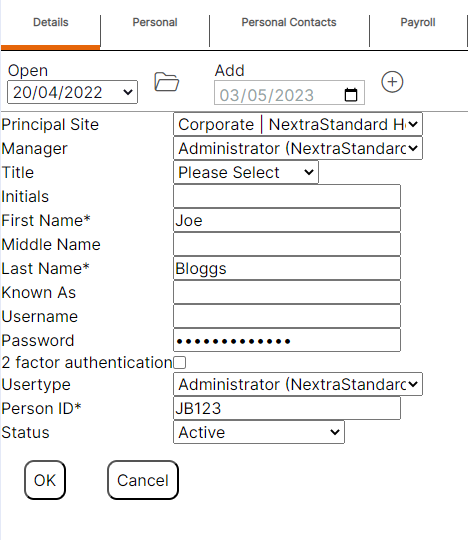
Step 2– Update the details by using the drop-down menus or by deleting old data and typing in new data.
Step 3– Select "Ok" to update the existing record.
Users can select "Cancel" if they no longer wish update the Details record for a staff member.
Please note: Once the updated record has been saved, there will not be an additional entry available on either the summary table or within the Open drop-down menu as this is an update to an existing record.