
Viewing Shift Priorities and updating their colour
Please follow these steps below to view current "Shift Priorities" and the colour currently assigned to each of them.
Step 1– From the main homepage select "Admin".
Step 2- Select "Rota Admin".
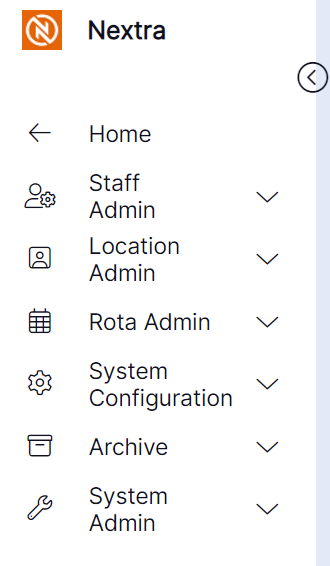
Step 3- From the options in the drop down menu select "Shift priorities".
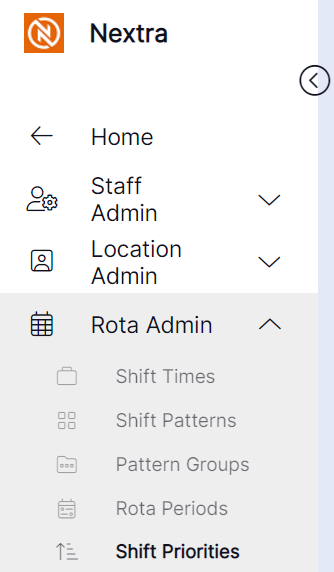
Step 4- You can open the priority by selecting the three dots in the bottom right hand corner or by selecting the arrow as shown below.

Step 5- Once the chosen priority has been selected you will see "Priority Colour" with a drop down list of colours in. From there you can choose the desired colour for the shift priority.
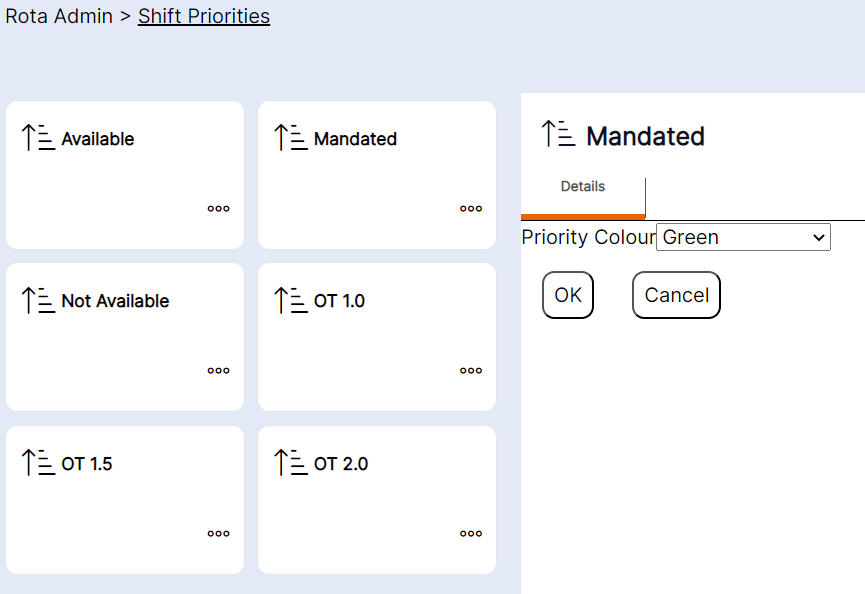
Step 6- Select "Ok" to save the chosen colour.
You can select "Cancel" if you no longer wish to conitune with updating the colour for this Shift Priority. The pop up will close and you will be taken back to the "Shift Priority" screen.