
Creating Rota Periods
To create new Rota Periods, please follow these steps below.
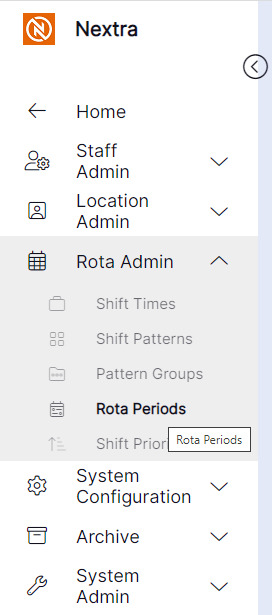
Step 1– Select the "Rota Admin" tab, this will then give you a drop down menu where you will find "Rota Period's".
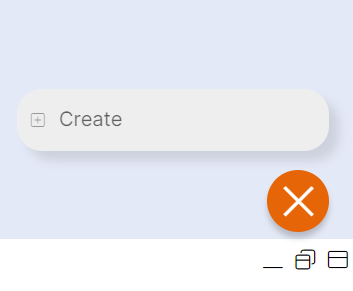
Step 2- Once the "Rota Periods" tab has opened, in the bottom lefthand corner you will see a orange X button. By selecting this it gives you the option to "Create" Add New Rota Period.
Step 4- The "Add New Rota Period" record will then open for you to complete.
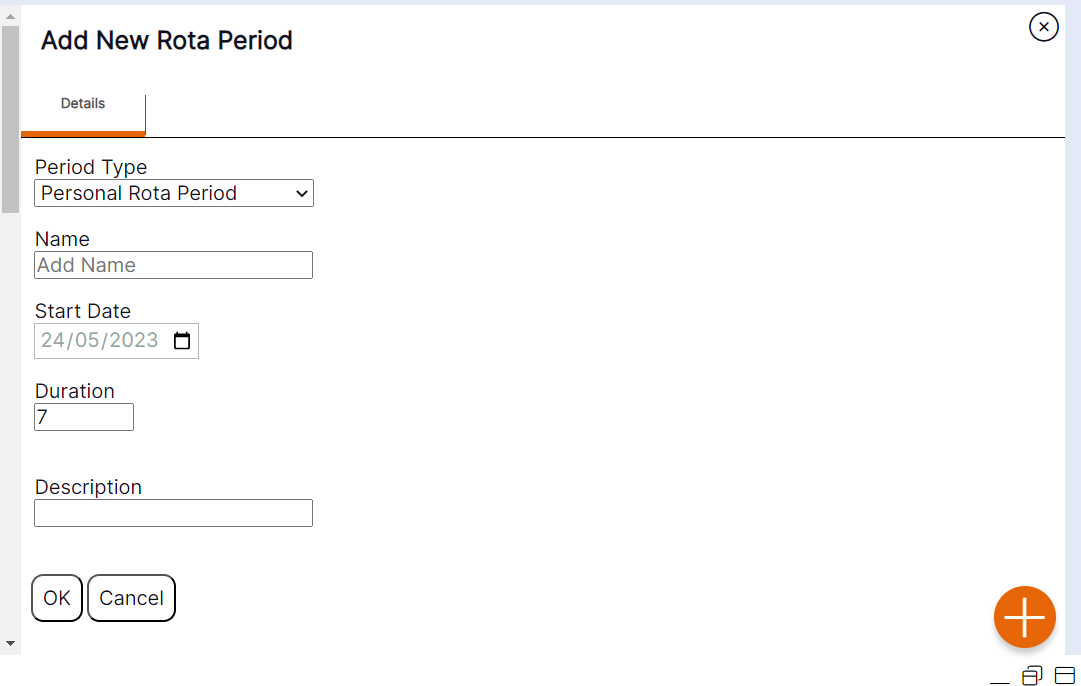
Step 5– Enter the details required for your rota period.
Period Type: Select "Super Global", "Global" or "Personal Rota Period". (Super Global allows all users access to the Rota Period on the Rota, Global allows all users who have the same user type as the creator access to this Rota Period, and Personal is only accessible to the user who creates it.
Name: Enter name of the Rota Period (this is the name that will display in the Admin screen on the front of the record and within the Rota Period drop-down when using the Rota).
Start Date: Use the calendar icon to select the start date of the Rota Period.
Duration: Enter the length of the Rota Period in days from the start date. The minimum is 7 days, and the maximum is 42 days.
Description: This field can be used if required but is not mandatory.
Users can select Cancel if they no longer wish to continue with creating this rota period, the pop up will slide to the right and they will be returned to the Operational Area in the Admin screen.
Step 6– Select "OK" to save the rota period.
Following selecting "OK" the pop up will slide to the right and the user will be returned to the ‘Operational Area’ in the Admin screen.
Please note: the Rota Period will not appear in the Operational Area until the user has refreshed the display.
Please note: Global Rota Periods (pay periods) cannot be deleted following creation. Personal Rota Periods can be deleted as required.