
Shift Patterns
Shift Patterns can be created in the system for members of staff who regularly work a rolling pattern using ‘Shift Times’ that have been previously created. The pattern can be configured to show different shifts, at different ‘Locations’, with different roles. These patterns can then be assigned to staff members and applied to their rota to facilitate quick rota generation.
Step 1- From the main navigation homepage, select 'Rota Admin'
Step 2- Select 'Shift Times'
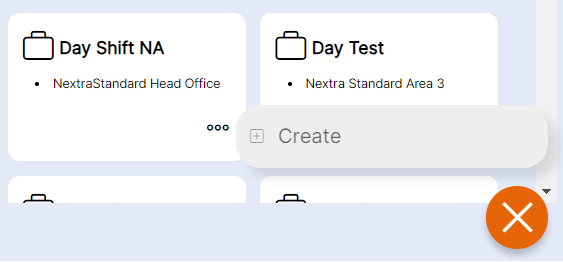
Step 3- Click on the orange cross in the bottom right hand corner
Step 4- Select 'Create'
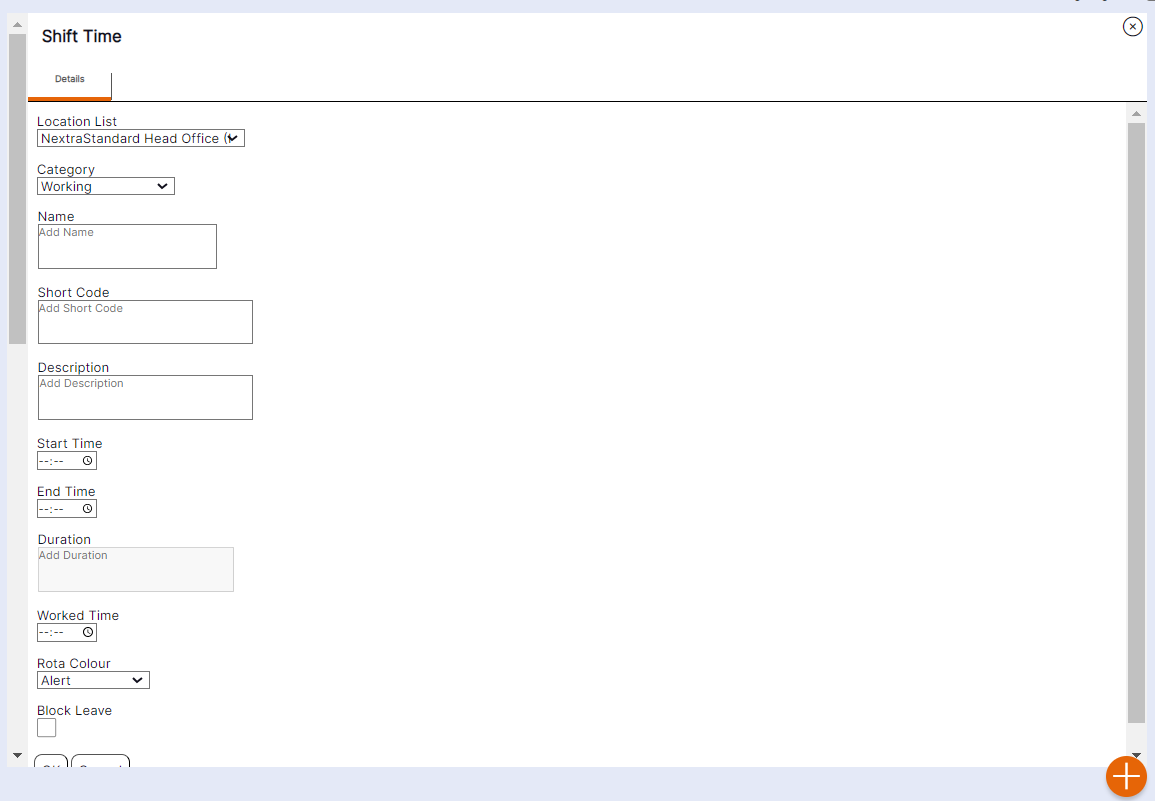
Step 5- Complete the 'Details' field
Location- Where you want the shift time to be accessible
Category- The category of the shift
Name- The name you want the shift to show as on the rota e.g. 09.00 - 17.30, Working, Day Off
Shortcode- A short descriptive label for the shift time
Description- This is a description of the shift time
Start Time- The time the shift will start
End Time- The time the shift will end
Duration- The duration of the shift
Worked Time- What the individual has worked minus any shift deductions i.e breaks
Rota Colour- This is the colour that will show on the rota
Block Leave- For leave that is booked and cannot be booked over
Step 6- Select 'OK' for the shift time to save
HANDY HINT: It is best practice to assign a ‘Shift Pattern’ to all members of staff in the system. This is for the following reasons:
- 1. Absence cannot be booked over blank cells in the ‘Rota’, as the system needs to be able to identify the regular days off for staff members in order to ensure deductions are only made from their absence allowances on days they usually work, for example when booking an absence crossing 2 weeks, days would not be subtracted from the weekend days if they are identified as days off via a ‘Pattern’.
- 2. If staff do not work regular shifts, a ‘Pattern’ of availability should be set so users creating their rotas can see when these staff members are available for work, as well as identify any regular days off they are entitled to.