
Forgotten Password functionality – How to reset your password
If a user has forgotten their password, follow these documented steps to reset it:
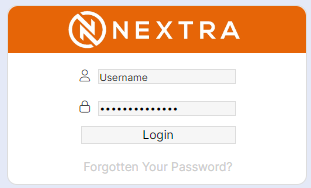
Step 1 – Click on the ‘Forgotten Your Password?’ wording on the login page
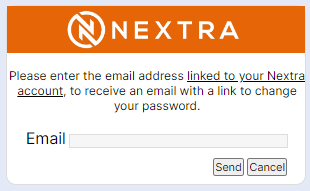
Step 2 – Users should enter their email address and click ‘Send’.
Following pressing ‘Send’, users will receive the following pop up to remind them there must be a matching email address in the system for a forgotten password email to be received:
Step 3 – Select ‘OK’ and the user will be returned to the login page.
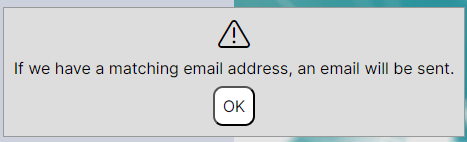
Please note: As per the warning to the user, the email address entered must match the email address stored on the staff member’s personal tab, in either their personal or work email field for the forgotten password email to be received successfully. Users cannot be informed if an email address does not exist should they attempt to enter an unrecognised email address i.e., an address not stored in NEXTRA. This is because it would be a breach of security to inform the user, they have found an email address that does not exist. If the email address matches and there are no duplicate email addresses, the staff member will receive their email within 5 minutes.
The user will then receive an email requesting a password change in the following format:
Step 4 - Select the link provided in the email.
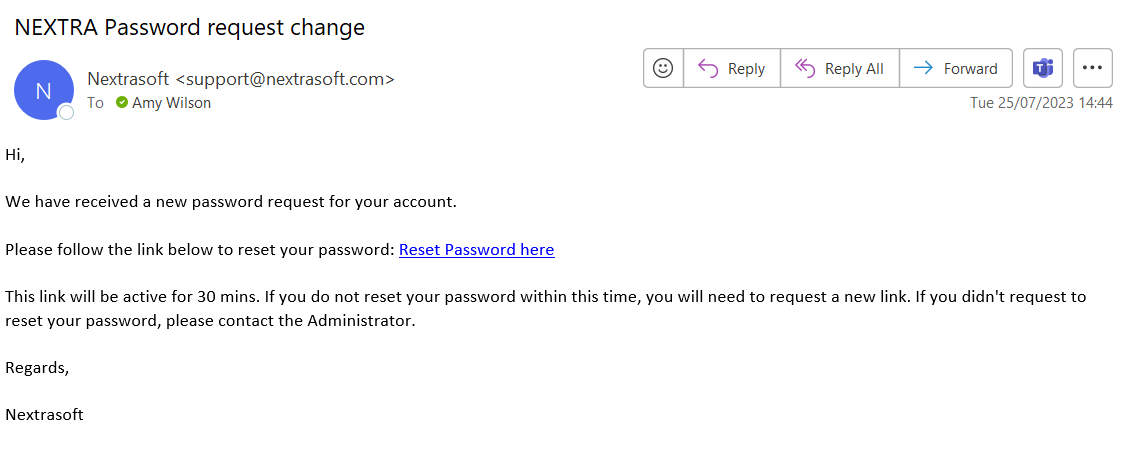
Please note: Users should be aware that the link to reset the password will expire after 30 minutes, and therefore users will be required to make a new request after this time. The email address that forgotten password requests will come to is configurable by the user.
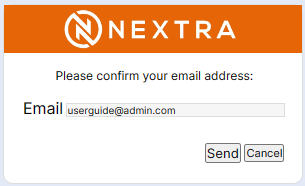
The user will be directed to the following screens:
Step 5 - Enter your email address and press ‘Send’.
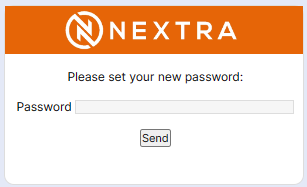
Step 6 - Enter the new password and press ‘Send’.
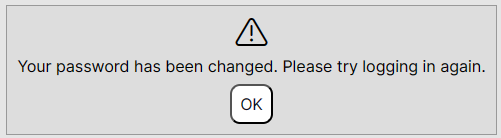
Step 7 – Select ‘OK’ on the pop up and the user will be returned to the login page.
Please note:
In addition to the forgotten password functionality, the system will force users to renew their password every 90 days, users will not be able to re-use their existing password.
Password minimum requirements are as follows:
8 characters including at least one number, lowercase letter and uppercase letter (there will be no requirement for a special character).
Step 8 - Log in to the system using the new password.
Should users enter a password that does meet the requirements, the system will provide a warning as follows, the user can select ‘OK’ to re-enter a new password that meets the criteria:
