
How to cancel an absence on behalf of a staff member through the Rota
An approved absence can be cancelled through the rota screen by a manage. The following instructions will show how to do this.
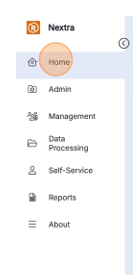
Step 1 - Starting from the Home screen
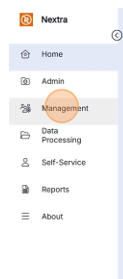
Step 2 - Go to the Management Menu
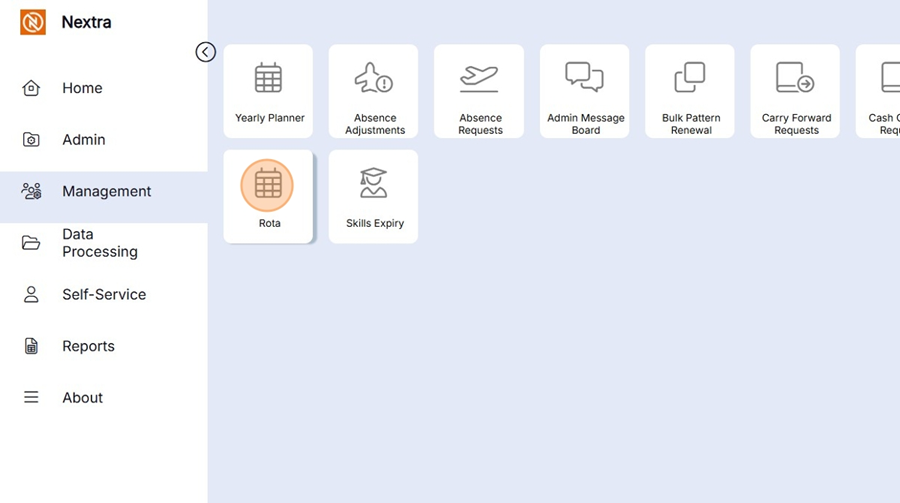
Step 3 - Click on the Rota Tile
Step 4 - Within the Rota Screen, select the Rota Period the absence that is being cancelled was booked for.
Step 5 - Select the member of staff the absence was booked against and scroll to the dates the absence was booked for.
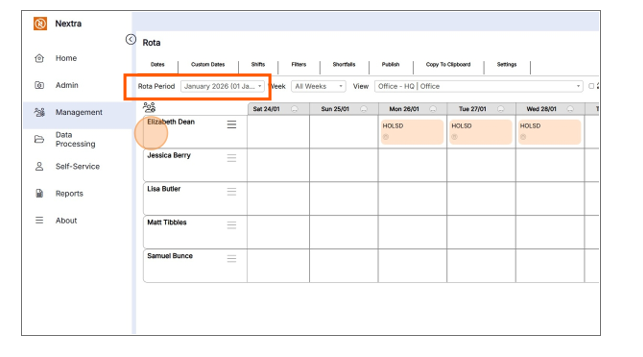
Step 6 - Click the manage this booking icon in the corner of the absence booking.

Step 7 - On clicking the manage booking icon a pop up window will open which will show the details of the absence.
Step 8 - Click on the cancel absence button
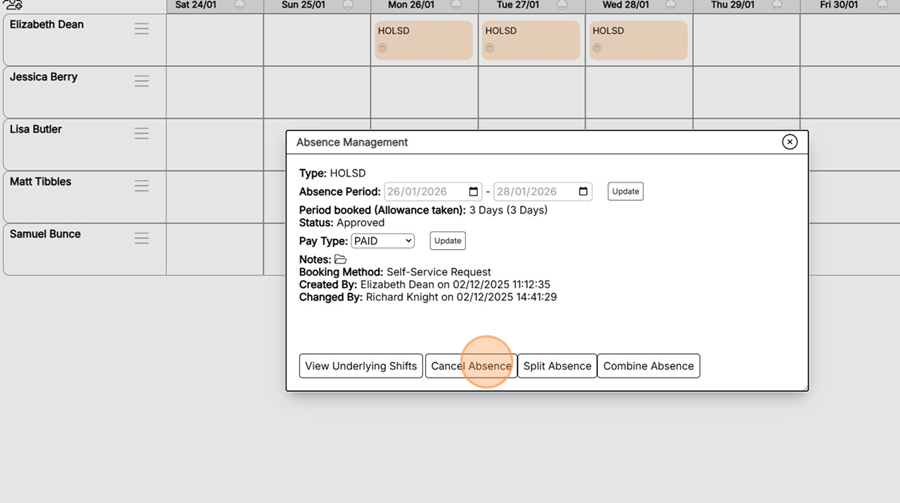
Step 9 - A warning asking if you are sure you wish to cancel the booking will open, press OK if you are happy to cancel the booking.
Step 10 - The Absence request has now been cancelled and the absence removed from the Rota.
