
Staff Member Locations Tab – Viewing existing records and audit history
The ‘Locations’ tab on the staff member record allows users to view all Locations and groups allocated to a staff member and the dates these Locations are active. Additional Location records to the staff member’s principal site are added using the 'Clipboard’ ‘ functionality as documented in section 3.9 of this user guide, where the start and end date of the allocation will be selected.
Should a staff member have an active location allocate assigned to them for a location in the hierarchy they will appear on the rota at this location. Additional Locations should be assigned to staff members' who work in multiple locations, and therefore need to appear on multiple rotas.
If a staff member is assigned to a pattern group or a ‘Holiday Group’ the details of this will also display here.
Users are able to view the audit history of where a staff member has been allocated to work, and which pattern groups and ‘Holiday Groups’ they are currently assigned to, or have been previously assigned to, by selecting the Locations tab on the staff member record and viewing the information as per the screen shot below:
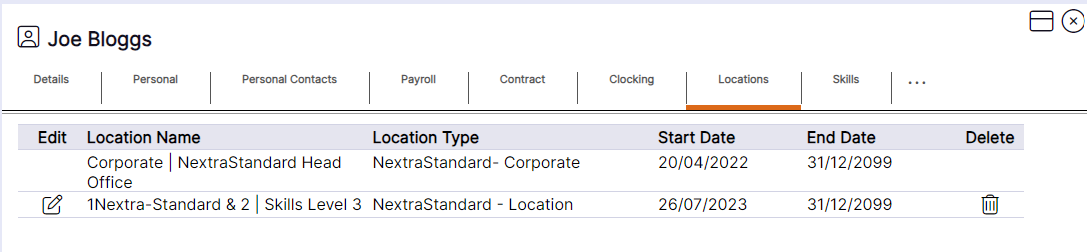
HANDY HINT: The Location selected as the staff member’s ‘Principal Site’ on their ‘Details’ tab will automatically be generated and assigned to the tab. No edit icon will be available for this location from this tab as if a change is required to a staff member’s Principal Site it should be updated on the staff member Details tab.
Locations and groups to which the staff member is allocated are displayed as per this example. The ‘Location Name’ will display as per the stored ‘Location’ or ‘Group’ record, the ‘Location Type’ will display the type of allocation the record is, e.g., ‘Location’, ‘Pattern Group’, or ‘Holiday Group’.
Locations can be deleted from the staff member record using the ‘X’ icon; however, it is NEXTRA’s recommendation that Locations are NOT deleted for audit history purposes and delete should only be used if a location or group was added to the staff member in error.
Please note: Deleting a location from the rota, will also remove the shifts assigned to that location from view.