
Staff Member Skills Tab – adding Skills to individual staff members using the staff member record
Users can add ‘Skills’ to an individual staff member by using the ‘Skills’ tab on their staff member record. (If you need to assign a ‘Skill’ to multiple staff members, you can do this using the ‘Clipboard’ functionality as detailed in section 3.9 of this user guide). To assign a ‘Skill’ to staff member follow these steps:
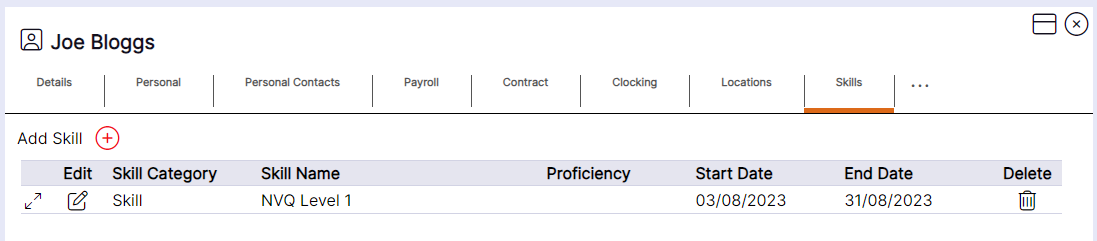
HANDY HINT: If you cannot find the ‘Skill’ you require in the drop-down menu, check the Skill’s location within the system. A Skill will only display if it is stored at a ‘Location’ that is at the same ‘Location’ or a ‘Location’ below the ‘Location’ of your Access Role’ (user type) in the system.
The ‘Add Skill’ pop up will then appear on screen as follows:
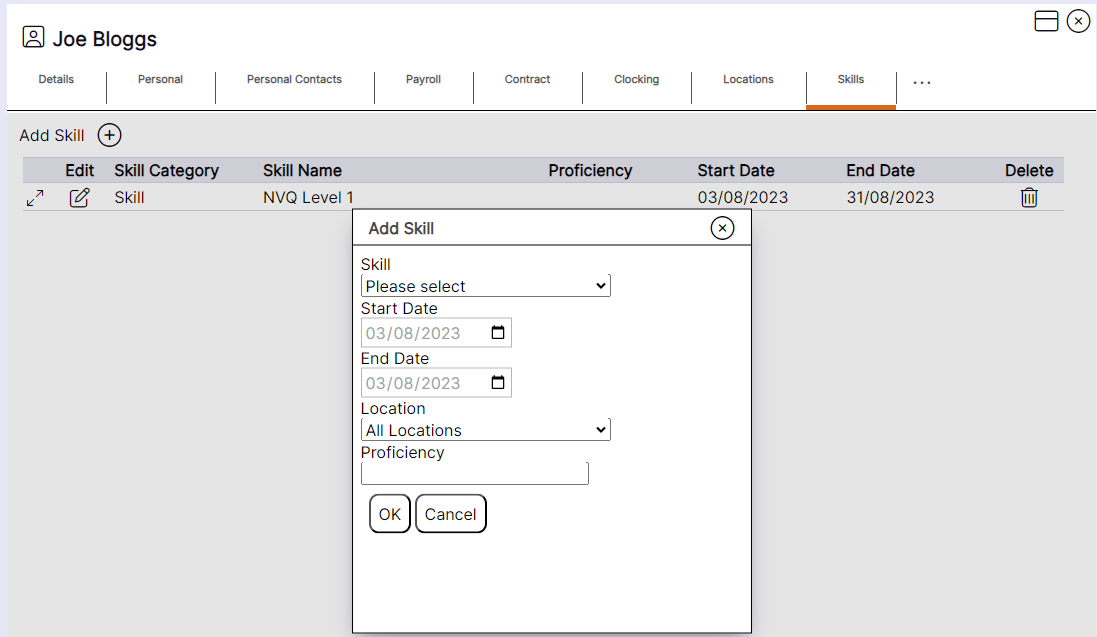
Step 1 – Use the drop-down menus and enter the required information into the fields to assign the ‘Skill’ to the staff member.
Selecting ‘Cancel’ will slide the ‘Add Skill’ pop up the right and the ‘Skill’ will not be added to the staff member’s record.
Step 2 – Select ‘OK’ to assign the ‘Skill’ to the staff member’s record.
The user will then be returned to the ‘Skills’ tab of the staff member record, and the ‘Skill’ will be assigned.
Please note: If you attempt to update the dates on an existing ‘Skill’ record and amend the dates to dates that the staff member is already assigned to this ‘Skill’ for the same location, you will receive the following message. This is to prevent untidy data within the software as staff can only be allocated the same ‘Skill’ with the same ‘Location’ assigned to it once: