
Staff Member Skills Tab – adding Skills to team members
Users can add ‘Skills’ to an individual staff member by using the ‘Skills’ tab on their team member record. (If you need to assign a ‘Skill’ to multiple staff members, you can do this using the ‘Clipboard’ functionality as detailed here: ).
To assign a ‘Skill’ to a staff member follow these steps:
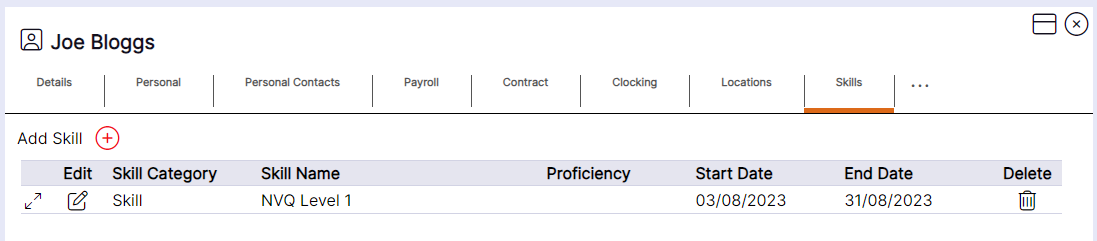
- From the team member's HR record navigate to the Skills tab
- Select Add Skill
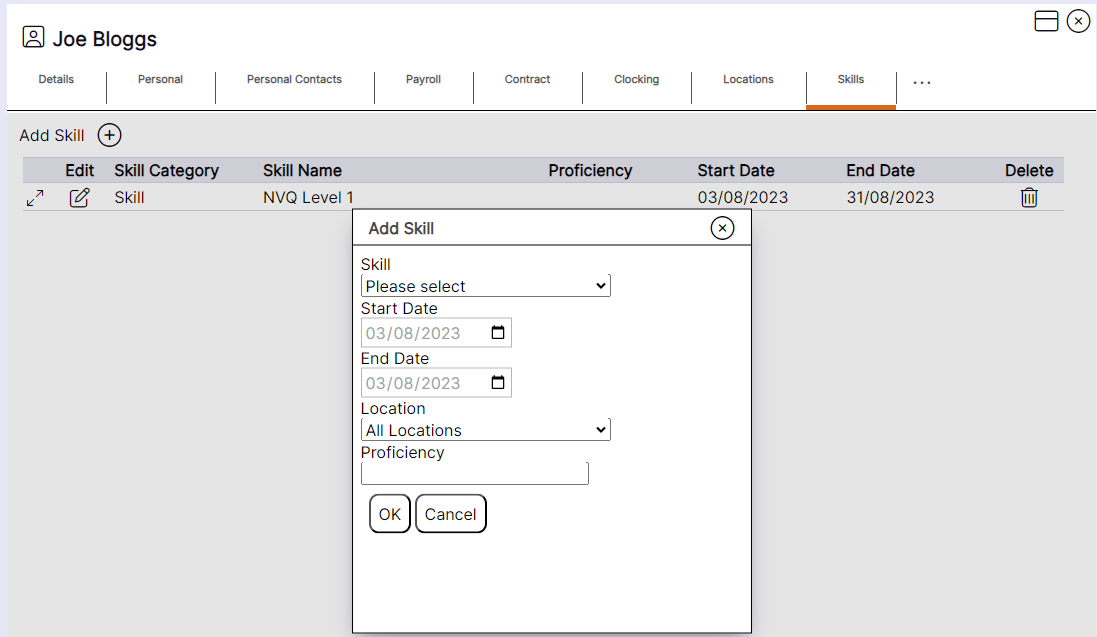
- Select the required Skill from the Skill menu
- Select the validity dates for the Skill from the Start Date and End Date fields
- If you require this skill to be valid at specific working locations only, select the required location
- Enter a proficiency level if required
- Select OK
Handy Hint: If you cannot find the Skill you require in the drop-down menu, check the Skill’s location within the system. A Skill will only display if it is stored at a Location that you have access to in the system.
Handy Hint: Skills can be assigned a notification period allowing users to be notified in the 'Expiring Skills tile when a team member's skill is due to expire. This is particularly useful for certifications such as First Aid