User types
User types define the access of a user who is logging into the system. For each ‘User type’ created, you can define which ‘Smart Tiles’ users will have access to on the homepage when they log in, which reports they have access to, the icons they have access to on each tab of the ‘Admin’ screen, the tabs that are available to them within each ‘Location’ record, if the ‘View Properties’ or ‘View Staff’ icon is available to them when an icon from a tab within the ‘Admin’ screen is dragged into the ‘Operational Area’, the tabs they have access to on the ‘Rota’, the actions they can perform on the ‘Rota’ including which ‘Rota Summaries’ they can use, the ‘Absence Types’ which they are able to cancel, and the absence actions they are able to perform on existing bookings.
The ‘Locations’ of the hierarchy the user can access is defined by the the ‘Location’ assigned to the ‘User type’ when applying the ‘User type’ to the staff member in the system. This is actioned via the ‘Clipboards’ functionality.
WORKING EXAMPLE: If there is a ‘User type’ created with access to all the ‘Smart Tiles’ on the homepage, but this ‘User type’ is assigned user A at the top level of the hierarchy, and user B at a department on the third level of the hierarchy, they will both have access to all the ‘Smart Tiles’, however once entering the tiles user A will access to all the data for every location, and user B will only have access to the data for the department and any areas owned by that department. For example, when entering the rot user, A can view all ‘Locations’ on the rota, and user B can only view the rota for the department or any rota for an area owned by that department.
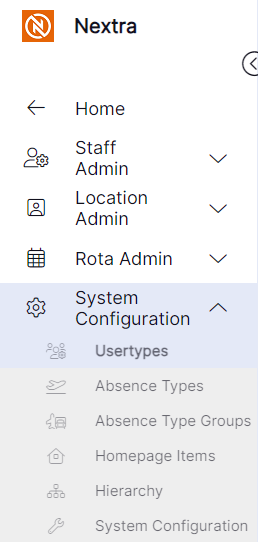
Step 1- From the main navigation menu click on 'System Configuration' to see 'Usertypes'