
How to create New ‘Absence Type’ Groups
Absence Type’ Groups can be created in the system using the following steps:
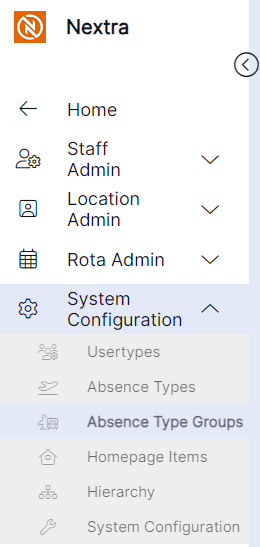
Step 1- Select the ‘System Configuration’ tab.
Step 2– Select 'Absence Type Groups' from the menu
Step 3- In the bottom right hand corner click on the orange X button to create a new 'Absence Type Group'
Step 4– Enter the name if the absence type group as you wish to see it displayed in the operational area of the admin screen and as an option to select on a contract.
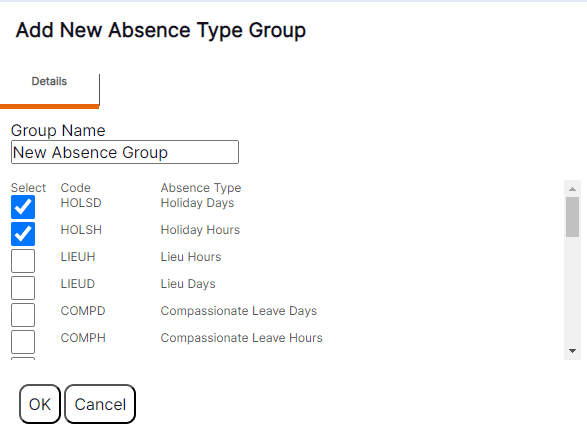
Step 4 – Select the ‘Absence Types’ you wish to be included within this group by using the tick boxes. Use the scroll bar to the right hand side to navigate for further options.
Step 5 – Select ‘OK’ to create the new ‘Absence Type Group’.
Following selecting ‘OK’ the pop up will slide to the right and the user will be returned to the ‘Operational Area’ in the ‘Admin’ screen.
Please note: The new ‘Absence Type Group’ record will not appear in the ‘Operational Area’ until the user has refreshed the display.