Creating New Employee Groups
The ‘Employee Group’ functionality is used to group together staff members in order that you can control if they are visible on the ‘Clocking’ screen, and to configure some leave booking conditions for those staff members who are members of the group. I.e., within the group record, you can block leave for specific days for staff members within the group, or to allow only those staff who are members of the group to book part-leave.
New Employee Groups can be created in the system using the following steps:
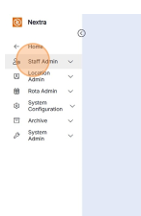
Step 1 - Select the ‘Staff Admin’ tab.
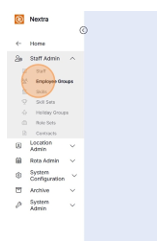
Step 2 – Open up 'Employee Groups'
Step 2 – Open up 'Employee Groups'
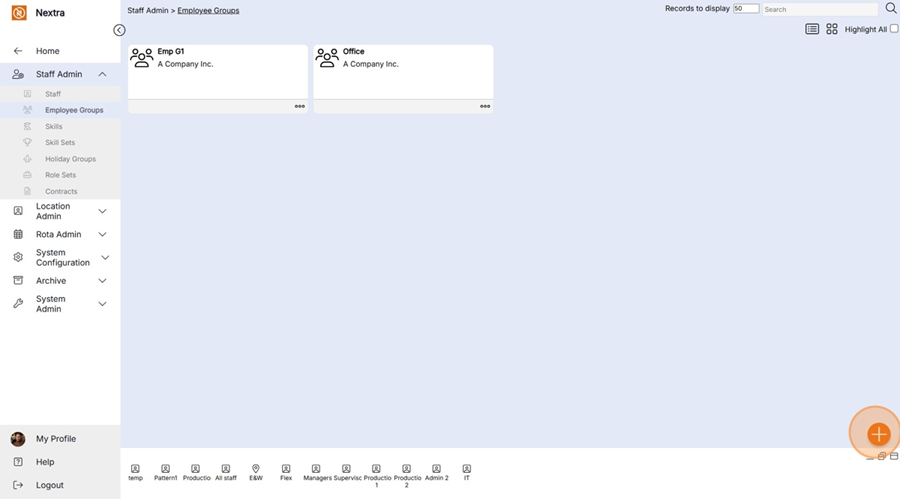
Step 3- Click on the orange plus in the bottom right-hand corner and select 'Create'
The new ‘Add New Employee Groups’ record will display as per the example below:
Step 4 – Update the details by using the drop-down menus and typing in new data.
i) Owner - Select where the Employee Group will sit within the organisation
HANDY HINT: When selecting the location of the employee group, ensure you select the location at which the employee group is relevant within the hierarchy. For example, if this employee group could be assigned to any staff member in any location of the business you should assign the top-level location, so it appears as an option to assign to any staff member regardless of their principal site in the system.
Alternatively, if this employee group is only for staff working in a particular department and therefore also relevant to any staff within an area of that department, you should choose the department as its location, in order that it can only be assigned to employees in the same branch of the hierarchy as this department. I.e., if the department was on level 3, it would not be available to a staff member in another department on level 3 as they are in a different branch of the hierarchy.
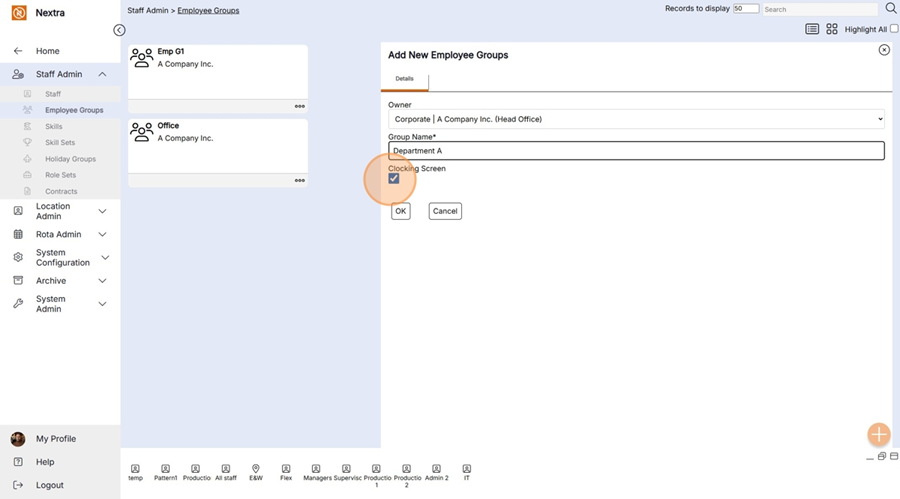
ii) Group Name: Enter the name of the ‘Employee Group’ as you would like it to display in the ‘Admin’ screen, and as an option to assign to staff members on the contract tab of their staff member record
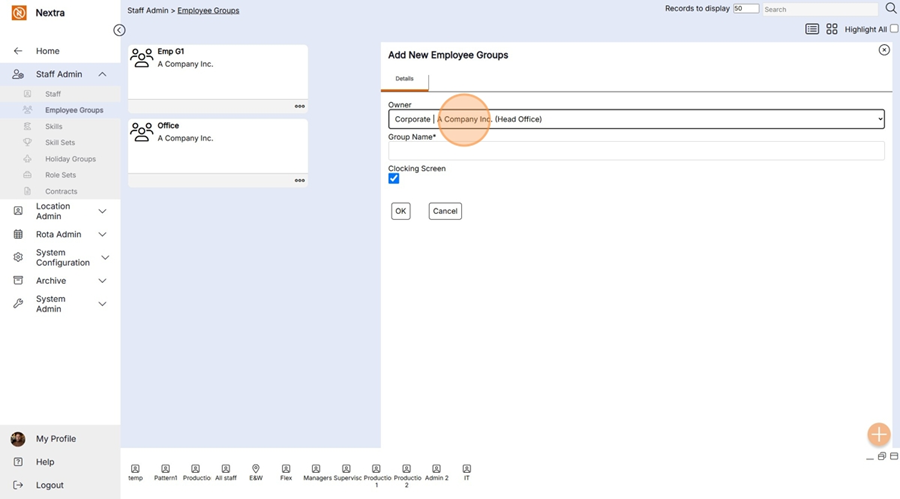
iii) Clocking Screen - If staff are clocking in for shifts select the clocking tick box
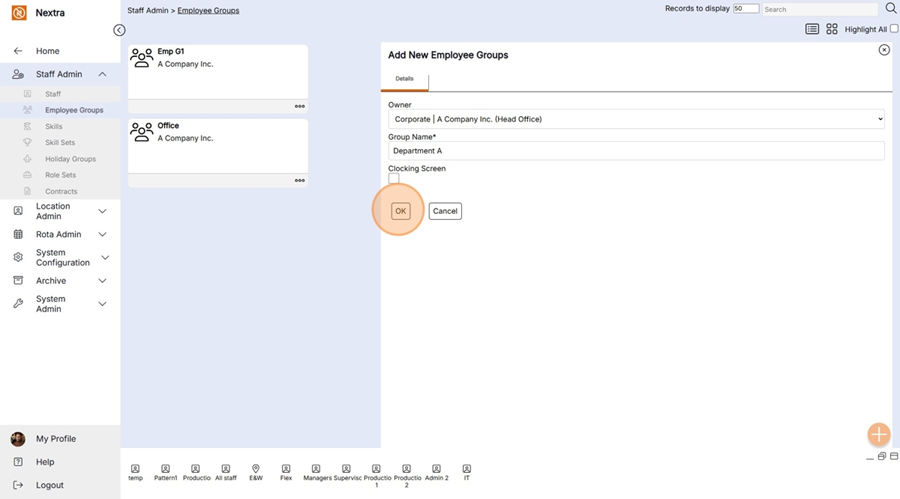
Select ‘OK’ to create the new employee group.
Step 4 – Select ‘OK’ to create the new employee group.
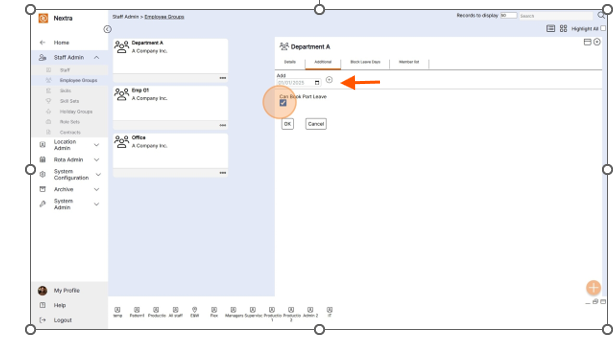
The 'Additional tab' - Here this employee group can be allowed to book part days - Use the folder to open or the plus icon to add.
i) If part day bookings are allowed click the tick box
ii) leave the tick box blank if part day bookings are not allowed
The ‘Block Leave Days’ tab allows the user to specify dates in which staff members within this ‘Employee group’, cannot book any leave in the system, as well as during which time period they cannot request these dates.
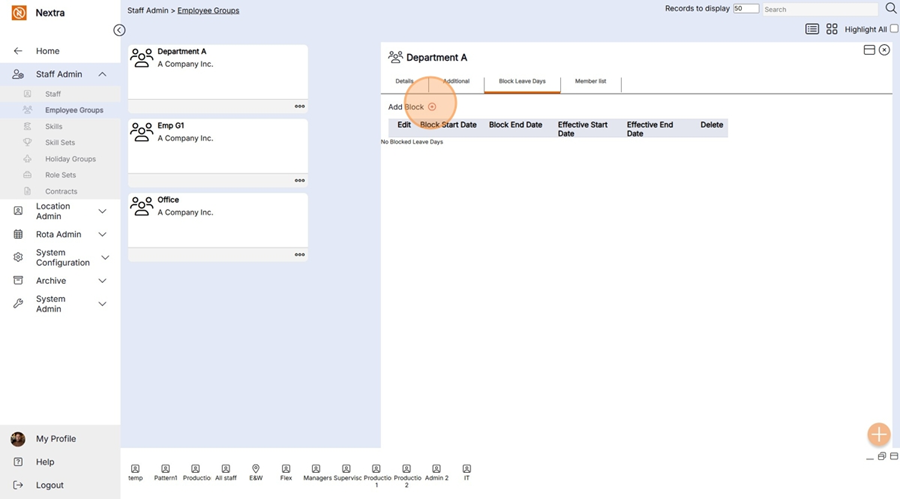
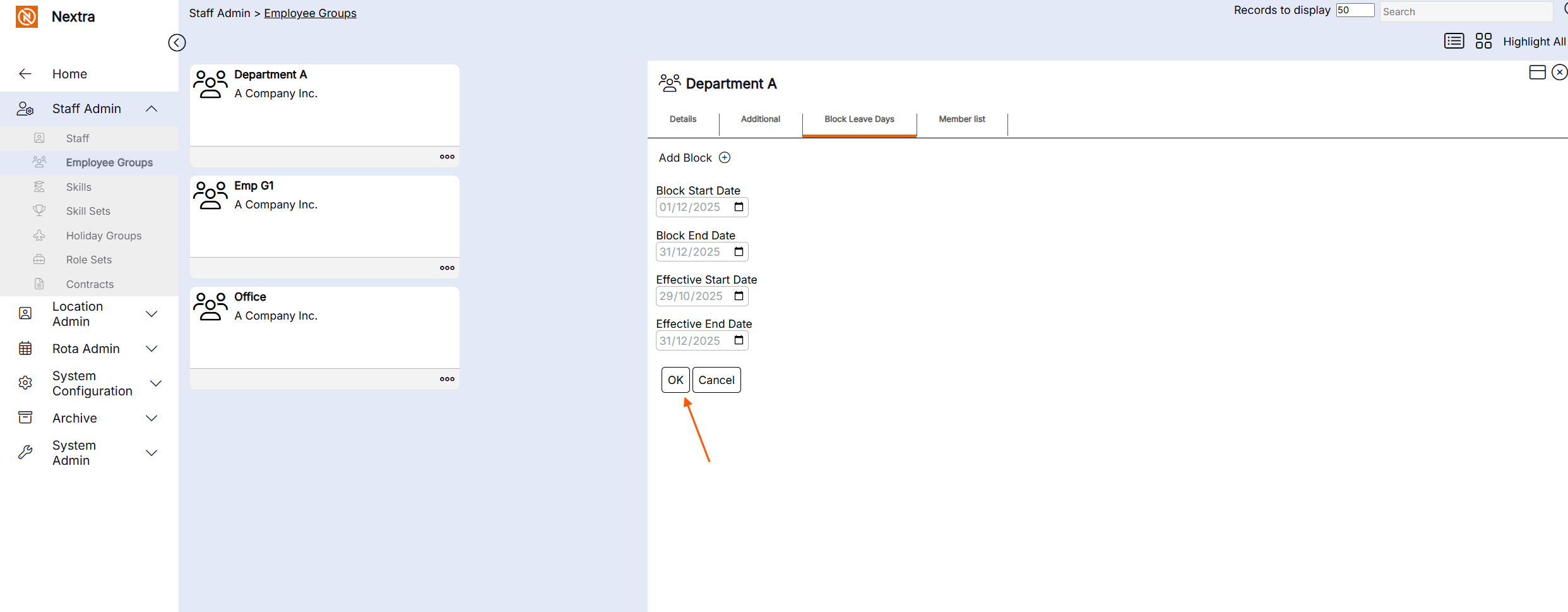
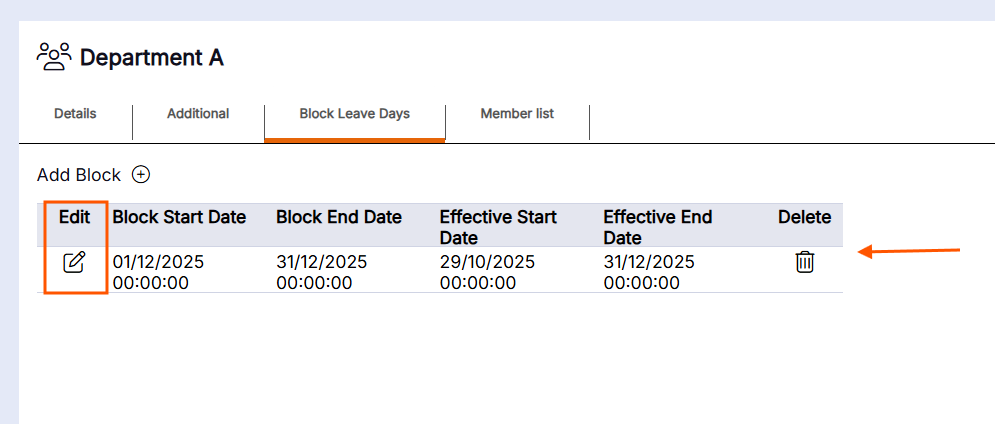
On saving the record the Block leave screen will show the dates holiday cannot be booked for. This can be edited or deleted if required
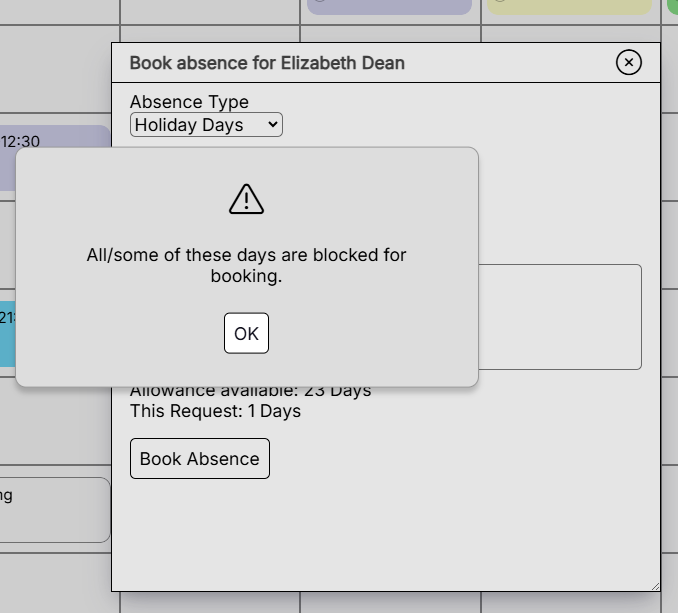
NB. Now when a staff member who is part of this Employee group tries to book an absence they will receive this message
Staff members now need to be added to the Employee Group
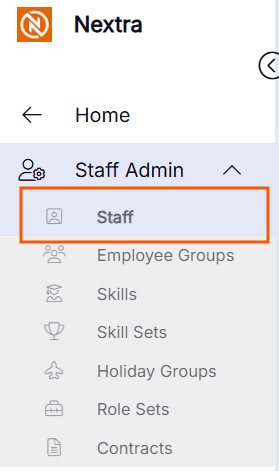
Step 1 - Go to the staff menu
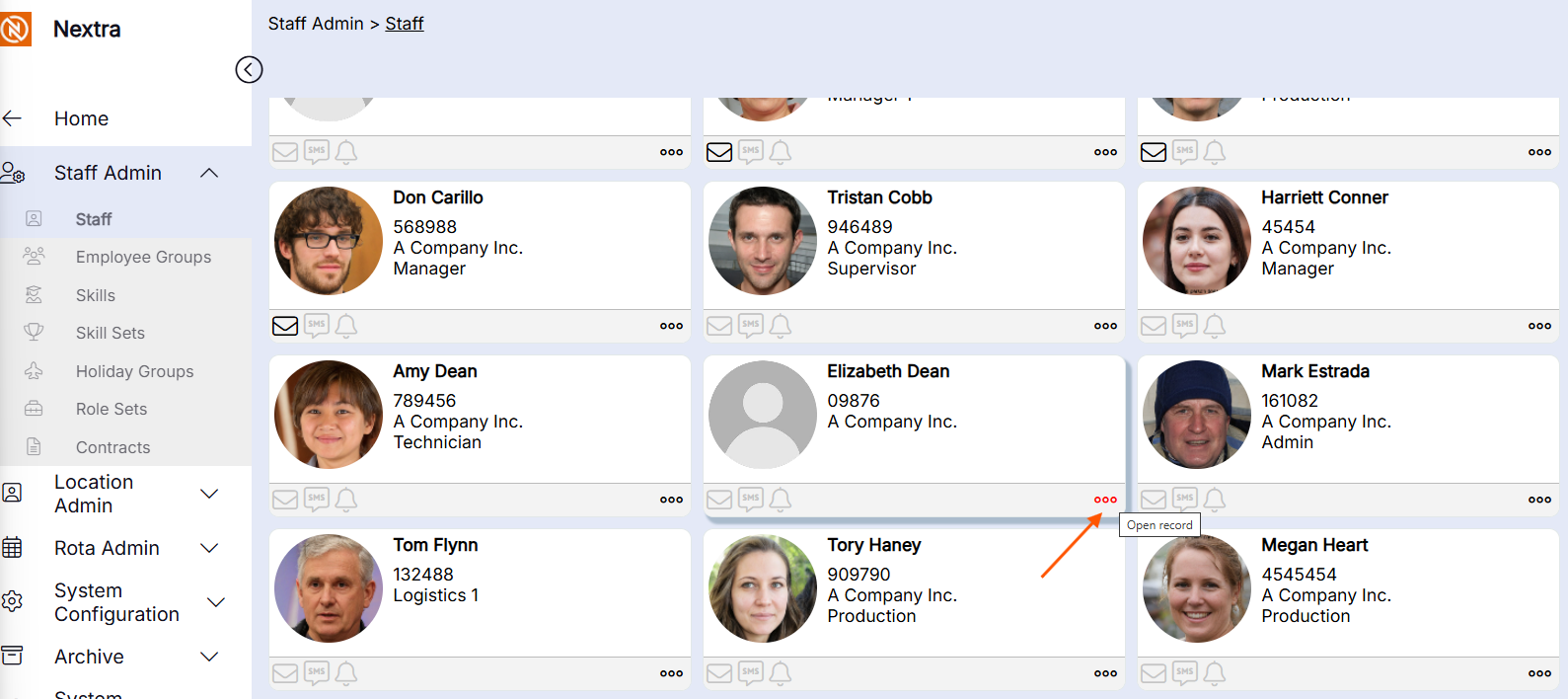
Step 2 - Open the staff members record you want to add an Employee Group too.
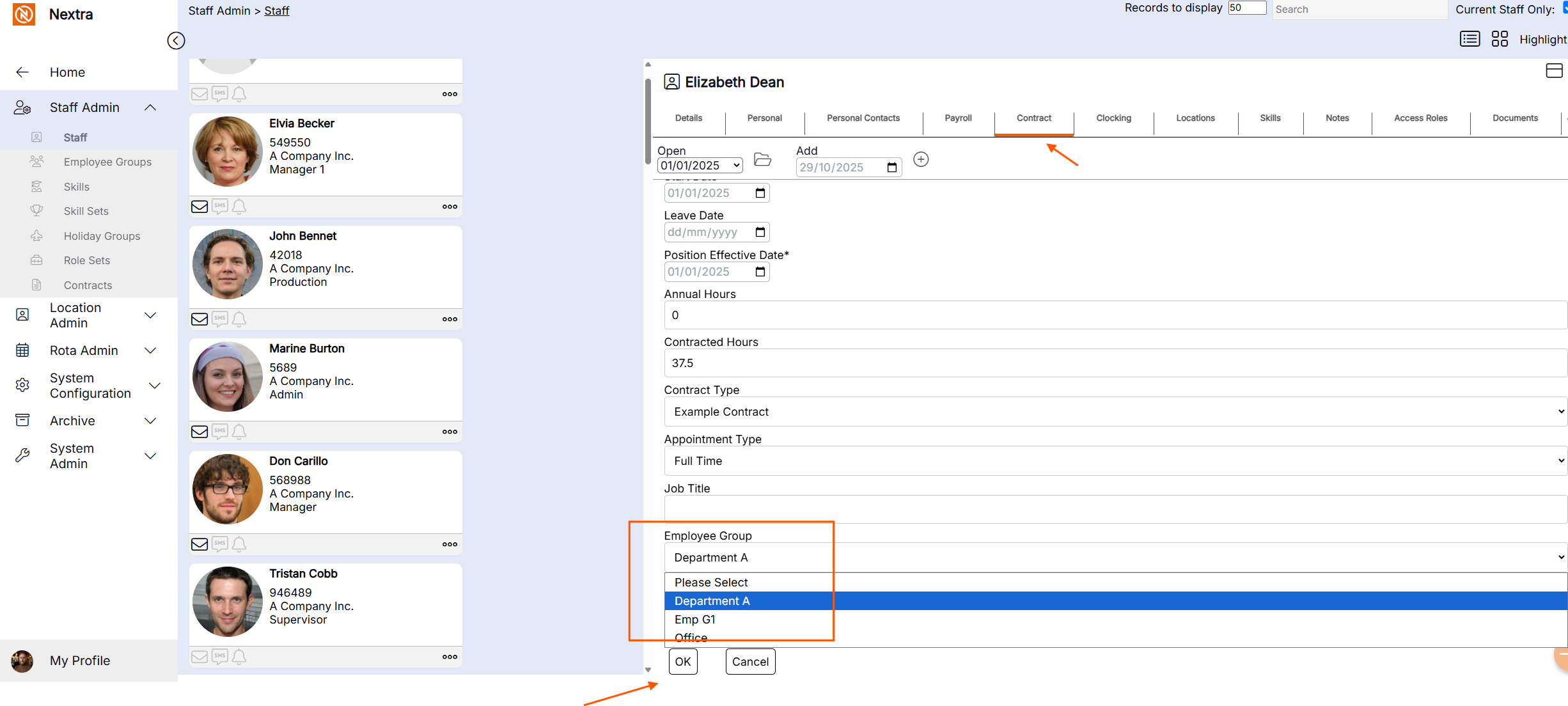
Step 3 - Go to the contract tab of the staff record.
Step 4 - Find the Employee Group field at the bottom of the screen and select the employee group you want to add them too.
Step 5 - Press Ok.