
Weekly Approved Clocked Hours Report
Weely Approved Clocked Hours Report
The Weekly Approved Clocked Hours Report is used for managers to refer to when employees are rostered and are using a clocking device to record their In & Out and break times throughout the day.
Employees can use either a face recognition clocking device, Biometric device or manually enter their unique clocking pin to register their clockings which are shown on the Clockings Tile. Once received and actioned by management the recorded information for the week is produced into a report. Please be advised this report can also be exported to an Excel spreadsheet.
Please follow the steps below for further information
Step 1
From the main menu click on Reports and find the report called Weekly Approved Clocked Hours.
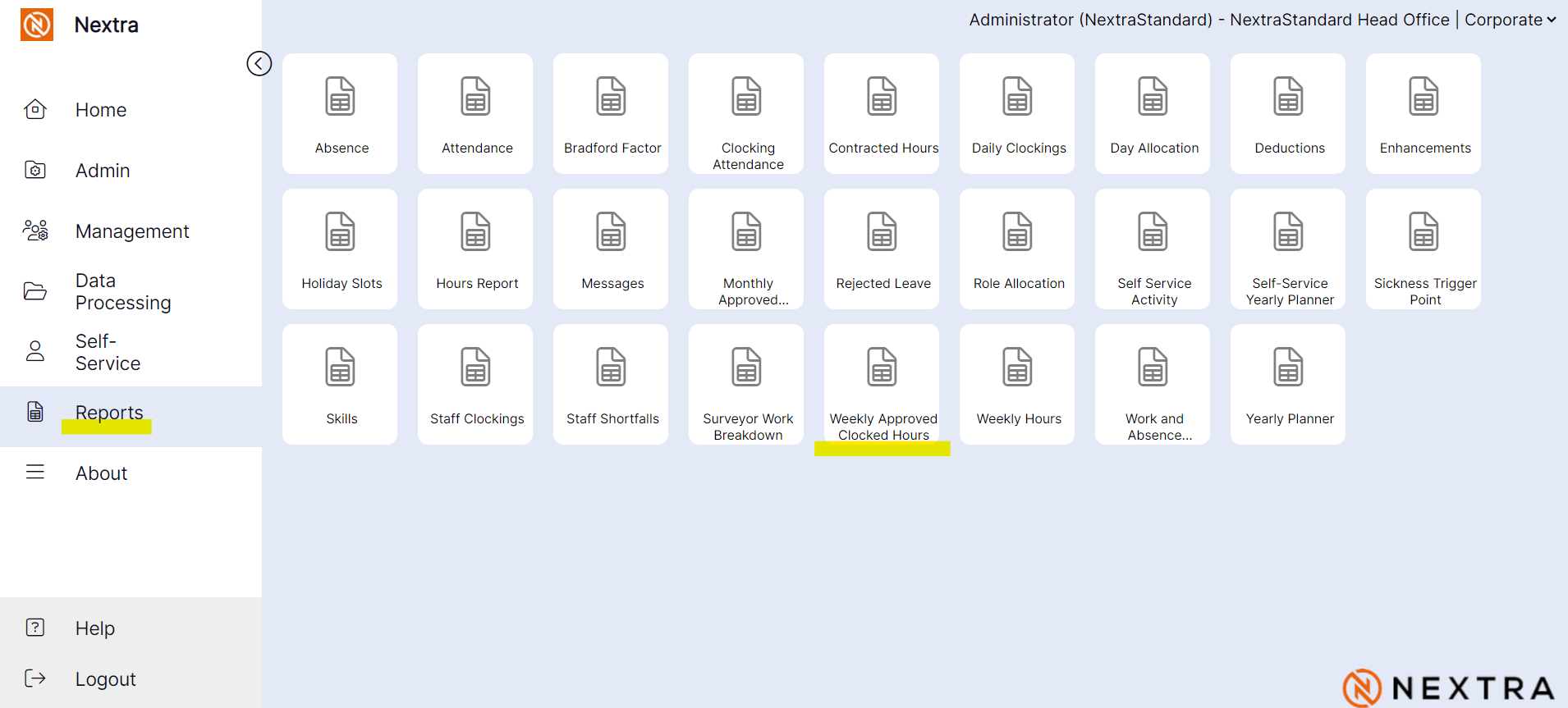
Step 2
Once the report is open it will give you a drop down list of Locations and a Start Date field starting from the most recent commencing week.

Step 3
From the Location drop down list you can choose a specific location of clockings that you want to view. The chosen location will show any staff members with that Principle Site set up in their contact record. From the Start Date drop down list you can select the week, this will then give you a report for the whole week.
Please note: The location drop down will be shown in hierarchy order, therefore if you select Head Office this will show you anyone at that level and below clockings for that chosen week. If you want to see a specific area of employees clockings then be sure to open only the location needed.


Name: This will show the first and surname of the employee
Person ID: The individual's unique employee number
Monday-Sunday: Shifts worked will be shown under the days worked
Planned Hours: Hours that have been rostered to work
Approved Hours: Hours worked that have been approved by management (this could include enhancements)
Variance: This is the difference between hours worked over the planned hours
Clocked Breaks: Breaks that have been clocked in and out for, the total clocked break will show
Any shifts that haven't been approved by management, unexpected clockings, or shifts worked over the planned hours that are to be actioned will show on the report under the Approved Hours column with a warning triangle. The triangle can be clicked on and opened, this will then tell you the action required.
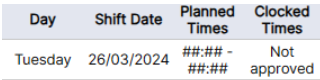
If there has been an unexpected clocking it will show with hashtags under the Planned Times column as shown in the example below.
If there are clockings that are yet to be approved it will show as Not approved under the Clocked Times column as shown in the example below.
In order to have an accurate report at the end of the week, these warnings that have been flagged will need to be actioned in the Clockings tile.