
Support Portal - Step By Step Guide
Please follow the steps below on how to raise a new support ticket
Step 1:
From the Nextra navigation menu the user will then find the Support Portal tile.
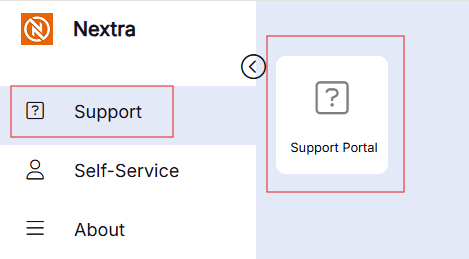
Step 2:
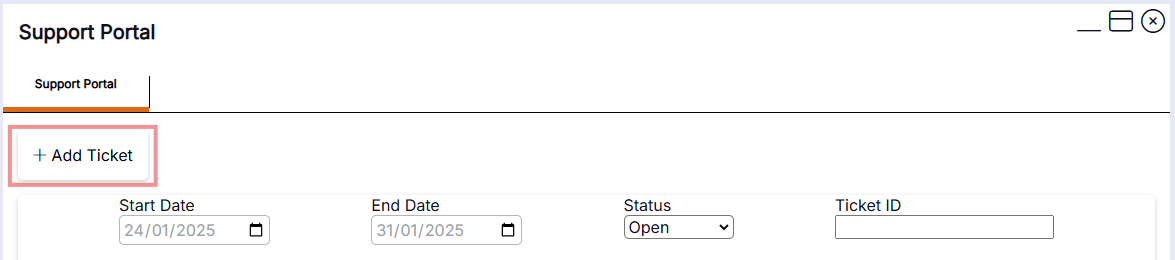
Once the Support Portal tile is open, the user will see the +Add Ticket button.
Step 3:
To raise a new ticket the user must click on the +Add Ticket button.
The screen will expand and the following fields will be available to complete:
- Summary: A brief summary on the issue being raised
- Description: Further explanation on the issue - This can include employee names, Dates, where in the system the issue lies. Note: Please can the the user provide as much information about the issue as they can so Support and the Development team can act on the issue raised efficiently.
- Username: The username of the person raising the support ticket
- Steps Taken: The steps the user has taken to try and resolve the issue before raising a support ticket
- Users Affected: How many users have been affected by the issue being raised. Note: This will start on 1, the bar can then be dragged to 2-5 then to 5+.

Step 4:
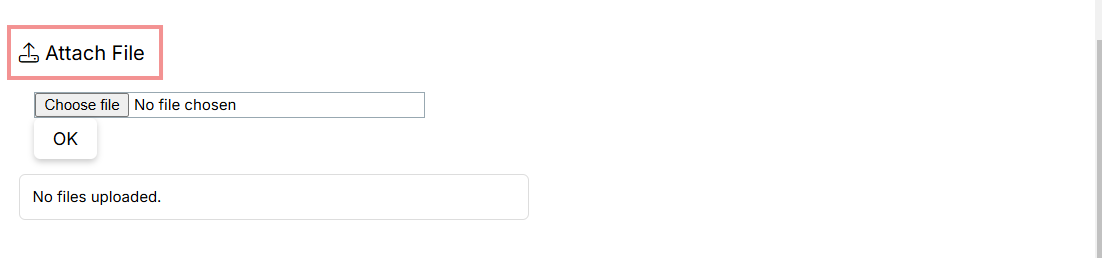
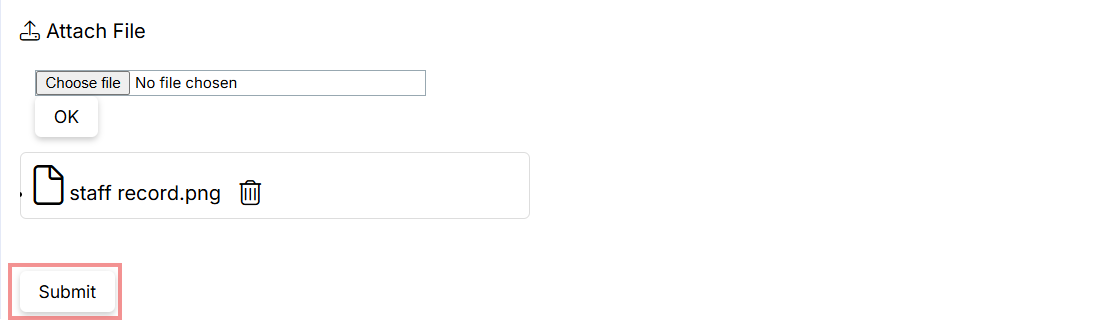
The user can attach a file to the support ticket by clicking on Attach FIle. This can include any screenshots, Word, Excel documents or extra information that will be useful to get the issue resolved.
Step 5:
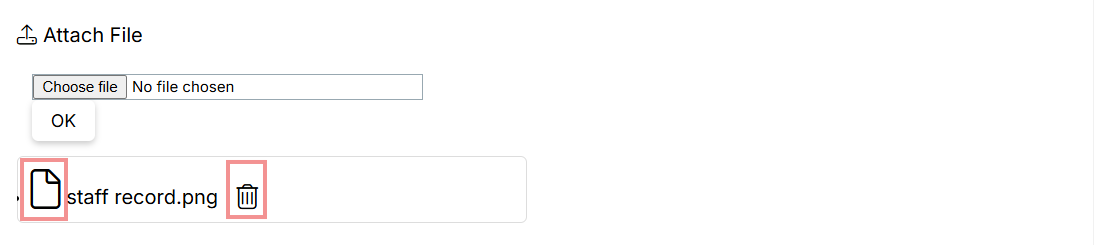
The user can choose the file they want to attach to the support ticket by clicking on Choose File, this will open their File Explorer. Once the file has been selected the user can click OK, they will be able to open the file or delete the file before submitting the support ticket.
Step 6:
Once the user is ready to log the issue with Nextra Support Team they can click the Submit button.
Step 7:
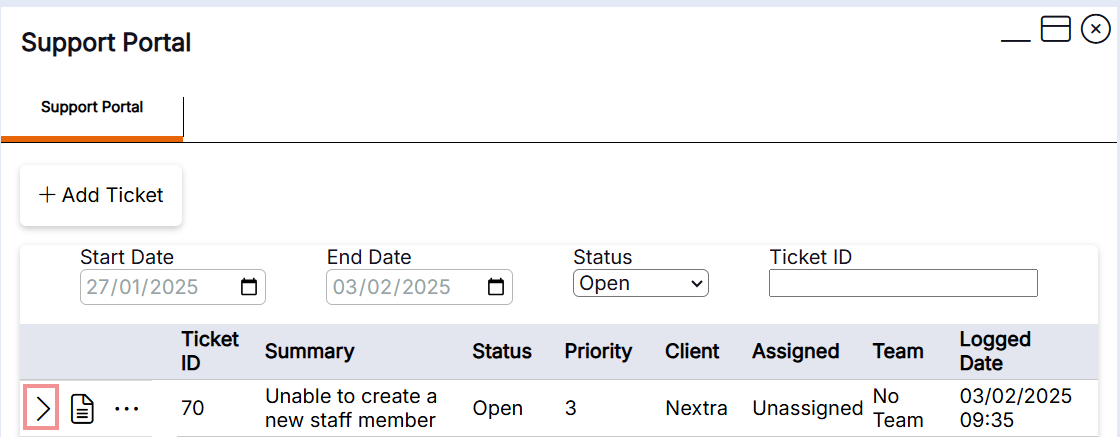
Now that the ticket has been logged, it will automatically show at the top of the screen with the Status set to Open. The user can click on the expanding arrow to view their ticket raised and send External comments. In the External comments section this will also be where users will see comments from Nextra.

Step 8:
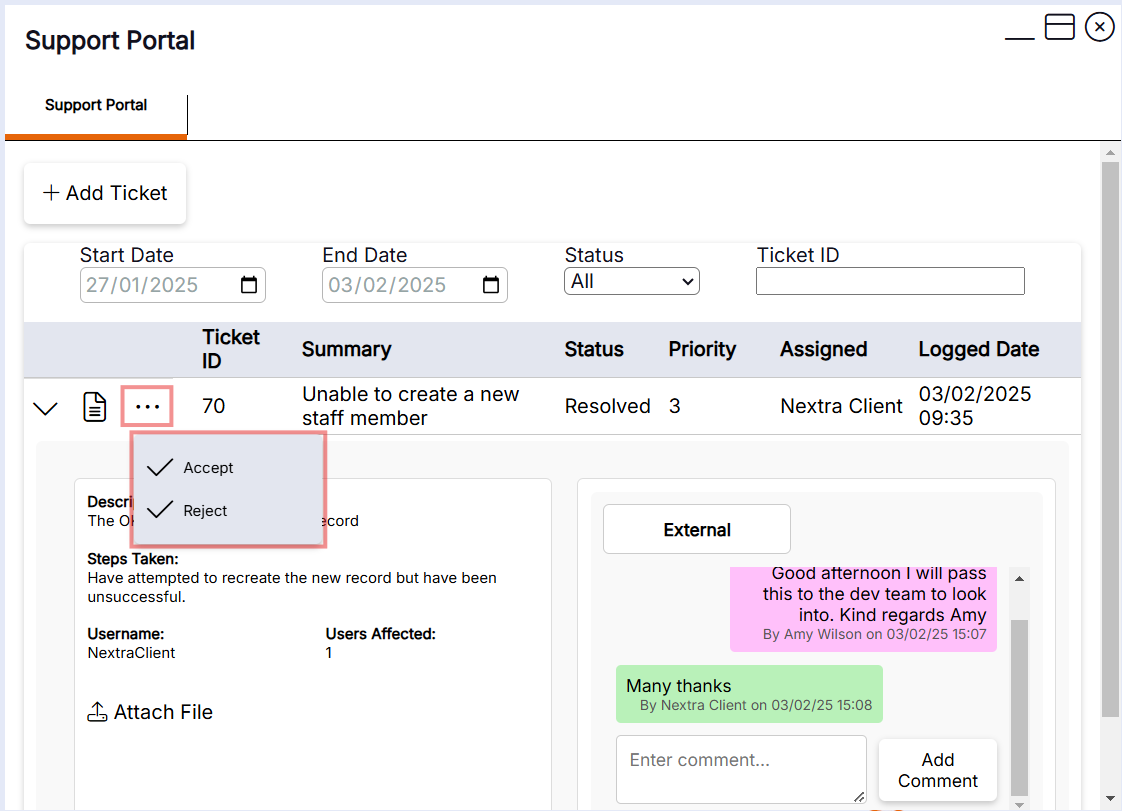
Once there has been a fix put in place for the issue raised, the Support Team will assign the ticket back to the client. There is Action button with three dots, this is where the user can now choose to Accept or Reject the fix. If the user Accepts the the fix it will automatically update the Status to Close, if the user Rejects the fix it will update the Status back to Open and the Nextra Support Team will be notified of this.
Please Note: Once a ticket has been closed, the user can reopen it again if it's within a month of it being closed. If it is over a month a new ticket will need to be raised.