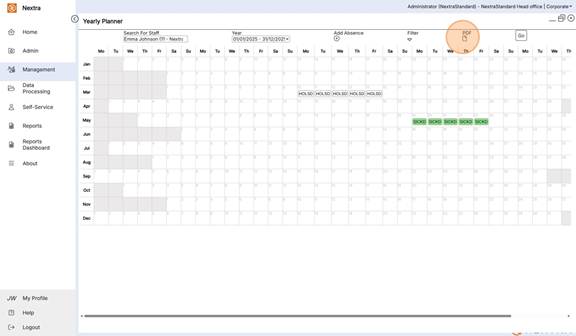
Yearly Planner
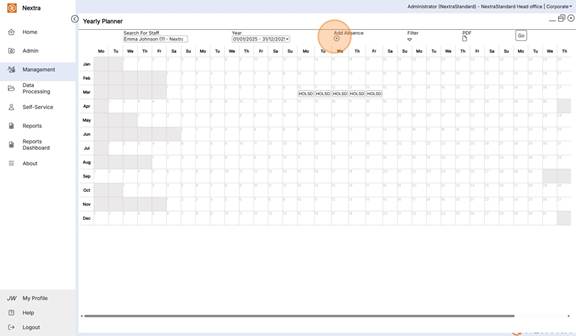
The Yearly Planner is an overview of staff absences and shifts in a calendar view format. Users can filter the calendar view by absence type and working shifts, as well as add new absences directly from the Planner.
The yearly planner can be found in the Management section.
To view the Yearly Planner by person:
- Select the "Search For Staff" field.
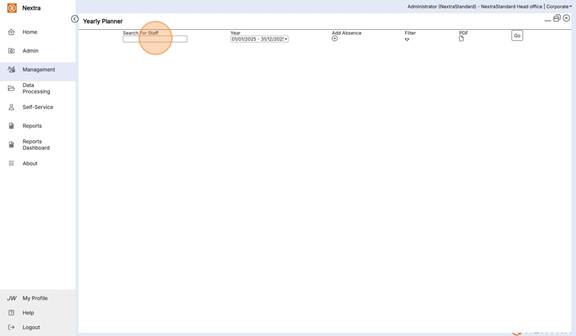
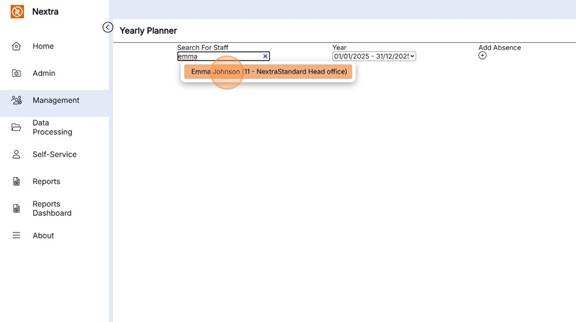
- Enter the name of the staff member whose record you wish to view.
- Select the leave year you wish to view.
- Select the Go button.
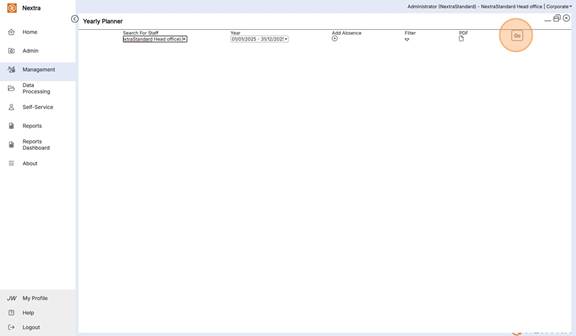
Absences and shifts will display on this screen, depending on which filters are selected.
To view the Yearly Planner by team or location:
- Select the 'By Location' tab.
- Select the location or team for which you wish to view the Yearly Planner.
- Select the leave year you wish to view.
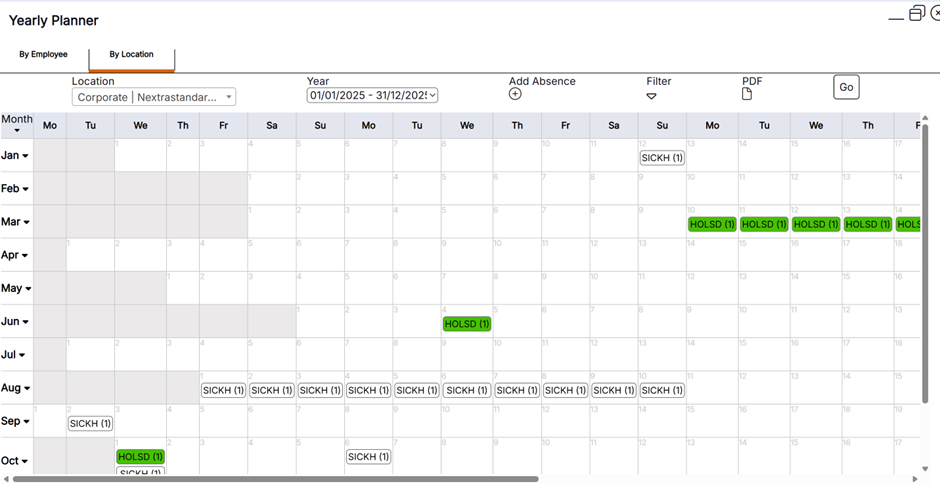
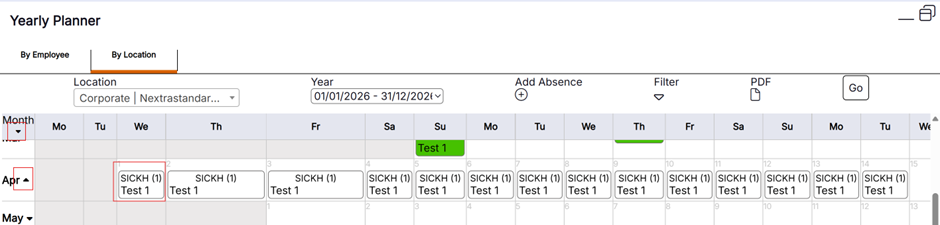
Each absence type will display in a separate cell with an indication of the number of staff at, or below, the selected location who are booked on an absence.
- Select the absence type to display a list of team members who have this absence type booked
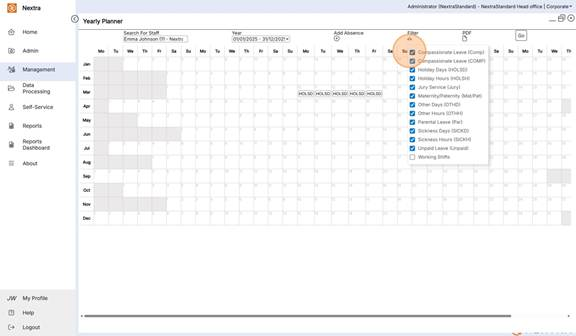
You can change the filters by selecting the Filter option and toggling these on and off.
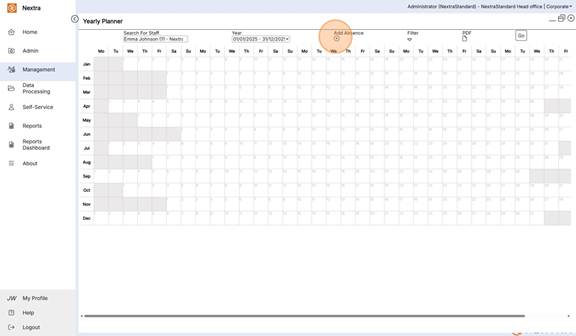
To create a new absence:
- Select the Add Absence button.
- Select the Absence Type you would like to add. In this example we have selected Holiday Days.
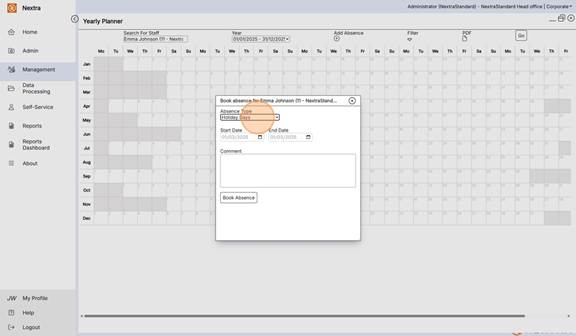
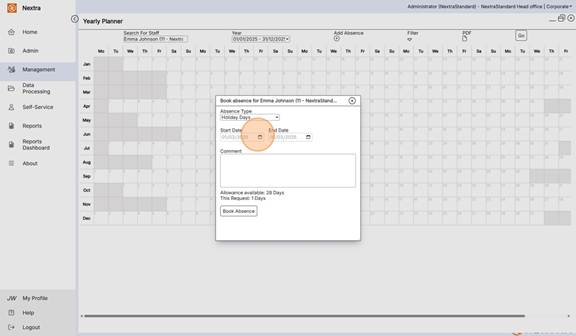
- Enter or select the absence start date.
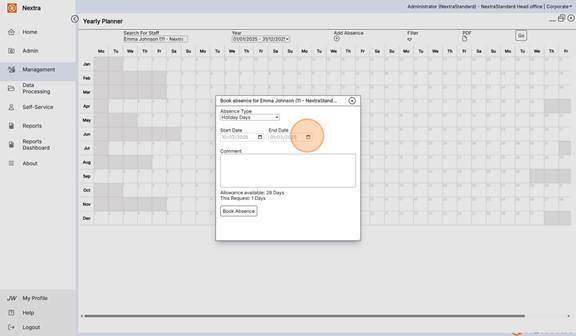
- Enter or select the absence end date if different to the start date.
- Select the Book Absence button to confirm.
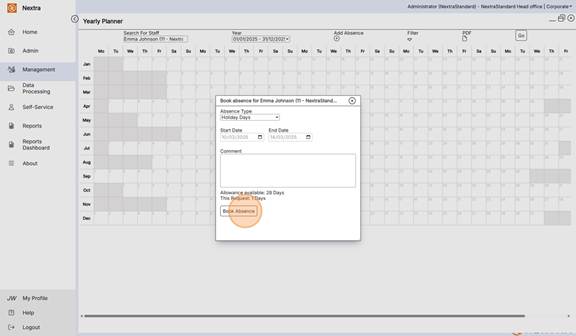
The absence will display in the Yearly Planner immediately.
The Yearly Planner can be exported as a .pdf file by selecting the PDF option.