Booking a Staff Absence via the Rota Screen
Absences can be booked directly in the Rota. The instructions below will be a guide on how to do this.
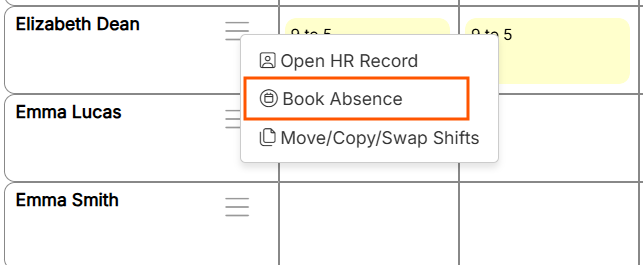
Select book absence within the menu along side the member of staff the absence is being booked for 'Click the 3 line, Hamburg Menu to revel this menu'
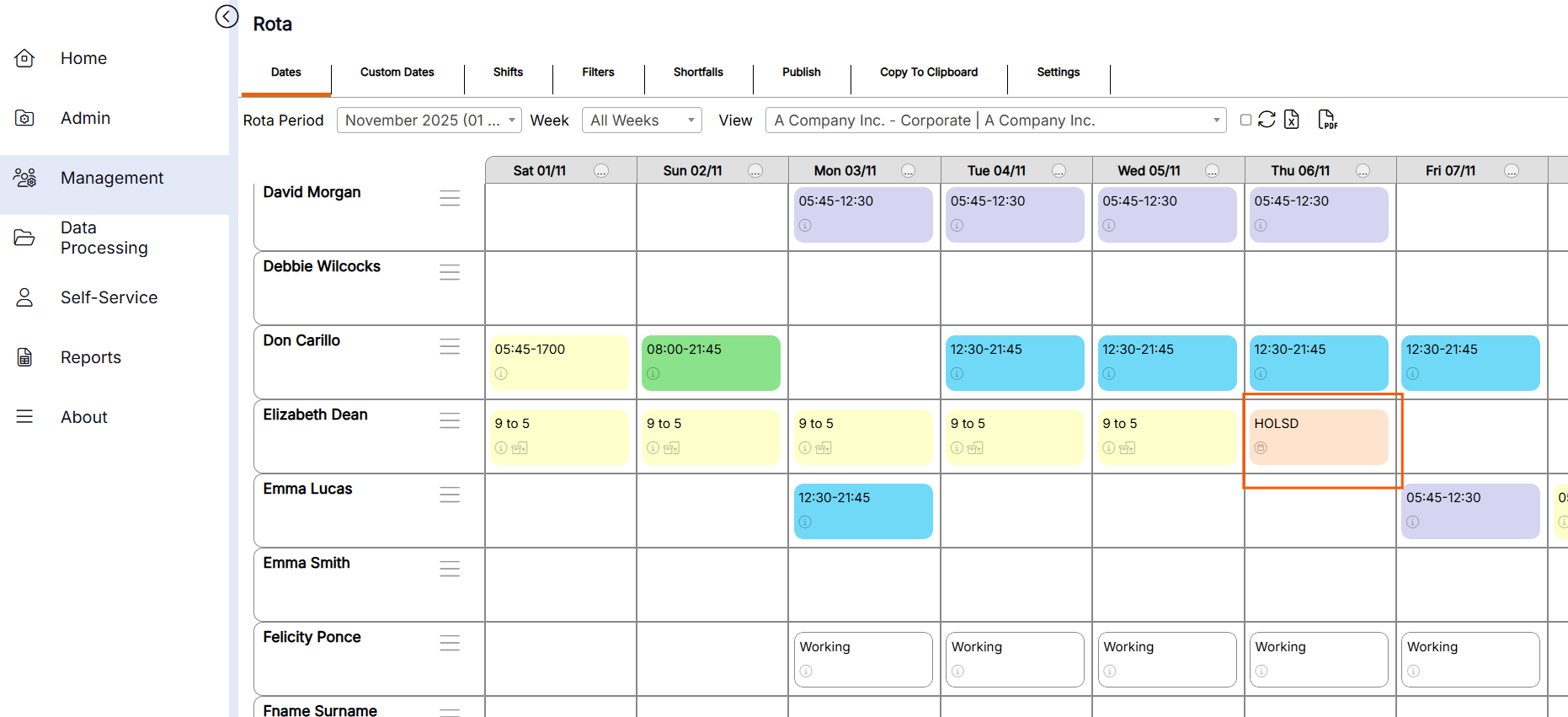
Select the type of absence to be booked and complete all the necessary information - In this example we have booked 1 days holiday for staff member Elizabeth Dean for the 6th November 2025
Click the book absence to save this information
NB if a half day is required the duration should be set to
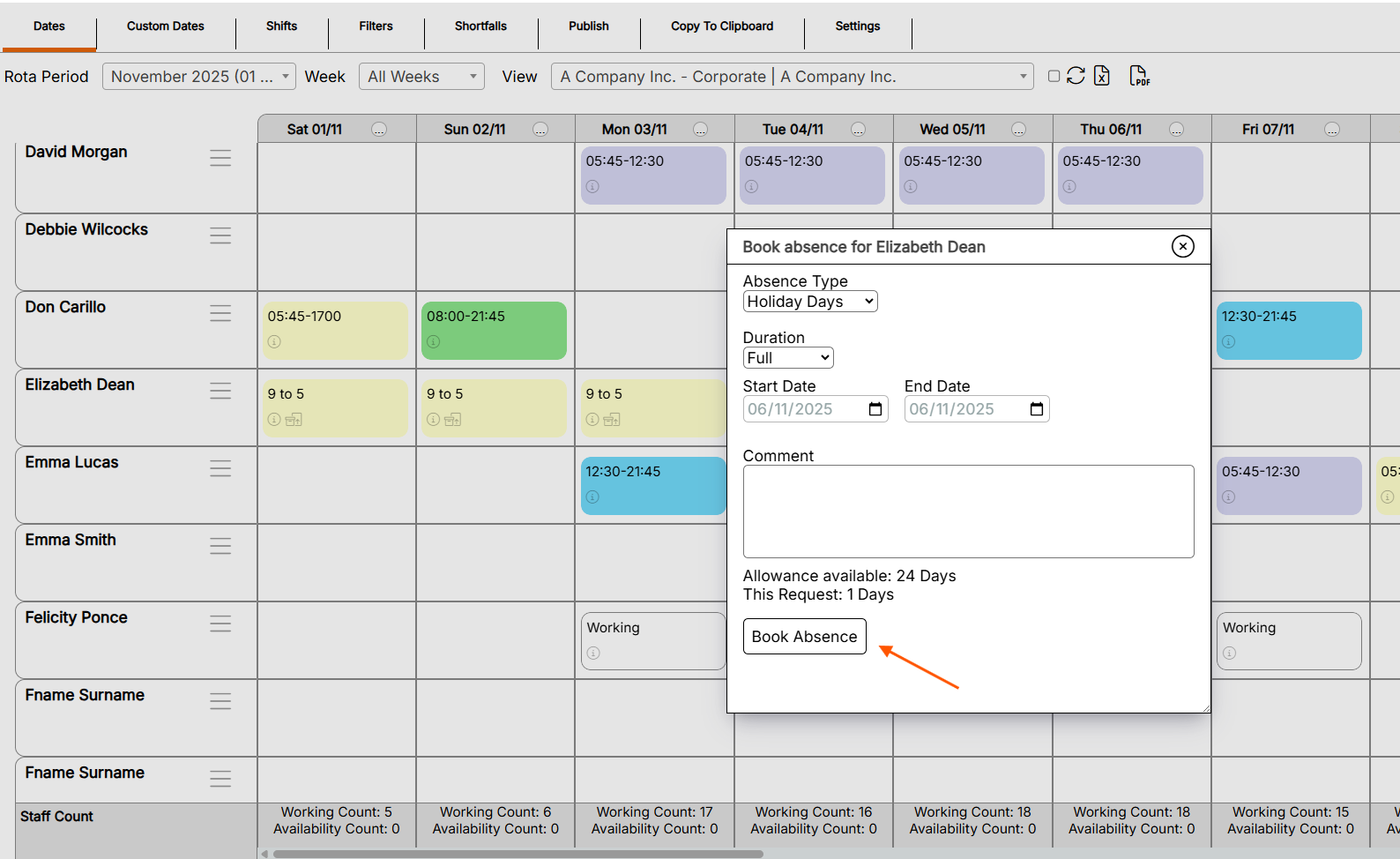
The holiday will now show on the rota.
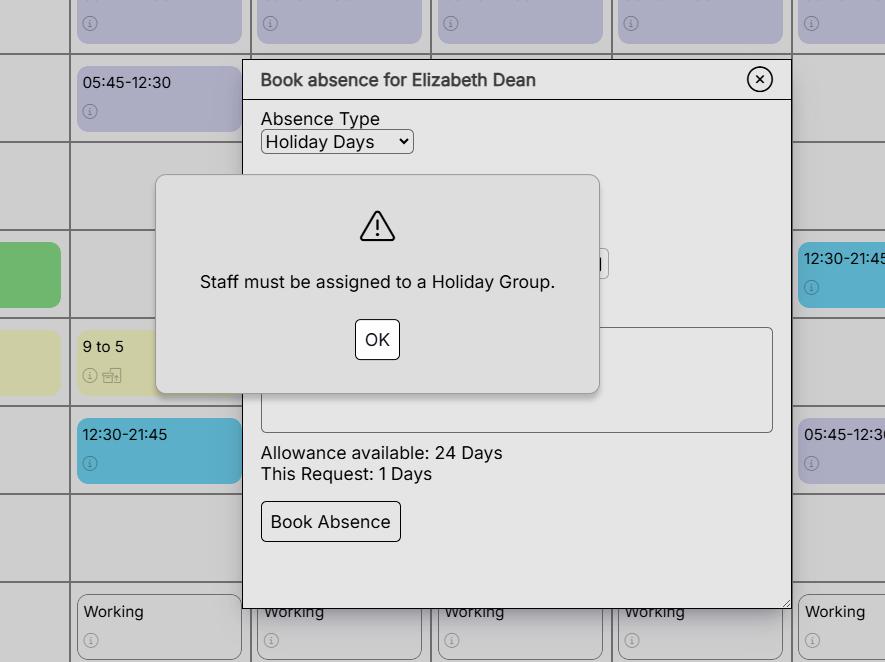
If this error message shows when clicking the Book Absence, it means the staff member has not been allocated to a holiday group. Follow the instructions below to correct this.
i) Press ok on the message and close the book absence screen.
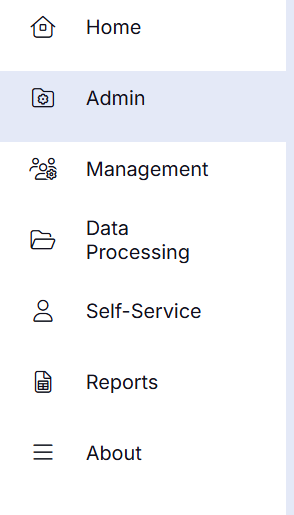
ii) Go to Admin in the menu option
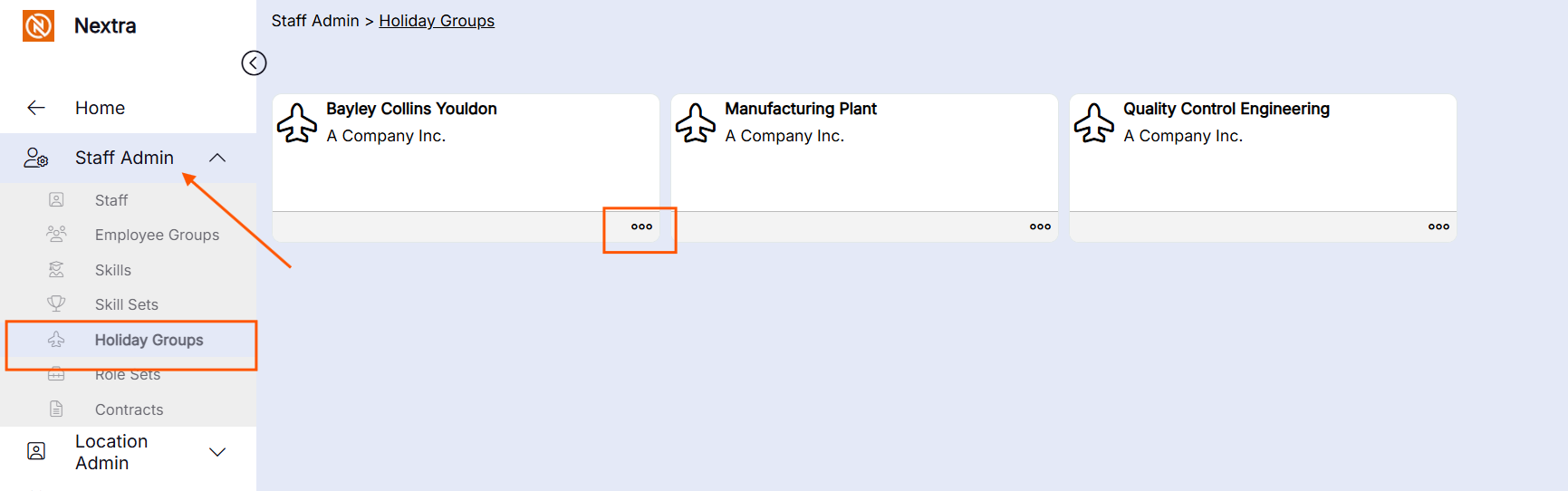
iii) Go to Staff Admin, then holiday groups, select on the 3 dots of the holiday group you wish to add the staff member too and click to open
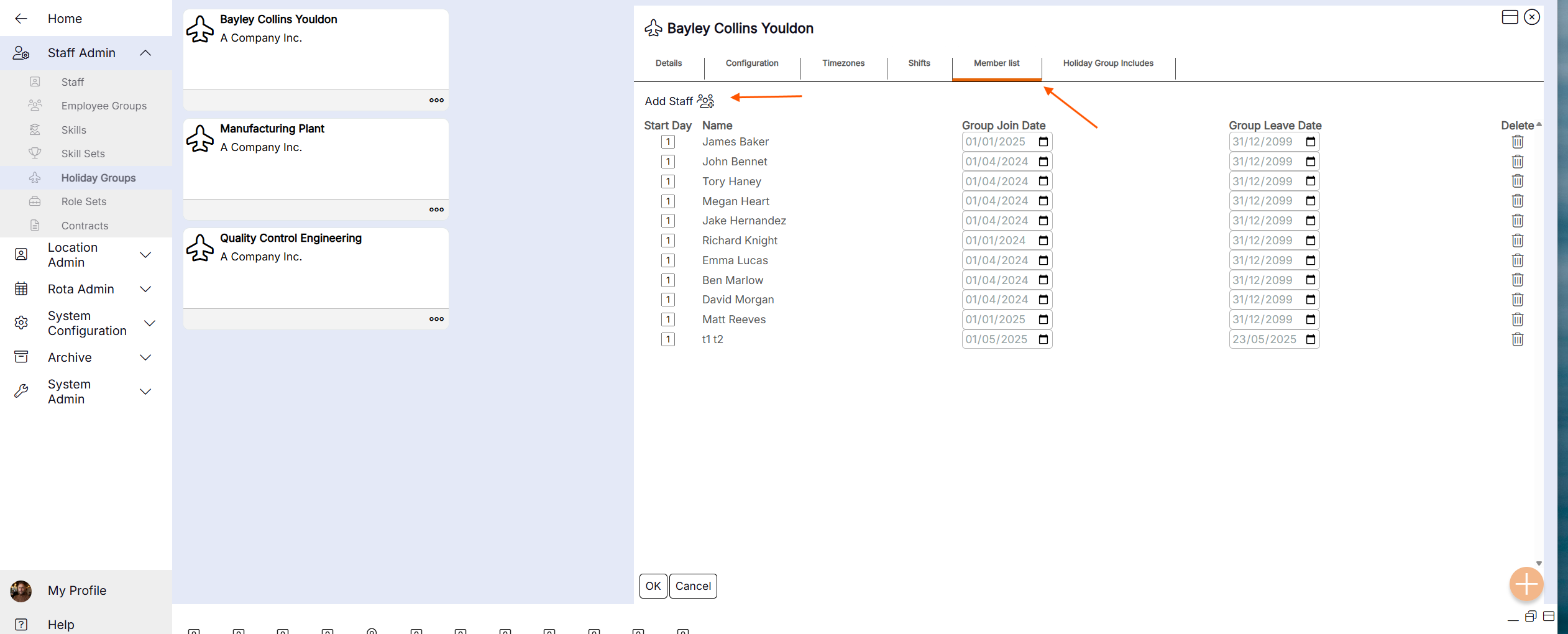
iv) Select the Member list tab and click the Add Staff
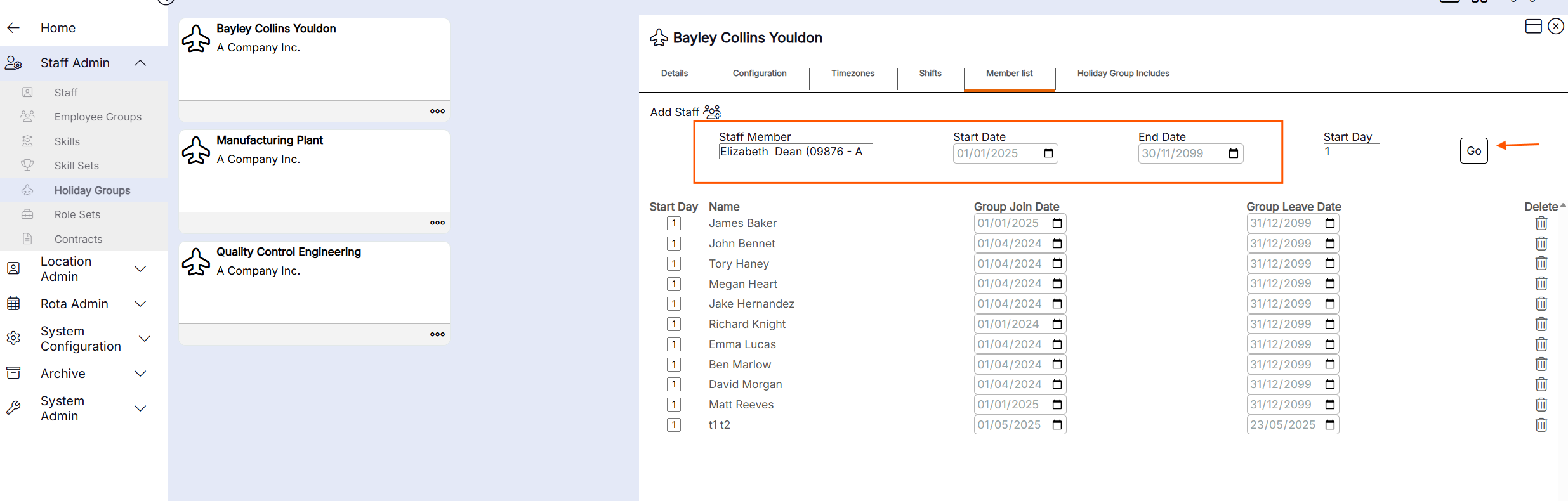
v) Enter the information in the highlighted area below and press Go - The staff member will now be allocated a holiday group and holiday can be be added.
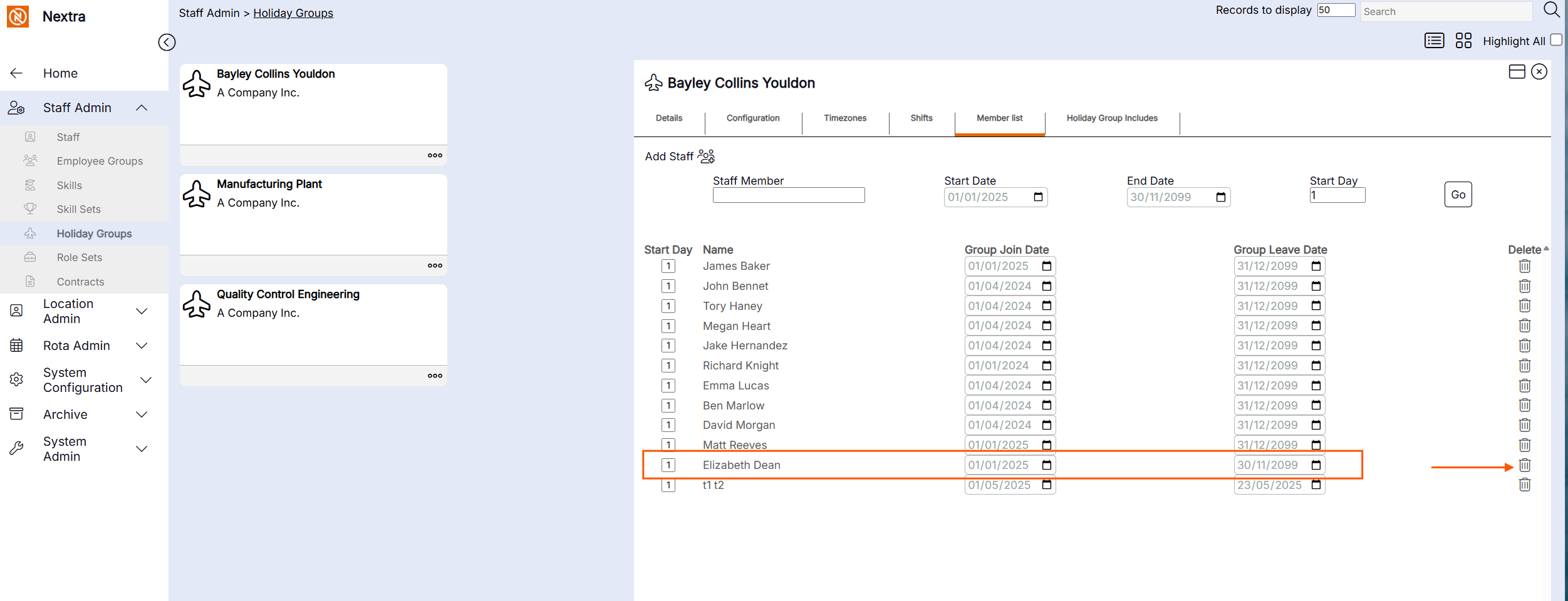
If the staff member needs to be removed from the holiday group - click the bin icon to remove the staff member.
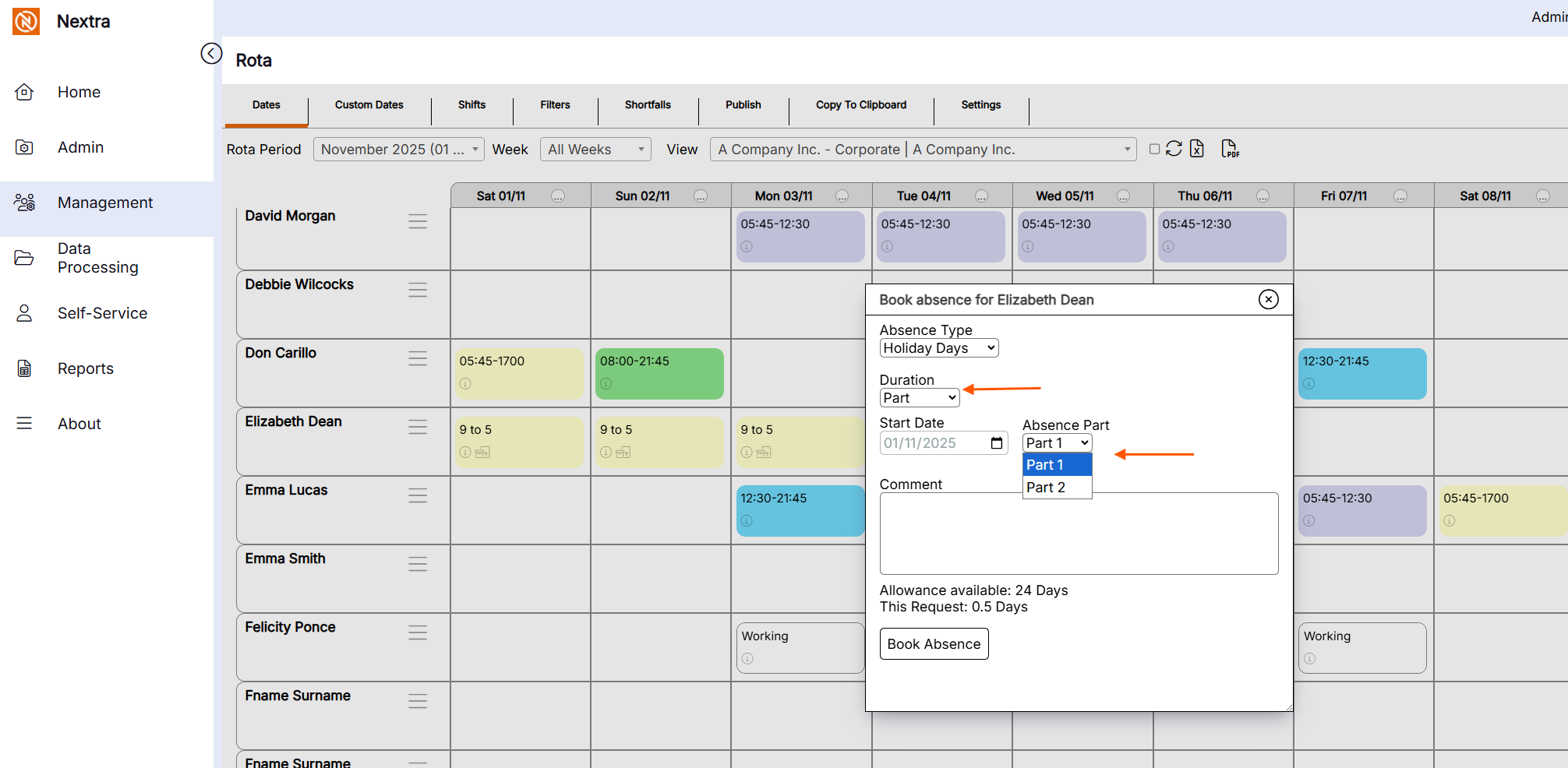
Booking a Part Day Absence
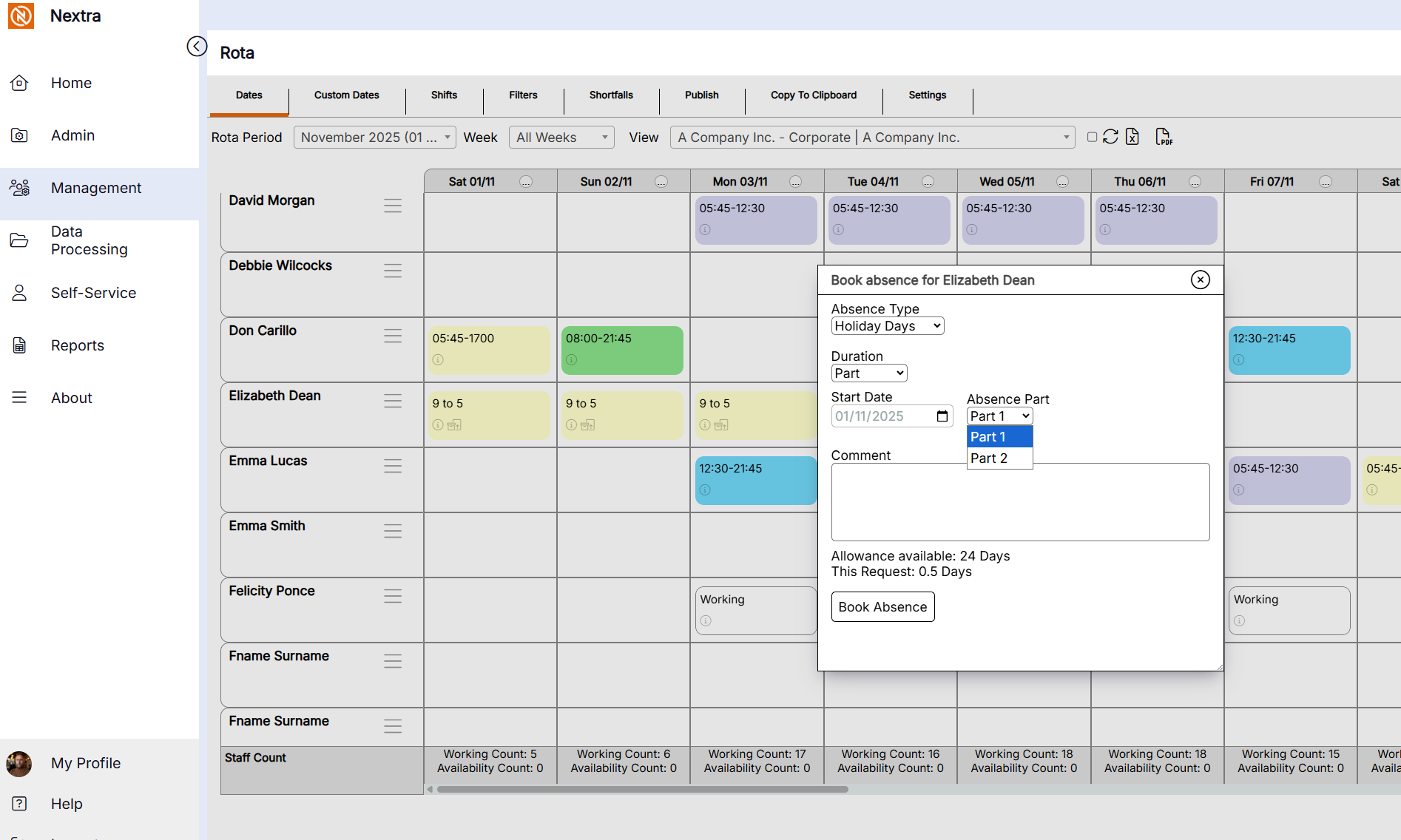
If a part day absence is required, select the absence type
The Duration should be selected as Part
Add the date
Add Absence - select with Part 1 if its the first half of a shift (i.e. on a 9am - 5pm shift this would be the morning.
Select Part 2 if its the second half of a shift (i.e on a 9am - 5pm shift this would be the afternoon)
Press ok to book absence
Cancelling an absence via the rota
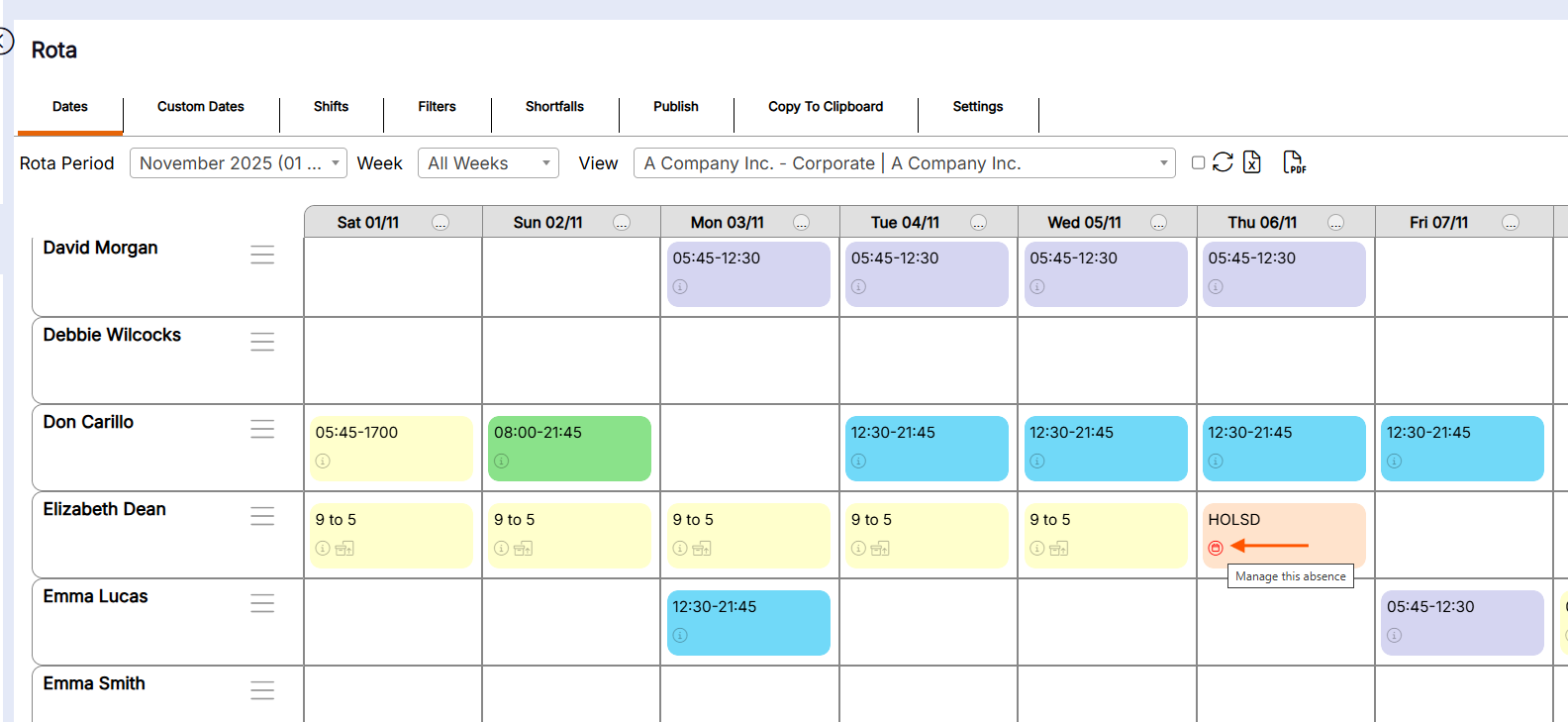
If a holiday needs to be cancelled, this can be done via the 'Rota' Screen - The following instructions will guide you.
i) Click the manage this absence icon on the holiday you want to Manage.
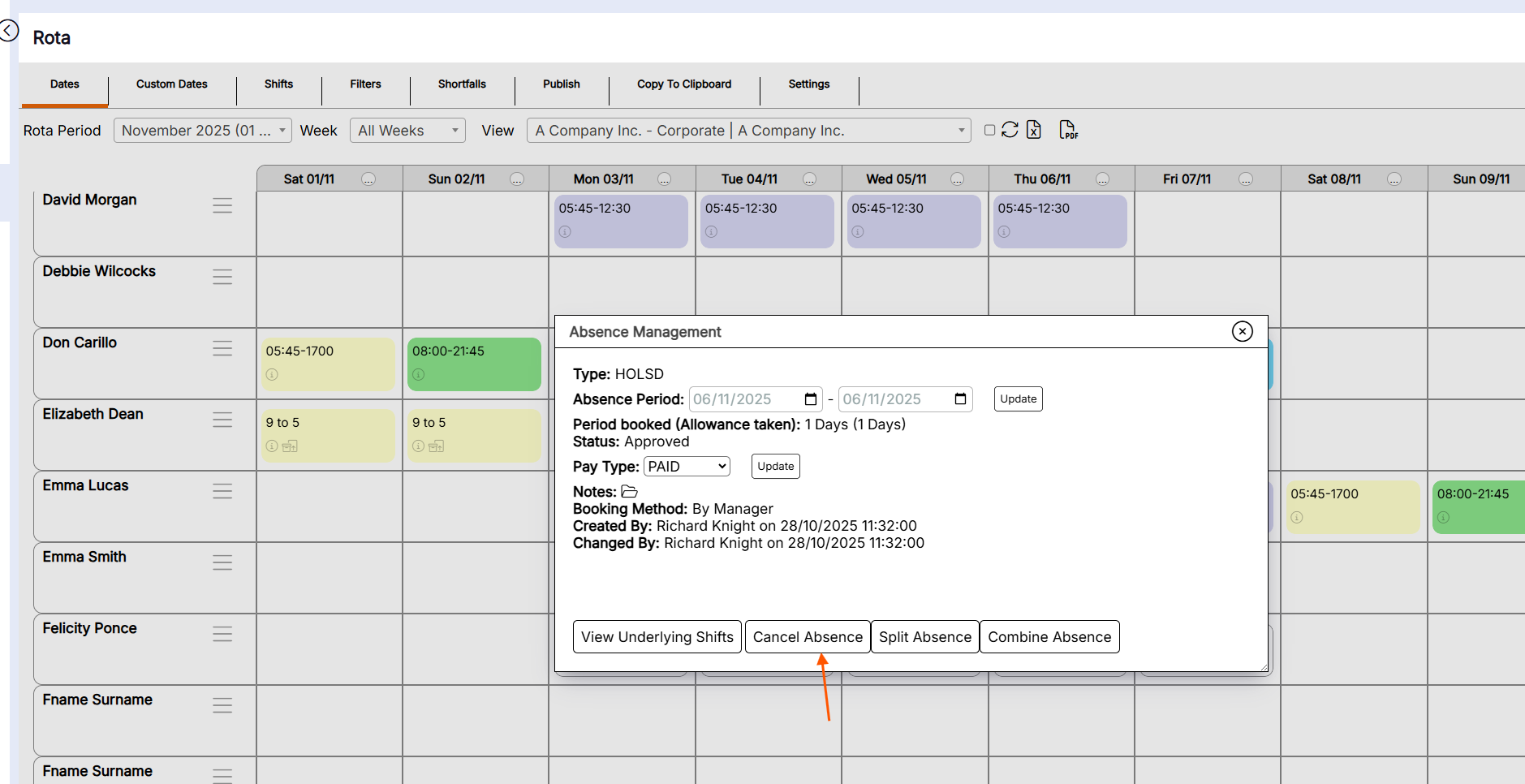
ii) A pop up box will now open with the information on the absence so it can be cancelled by clicking the Cancel Absence Button
Booking an absence as Paid or Unpaid
Where enabled, a user can select if an absence is Paid or Unpaid, this will override the underlying setting on the absence type.
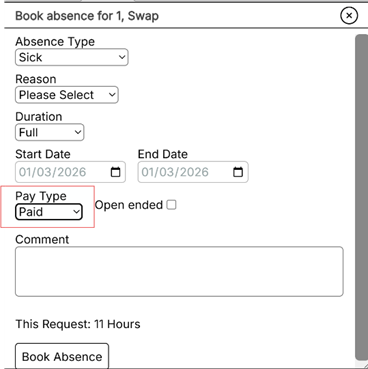
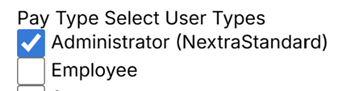
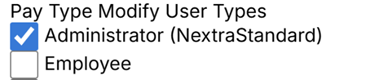
To enable this, the “Pay Type Select Usertypes” and “Pay Type Modify Usertypes” should have the appropriate usertype selected.