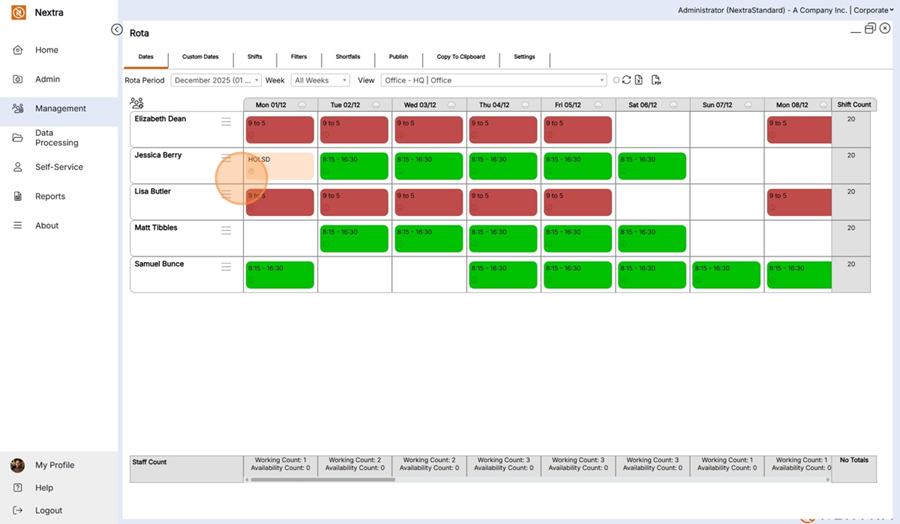
How To Configure Absences for Contracted Staff - Error Message when booking a holiday absence. (No Absences Configured)
These are the steps to take if you get the following message when trying to book an absence.
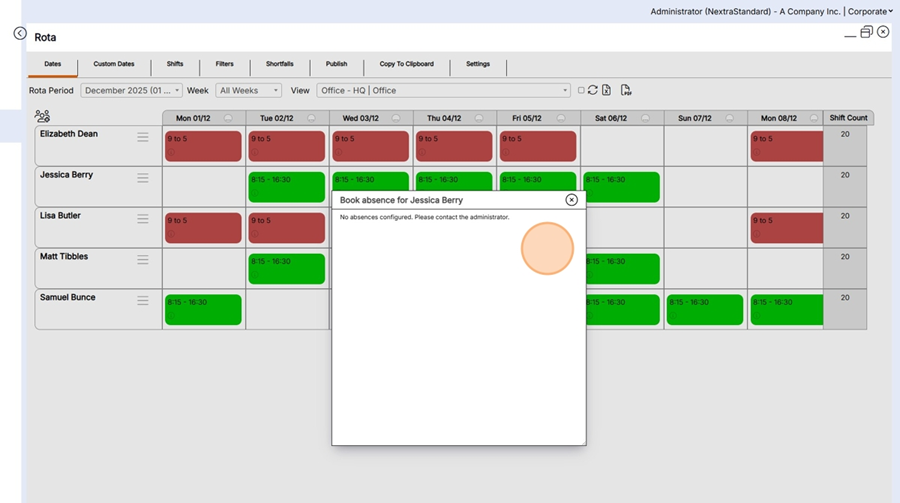
The Staff member's record requires some areas to be set up in order to book absence requests.
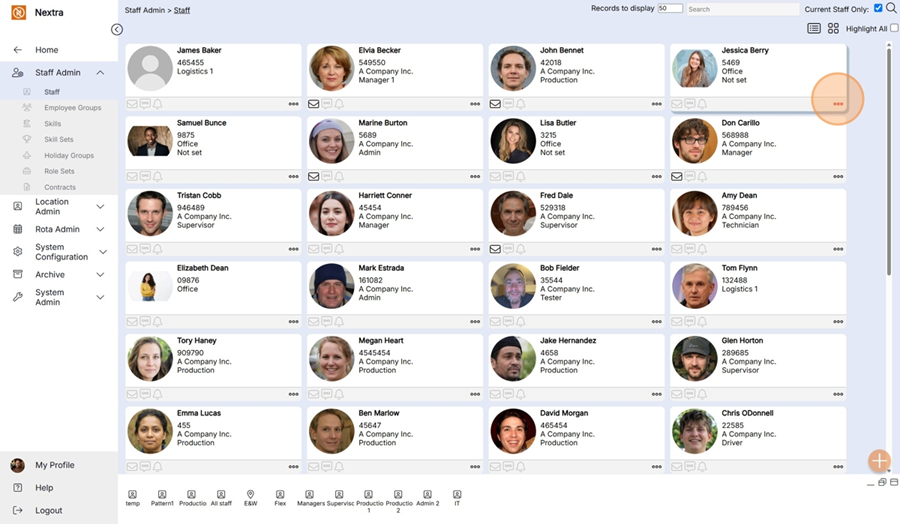
Step 1 - In the Staff members record click the 3 dots to open.
Step 2 - Open the contract tab - If the staff member has a contract already set up there will be information as per the screenshot below. If a contact is in place skip to step 10 (checking the staff member is allocated to a Holiday Group)
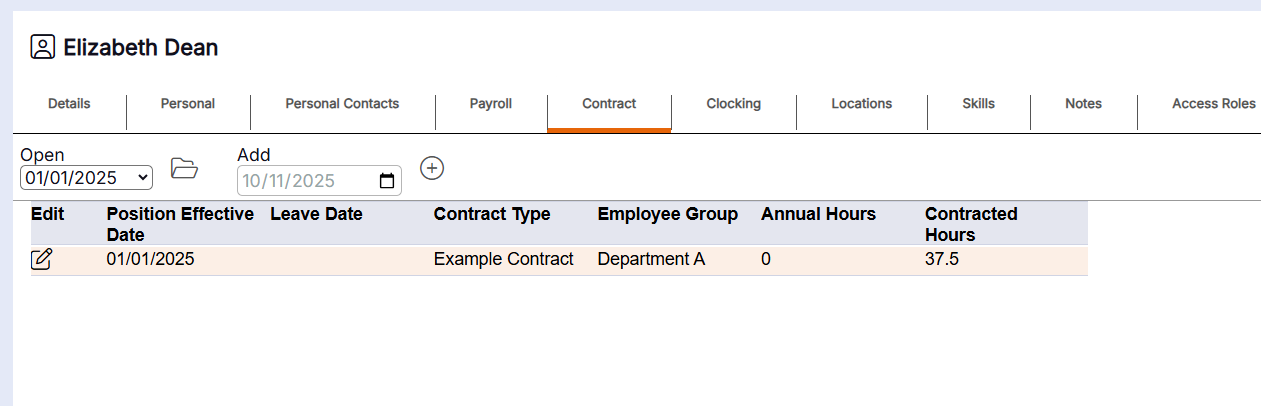
If there isn't a contract in place complete the steps below
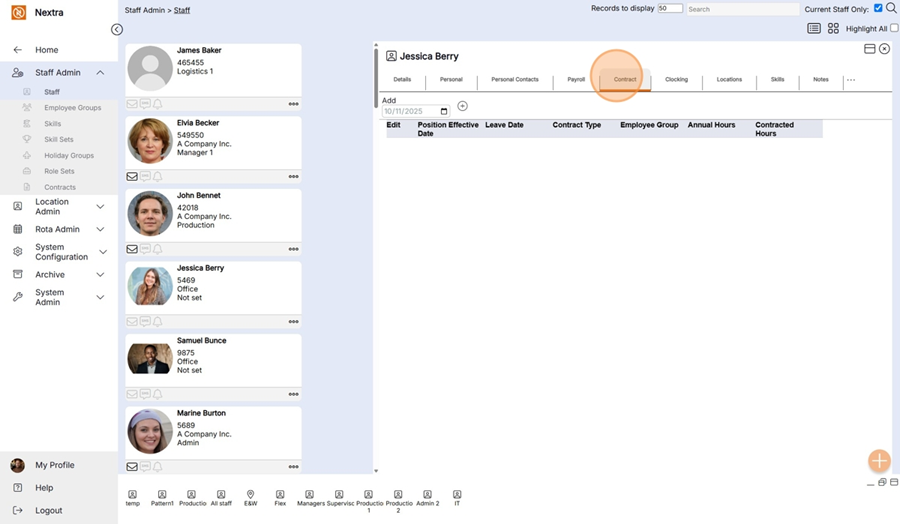
Step 3 - Add the date the contract start date and press the + icon to add.
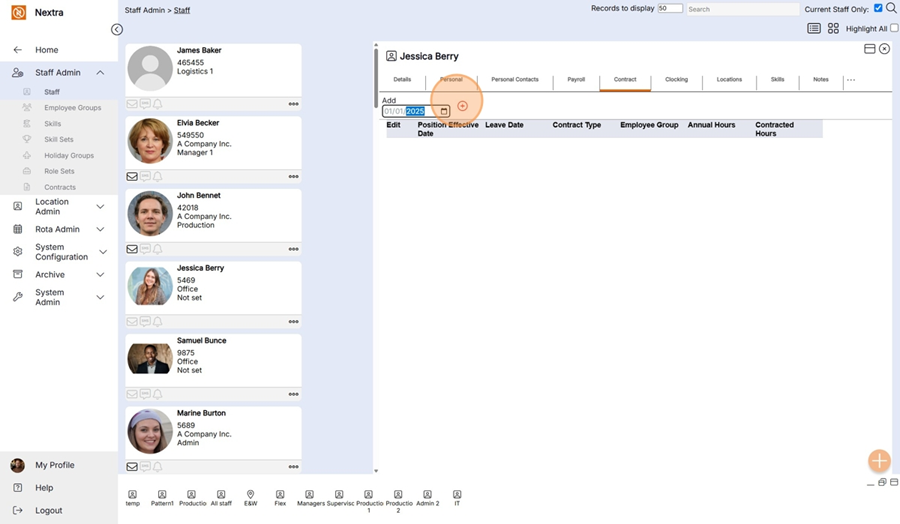
Step 4 - Add the Employee start date.
The leave date needs to be left as it is until the staff member leaves.
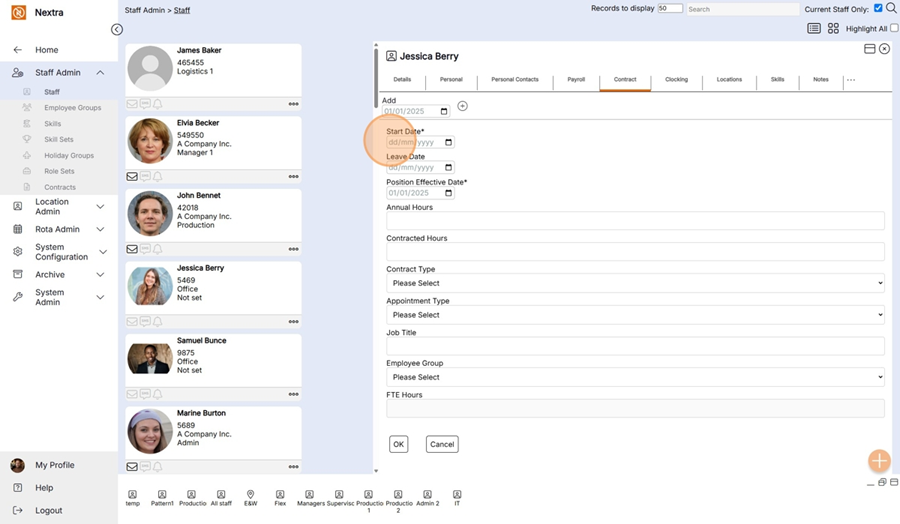
Step 5 - Enter the Contracted hours for the staff member
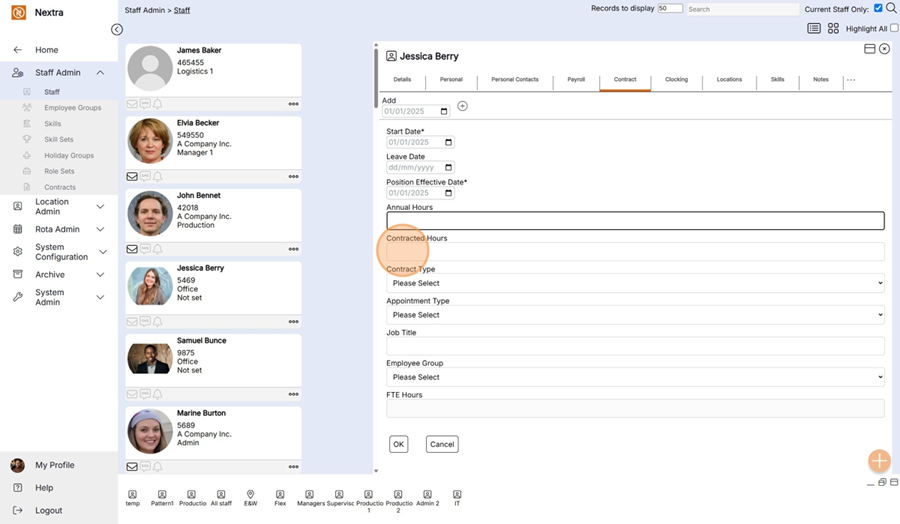
Step 6 - Select the Contract the Staff Member is to be on.
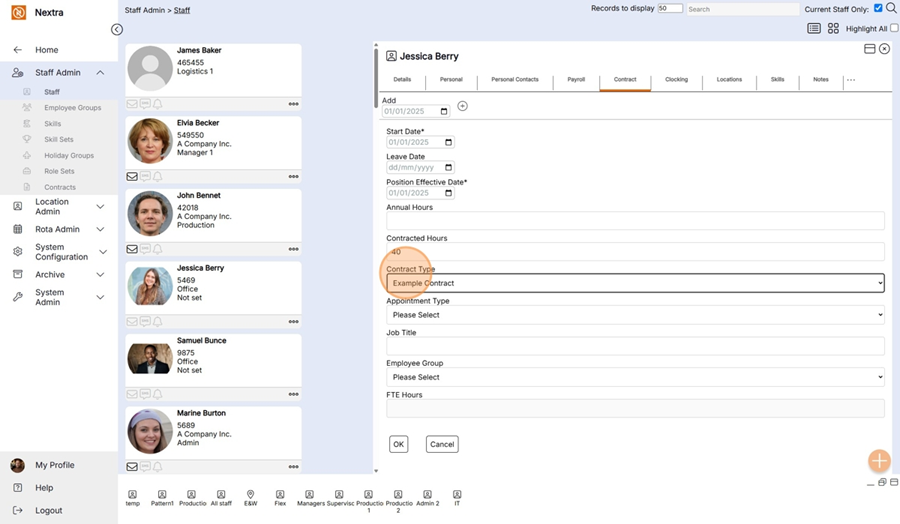
Step 7 - Select the staff members appointment type, i.e. Full Time
Step 8 - Add the Staff Member to the Employee Group.
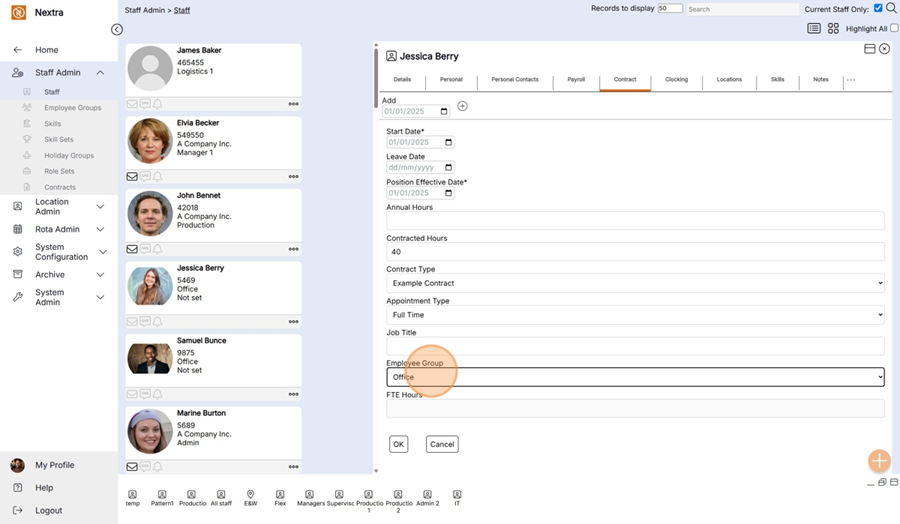
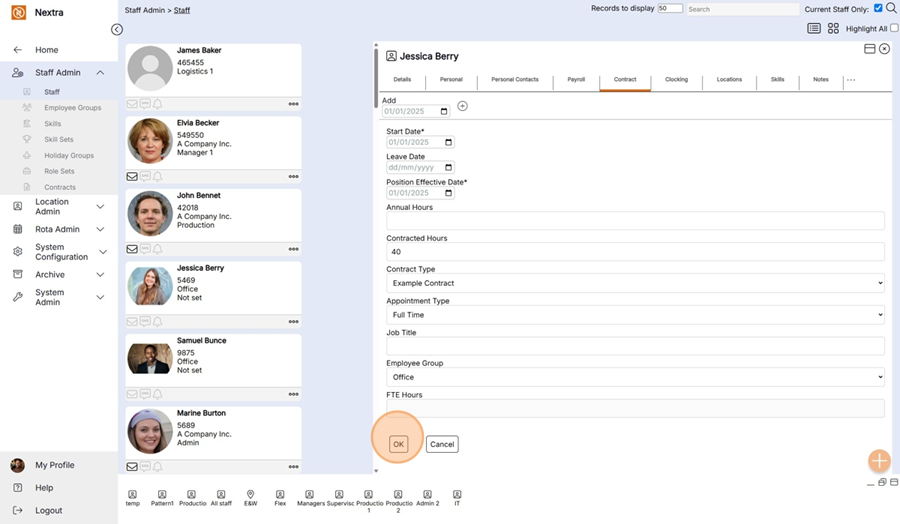
Step 9 - Press OK to save.
Step 10 - Go to the Location Tab on the staff record and check if a holiday group has been added to the Staff Member - If it has please go to step 18
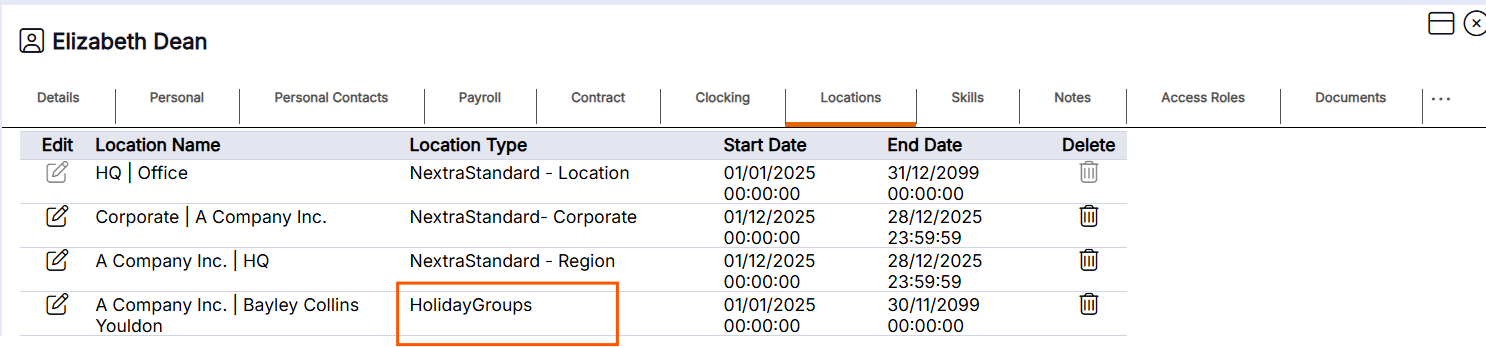
If the staff member isn't allocated a holiday group complete the steps below.
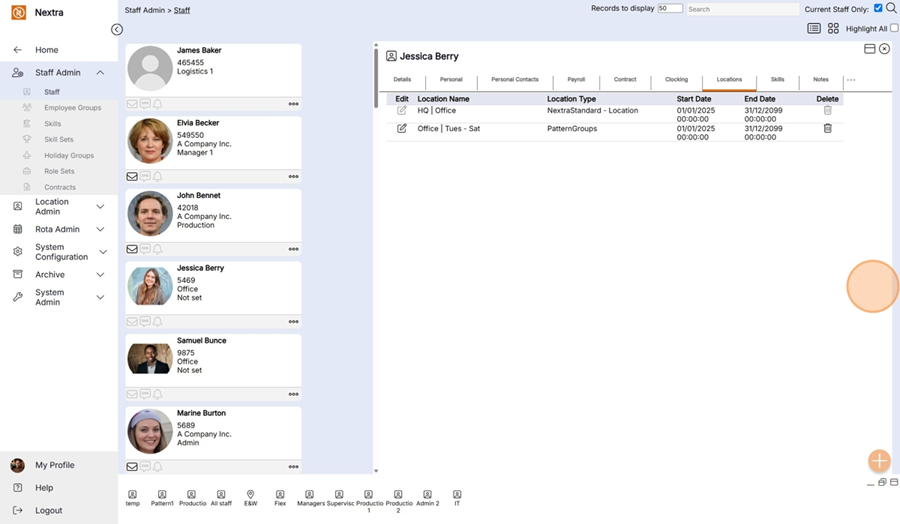
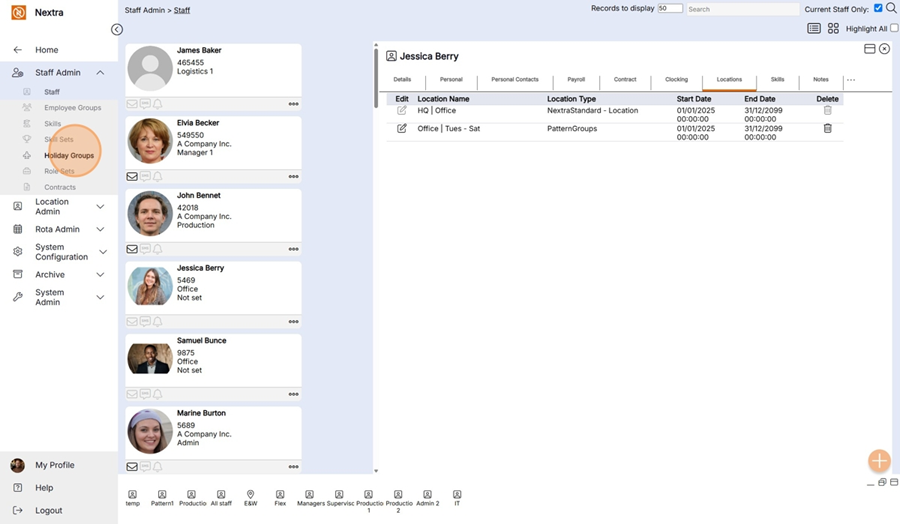
Go to the Staff Admin / Holiday Groups
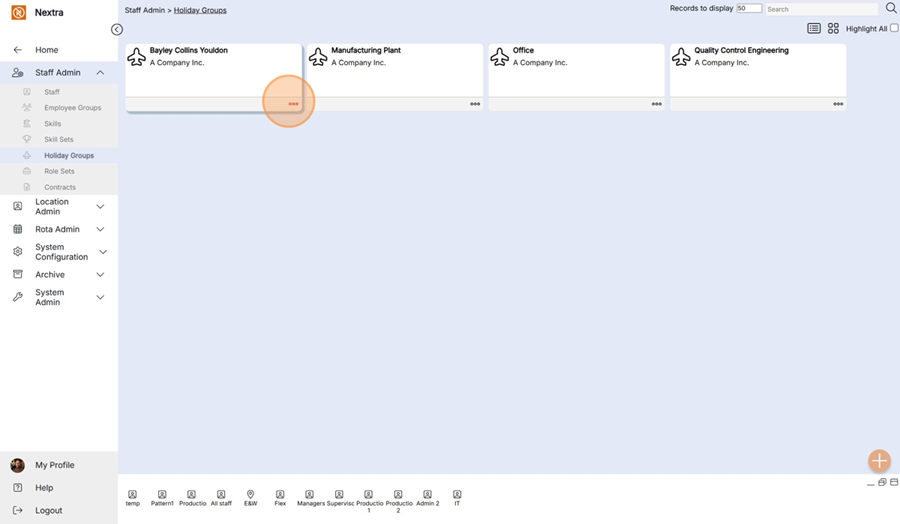
Step 11 - Select the holiday group the staff member is to be added too.
Click here for instructions on how to create a holiday group if a new one is required
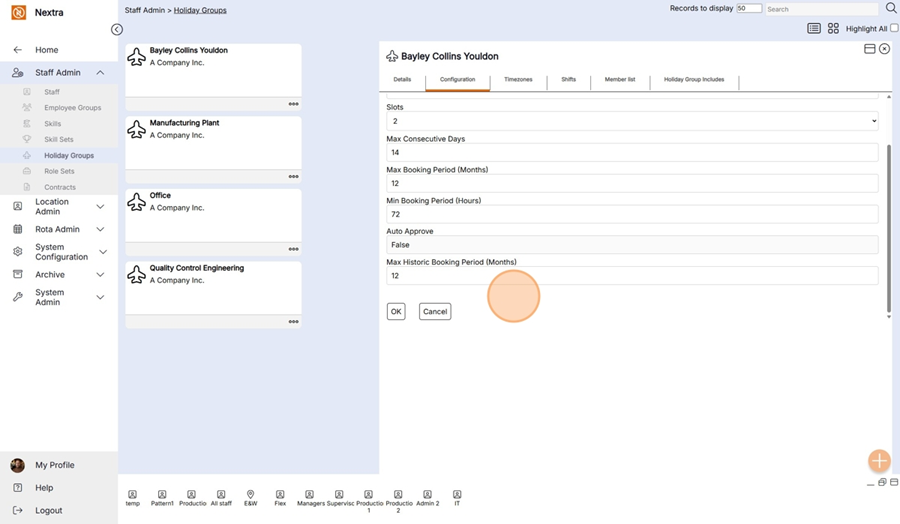
Step 12 - Check the holiday group has been configured - an example is below
Step 13 - Go the member list tab
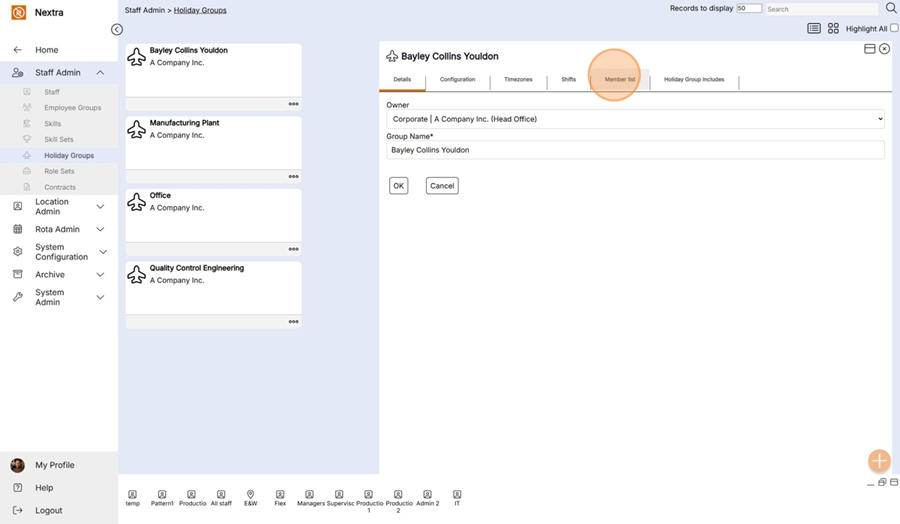
Step 14 - Click the Add Staff icon
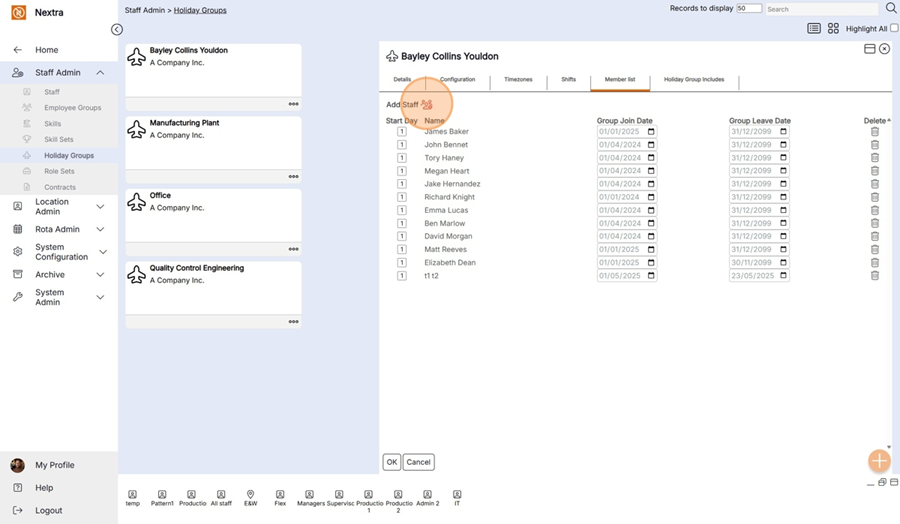
Step 15 - Add the Staff Members name
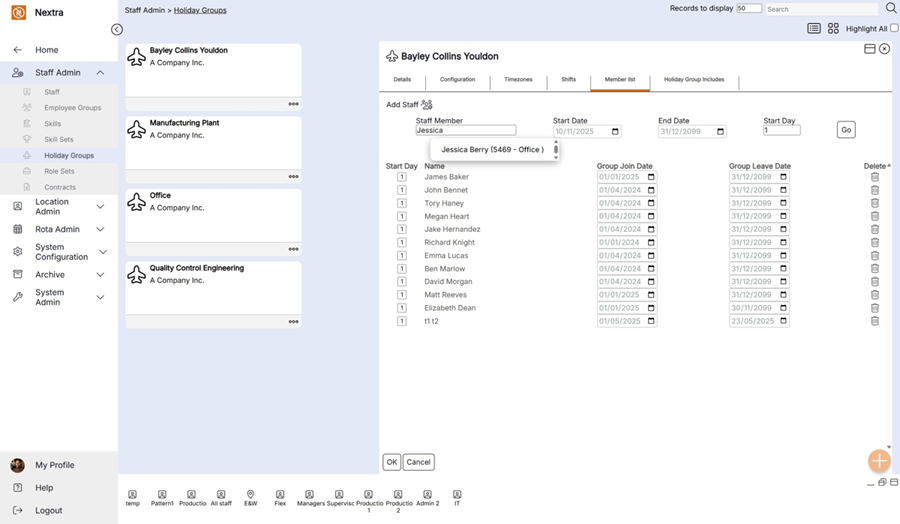
Step 16 - Add the Staff Members start date
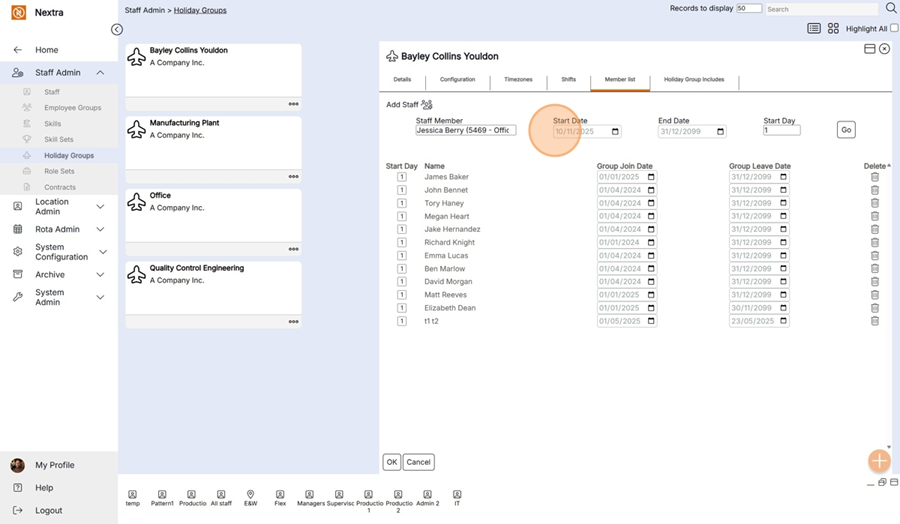
Step 17 - Press Go to save
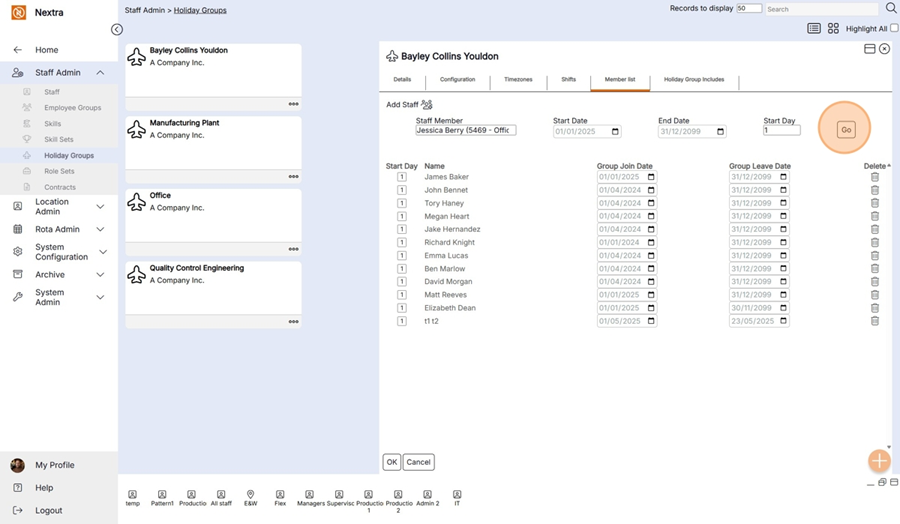
The Staff member has now been added to the holiday group.
The Staff Member now needs to have an allocation of holiday days.
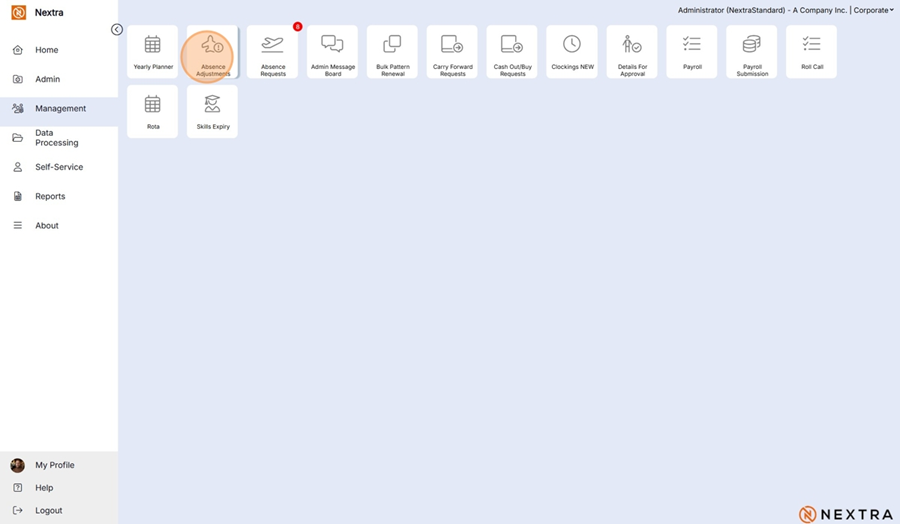
To add this go to Management
Step 18 - Click the Absence adjust tile
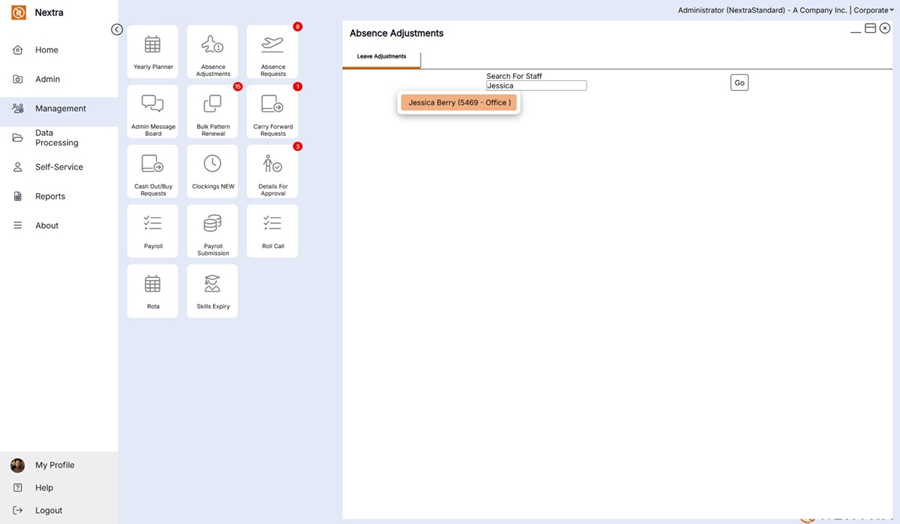
Step 19 - Search for the staff members name & Press Go.
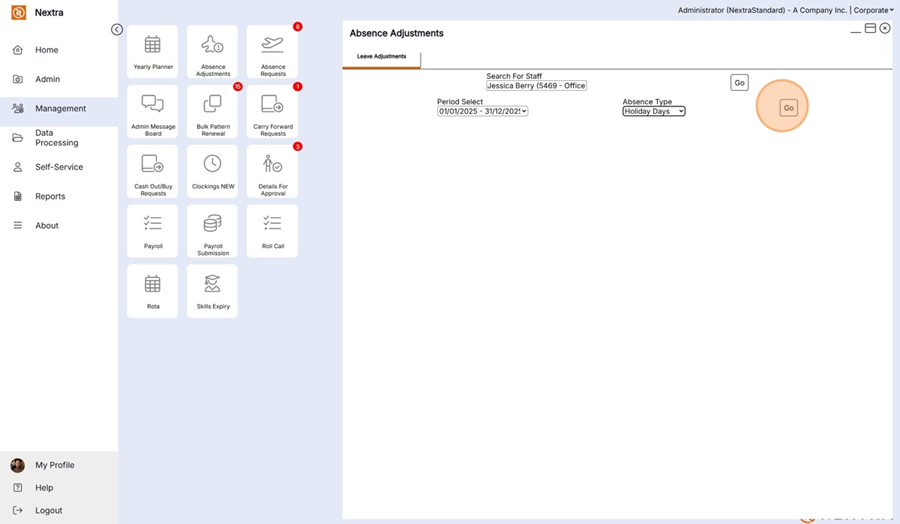
Step 20 - Select the time period
Step 21 - Select the Absence Type - Holiday Days
Step 22 - Press Go
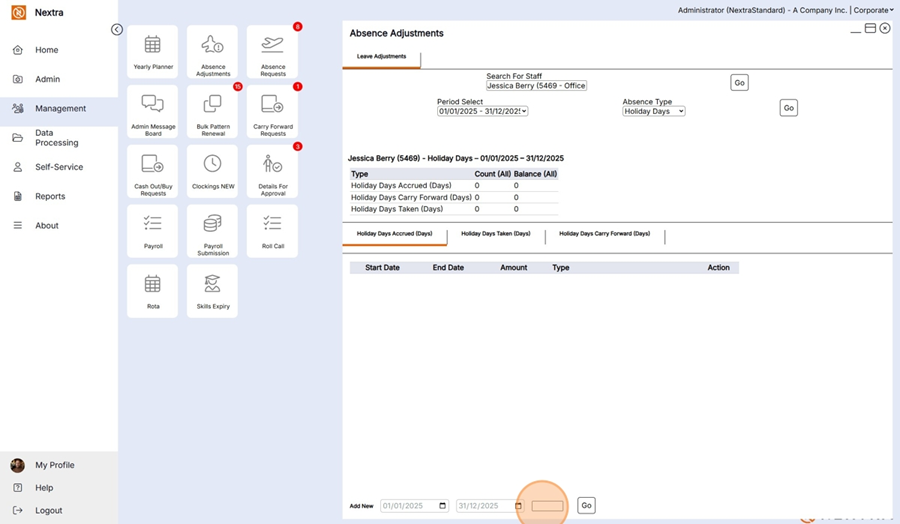
Step 23 - Add the amount of holiday days the staff member is allocated - Press Go to save
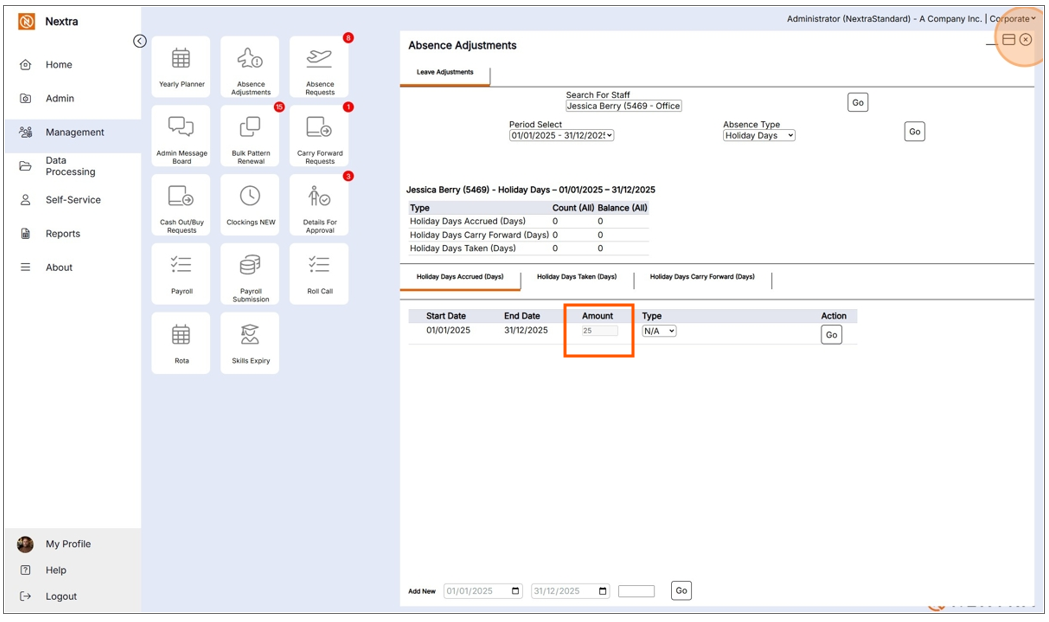
The Staff member now has an allocation of 25 days.
Click the cross to close the screen.
The Holiday absence can now be booked - In this example the holiday absence is being booked through the rota
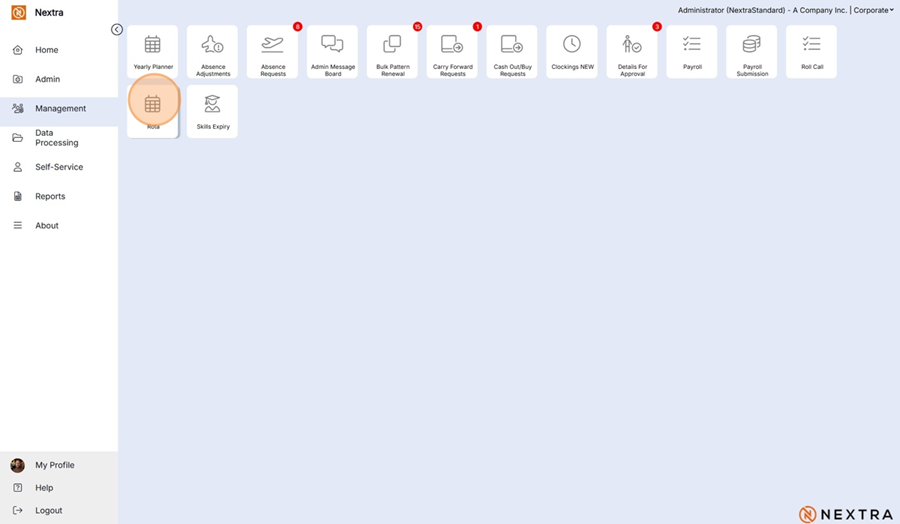
Go to Management.
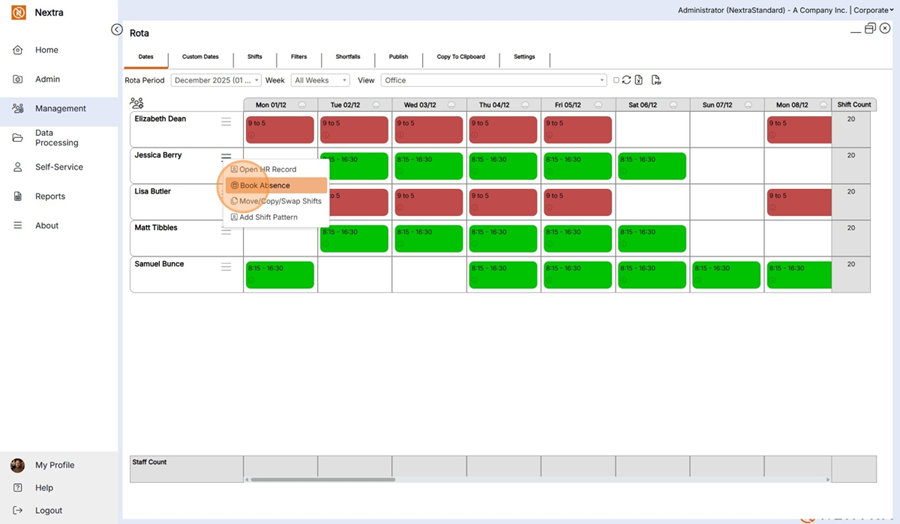
Step 1 - Click the rota.
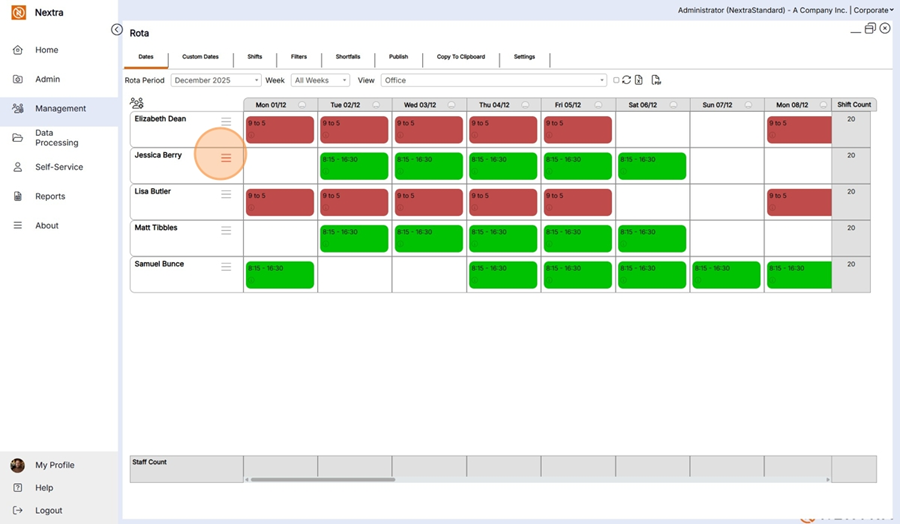
Step 2 - Click the three lines (Hamburger Menu)
Step 3 - Select Book Absence
Step 4 - Select the absence type - Holiday
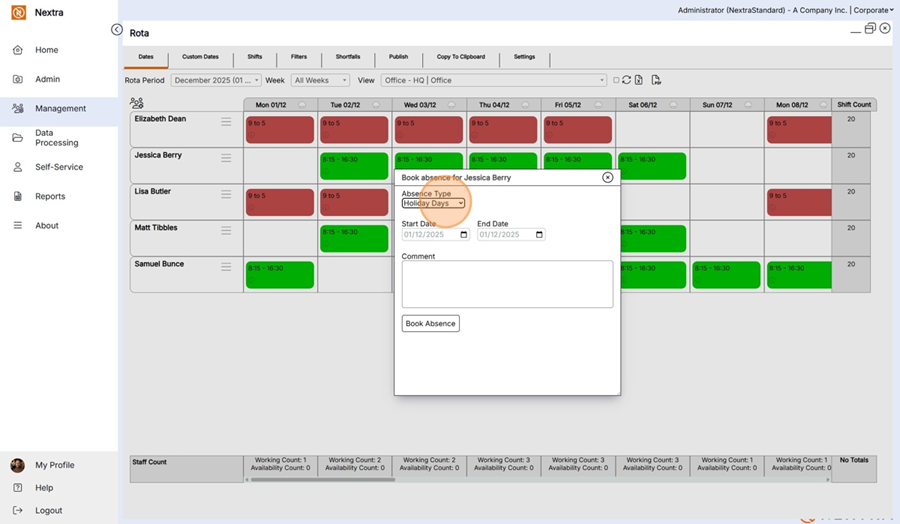
Step 5 - Enter the start and end dates for the holiday booking
Comments can be added if required.
Step 6 - Book Absence
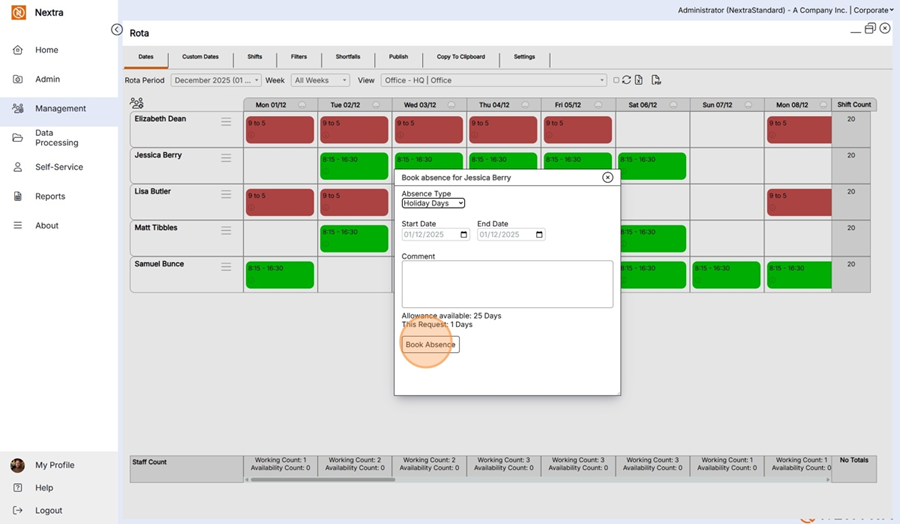
Depending on how the system has been set up, absence requests may require Manager Approval.