How to view your historical clocking details on a mobile
The following instructions will guide through viewing historical clock-in details through the self service tile on a mobile.
Step 1 - Log into the app on a mobile.
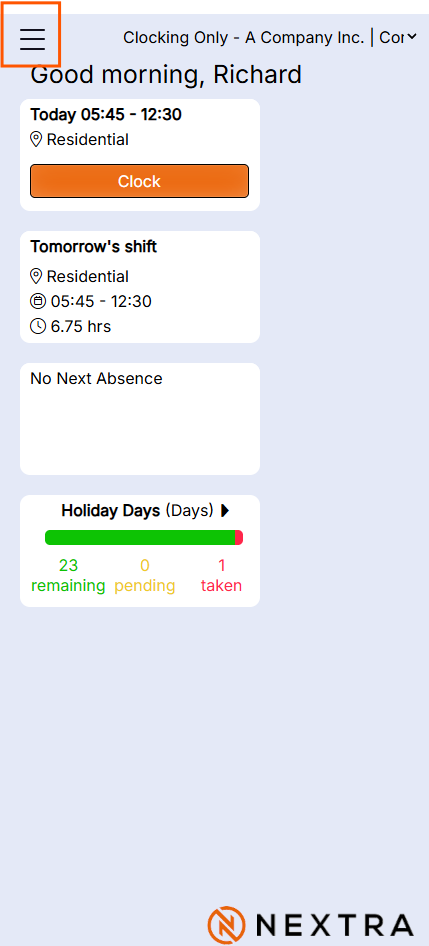
Step 2 - open the app menu clicking on the three line menu
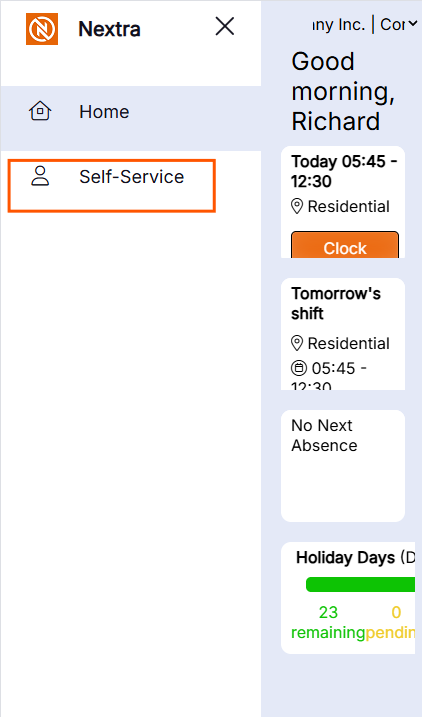
Step 3 - Click on Self-Service
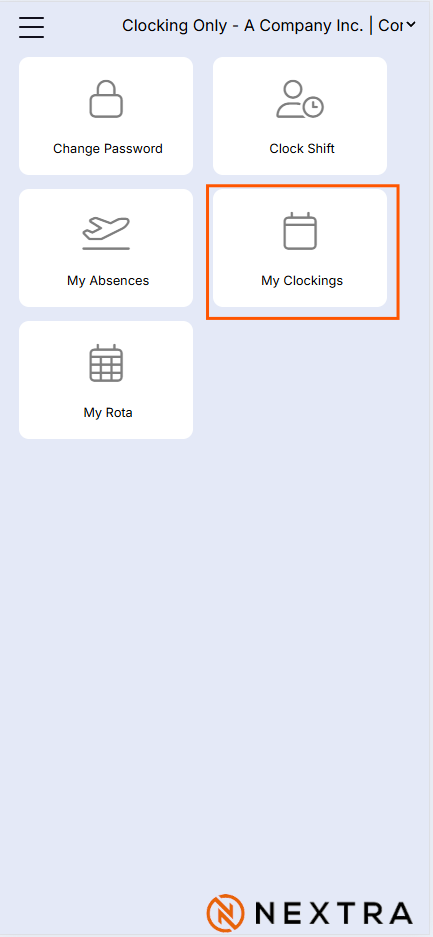
Step 4 - Click on 'My Clockings'
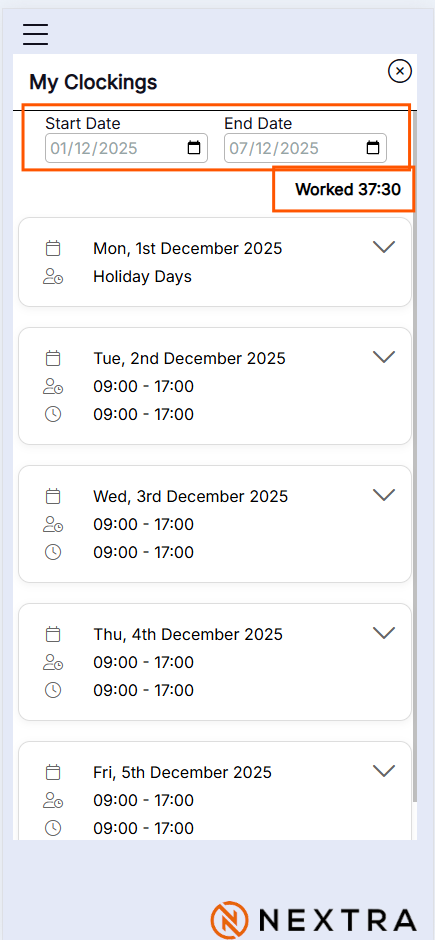
Step 5 - The Screen will load with the last weeks dates.
Change the start and end date to see the required information
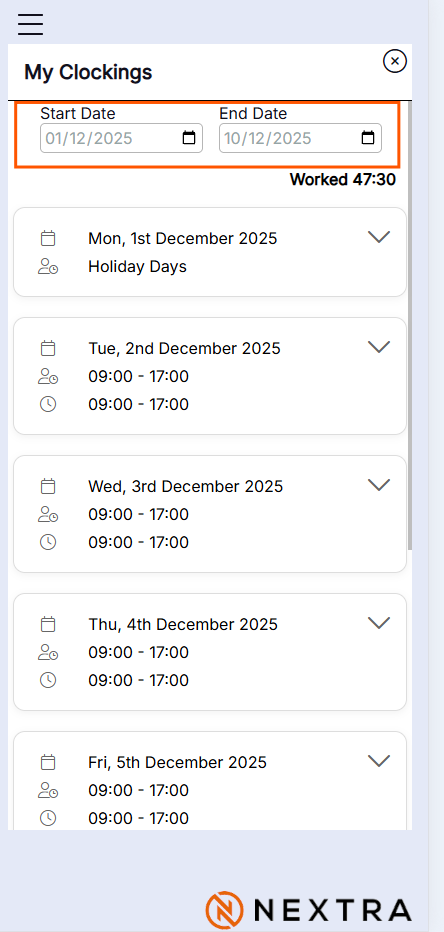
NB; Click the expand arrow to view details of the clock-in | out times and the duration of hours worked
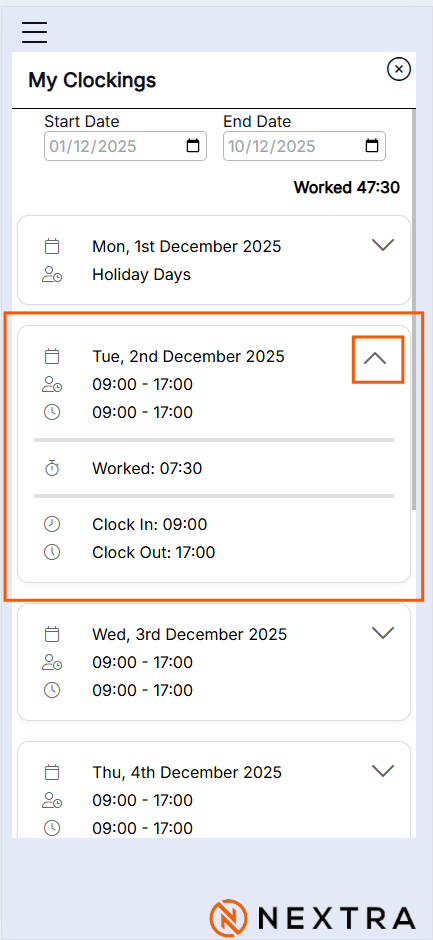
NB The Worked Hours is a total number of hours worked for the Date Range selected and will change when the dates are changed.