
Creating a new record for the Personal Contacts tab of a staff member record
Creating a new record for the Personal Contacts tab of a staff member record
In order to create a new record on the "Personal Contacts" tab of a staff member record, follow these steps below.
Step 1– Use the calendar icon to select the date the changes are effective from for the staff member in question. Once selected this date will populate in the ‘Add’ field.

Step 2- Select the plus icon to generate a new record.
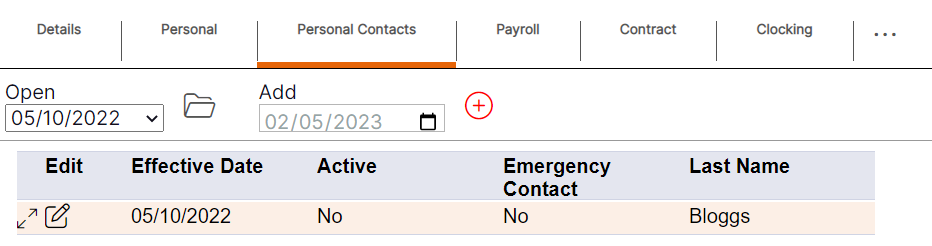
HANDY HINT: When creating a new record, the fields will automatically populate with the details entered on the most recently dated previous record for the staff member. This is useful where only one change is required, meaning the user does not have to re-type all the staff members details to create a new entry. If there is no previously dated entry before the effective date entered, the fields will appear blank.
Step 3 – Update the details by using the drop-down menus or by deleting old data and typing in new data.

Step 4- Select "Ok" to save the new record.
Please note: Once a new record has been saved, it will be available to select in the ‘Open’ drop-down menu and as an entry on the summary screen, showing the effective date that was entered by the user.
Personal Tab Guidance
First Name – Information only.
Last Name – Information only.
Mobile Number – Information only.
Address 1 – Information only.
Address 2 – Information only.
Address 3 – Information only.
Town – Information only.
County – Information only.
Postcode – Information only.
Country – Information only.
Relationship – Information only.
Emergency Contact – Information only tick box, if selected indicates the details held here are an emergency contact for the staff member in question.
Next of Kin – Information only tick box, if selected indicates the details held here are the next of kin details for the staff member in question.
Active – Information only tick box, if selected indicates this record is active for the staff member in question, i.e., these are now the current next of kin or emergency contact details and not past details.
Beneficiary – Information only tick box, if selected indicates the details held here are the beneficiary for the staff member in question.