
Creating a new record for the Details tab of a staff member record
In order to create a new record on the Details tab for a staff member, you can follow these steps below.
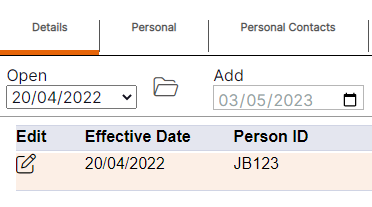
Step 1– Use the calendar icon to select the date the changes are effective from for the staff member in question. Once selected this date will populate in the Add field.
Step 2– Select the plus icon to generate a new record.
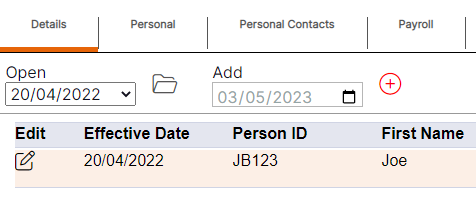
HANDY HINT 1: When creating a new record, the fields will automatically populate with the details entered on the most recently dated previous record for the staff member. This is useful where only one change is required, meaning the user does not have to re-type all the staff members details to create a new entry. If there is no previously dated entry before the effective date entered, the fields will appear blank.
A new record will open, please see below for example.
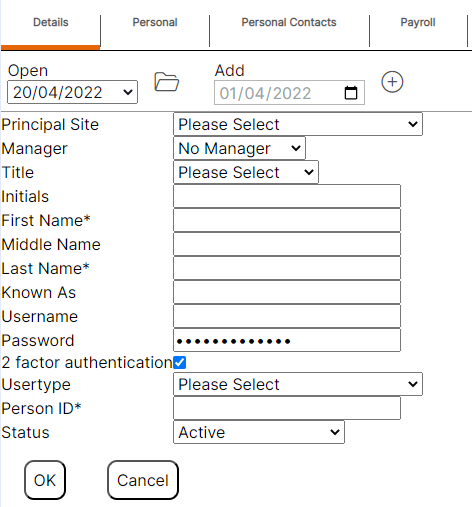
Step 3– Update the details by using the drop-down menus or by deleting old data and typing in new data.
HANDY HINT 2: Should a staff member be responsible for authorising absence requests made through self-service, the user type should be set to reflect the ‘Manager’ field on the staff member’s records for whom they are responsible.
Please note: A generic representation of a password will be displayed in the ‘Password’ field as ‘***********’ whether a password exists of not, this is not a representation of a password having been set or the length of any existing password.
Step 4– Select "Ok" to save the new record.
Users can select "Cancel" if they no longer wish to create a new Details record for a staff member.
Please note: Once a new record has been saved, it will be available to select in the Open drop-down menu and as an entry on the summary screen, showing the effective date that was entered by the user.
Details Tab Guidance
Principal Site– This should be the location where the staff member usually works. Locations can be created at the correct place within the hierarchy, these locations will appear in this drop-down menu. This location is where the staff member will display on the Rota, therefore users should choose their location according to the Rota they wish the staff member to appear on.
Manager– This will display a list of User types within the system. The User types that display here will be any user type that has been given to another staff member within the system that is on the same level of the hierarchy as the staff member in question based on their chosen principal site, or above them in the hierarchy, and in the same tree branch of the hierarchy. Users should select the user type they wish to receive absence or carry forward requests from the staff member in question.
Title– Information only.
Initials– Information only.
First Name– The first name that will appear for this staff member everywhere
in the system.
Middle Name– Information only.
Last Name– The last name that will appear for this staff member everywhere
in the system.
Known As– Information only.
Username– The username this staff member will log into NEXTRA with.
Password– The password this staff member will log into NEXTRA with.
User type– The user type you wish for this staff member to be given when they are logging into NEXTRA.
Person ID– The unique identifier for this staff member. The system will not allow this to be duplicated across multiple staff members, this must be a unique reference for each staff member.
Status– The current status of the staff member.
The status options that are available for selection for a staff member on their Details tab are as follows:
Active– This should be selected if this is an active staff member that you wish to be able to log into the NEXTRA system.
Inactive– This should be selected if the staff member has no active contract for example, and you do not wish for them to be able to log into the NEXTRA system.
GDPR Anonymise- *use with caution - this action cannot be undone* - This will scramble all of the staff member’s personal details on their staff member record in the fields.
GDPR Delete- *use with caution - this action cannot be undone* - This will permanently delete the staff member’s record and all of their data from the system. This data is not retrievable.
Archive- *use with caution - this action cannot be undone* - This status will only appear as an option to select if the staff member has a contract record on their Contract tab with an end date in the past, and no other contracts records which are currently active (i.e., contract records with no end date assigned). Selecting this option will archive the staff member record. Staff cannot be moved out of the archive section once they have been archived.