
How to assign staff absence allowances on the contract.
Absences are assigned according to the standard allowances defined in the contract. Staff who are entitled to additional absence allowances can receive extra leave through the Absence Adjust tile. The instructions below explain how to assign an absence allowance to staff.
Creating a new Contract - If a contract is not already in place click here to view instructions
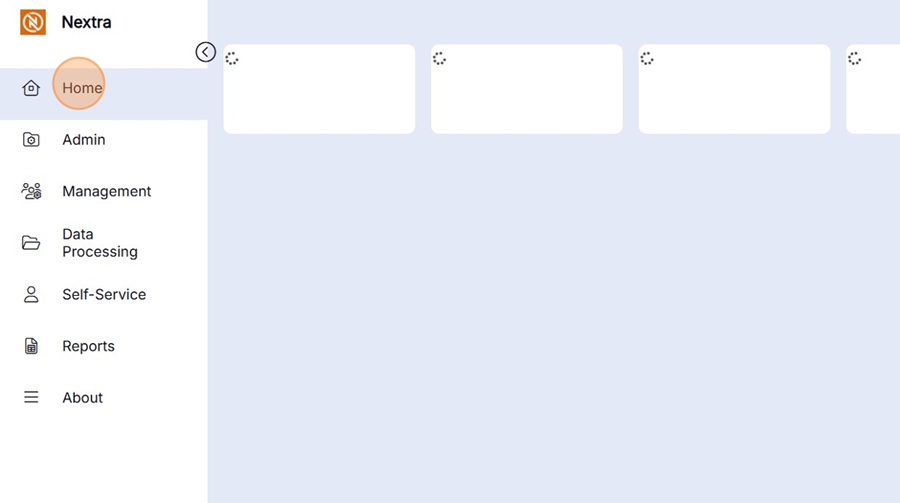
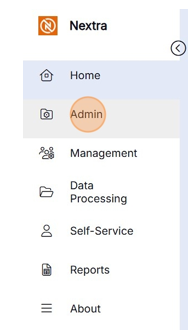
Step 2 - Select Admin
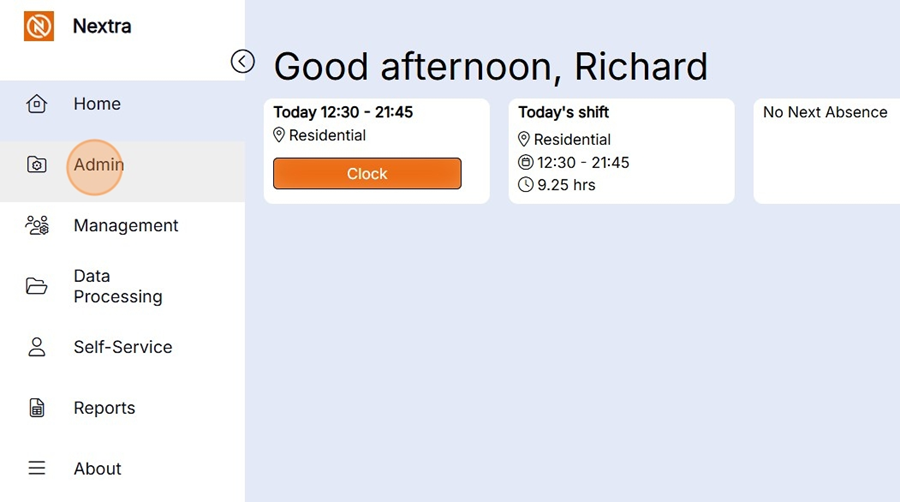
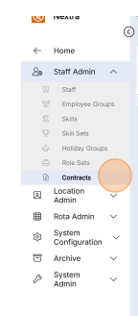
Step 3 - Select Staff Admin
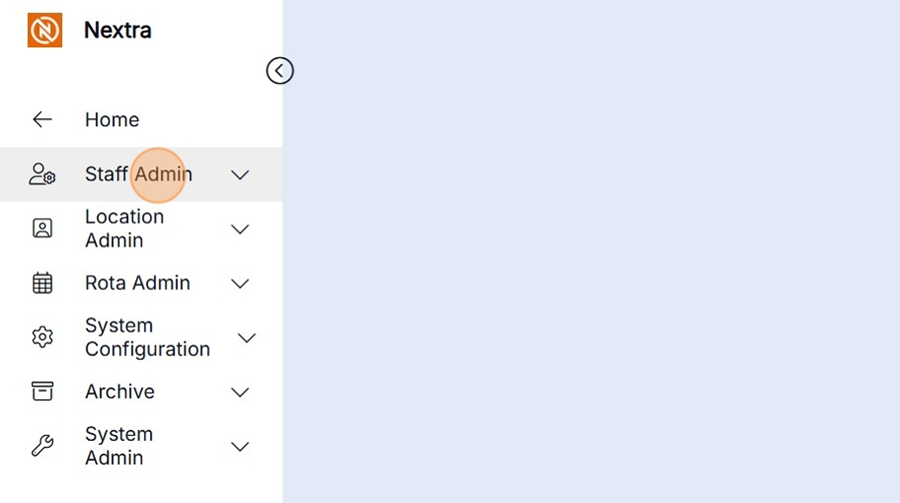
Step 4 - Select Contracts
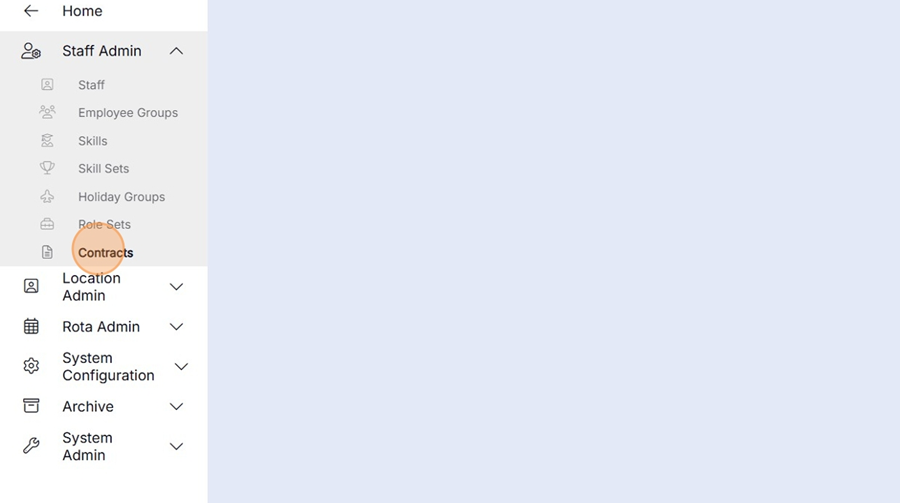
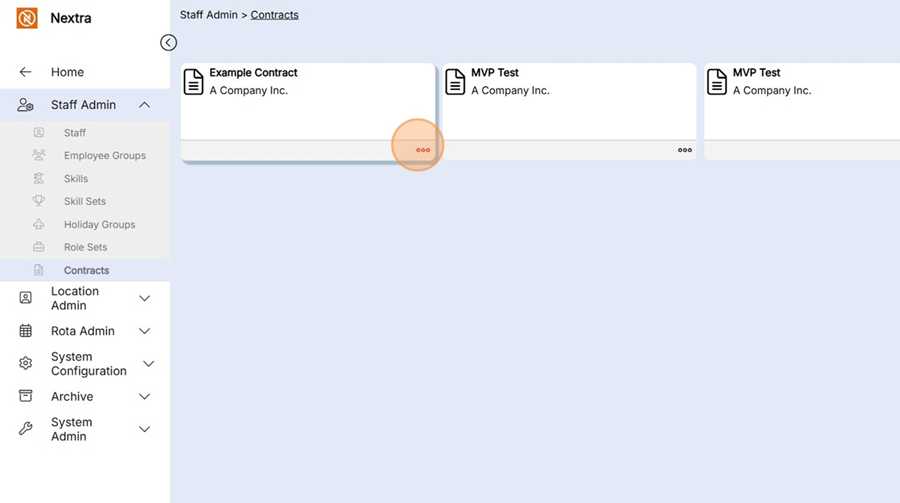
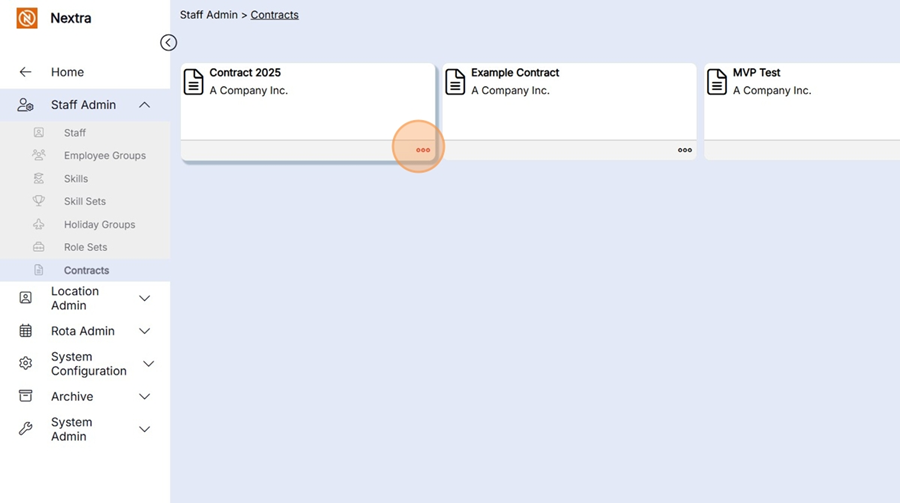
Step 5 - If you already have the contract set up you can view the holiday allocation by clicking the 3 dots on the contract.
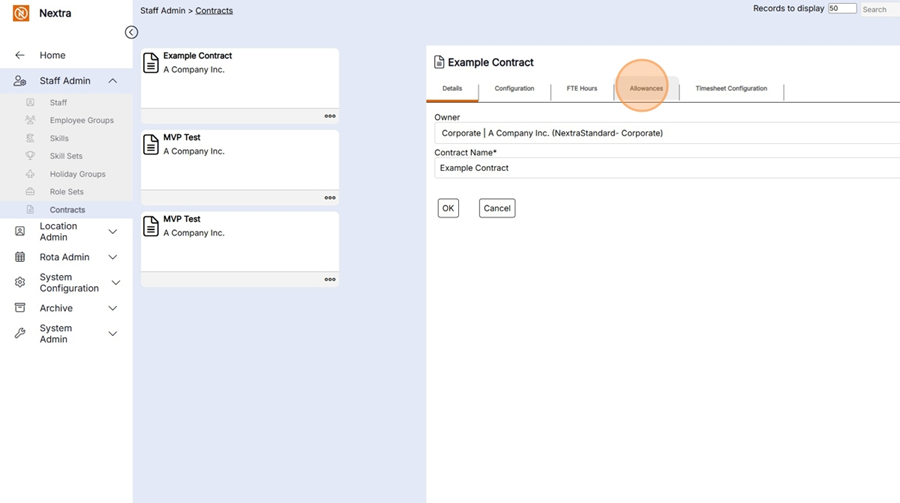
Step 6 - Go to the Allowances Tab
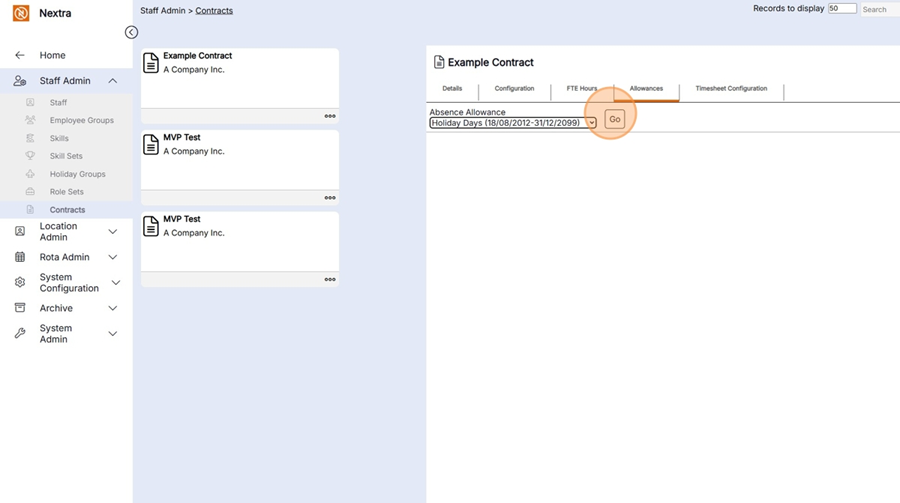
Step 7 - Select the Absence allowance year and press go.
Adding Absence Allowance to a contract.
When a contract has been set up but allowances haven't been set up, allowances can be added. The following instructions show how to add Absence Allowances to a contract.
Step 1 - Starting at the home screen
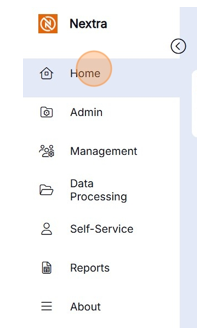
Step 2 - Select Admin.
Step 3 - Select Contracts
Step 4 - Click on the 3 dots for the contract record the absence allowance is being added too.
Step 5 - Select the Allowances tab
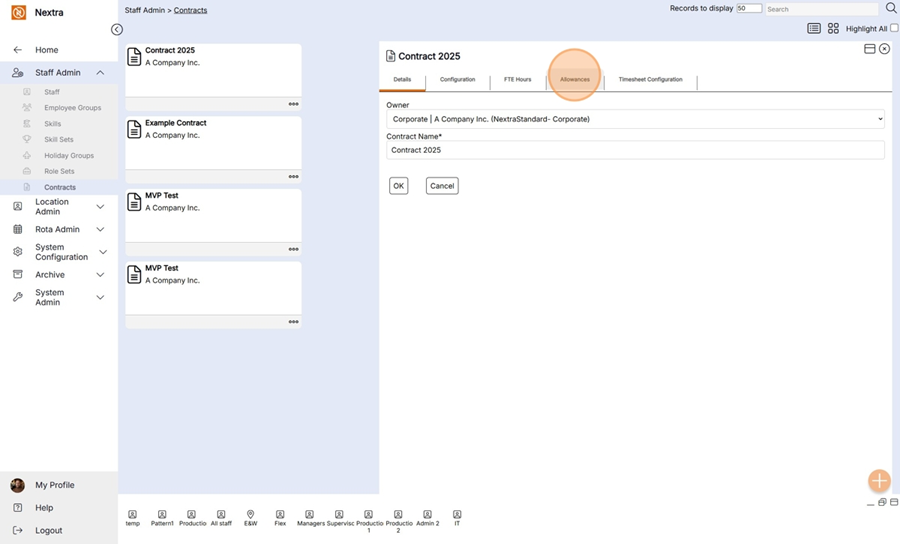
Step 6 - Select the Absence Allowance from the drop down
Step 7 - Press go
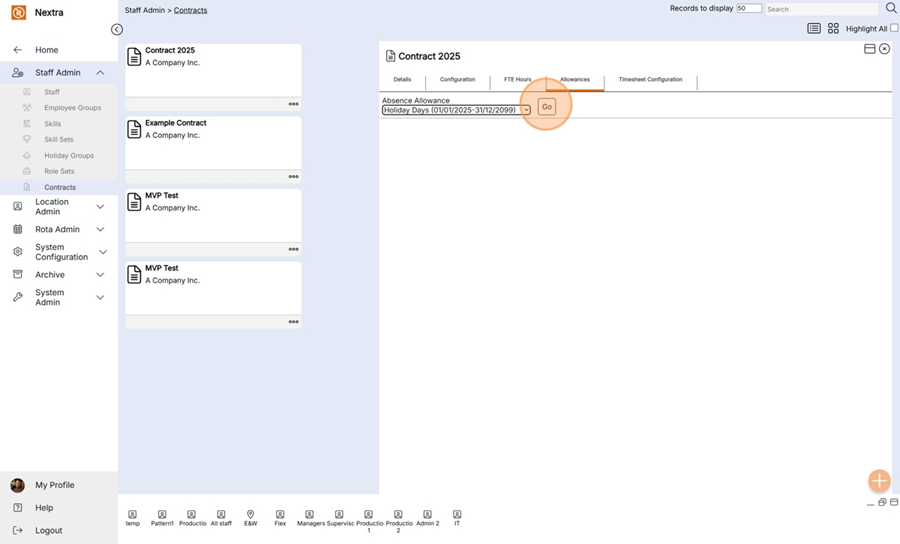
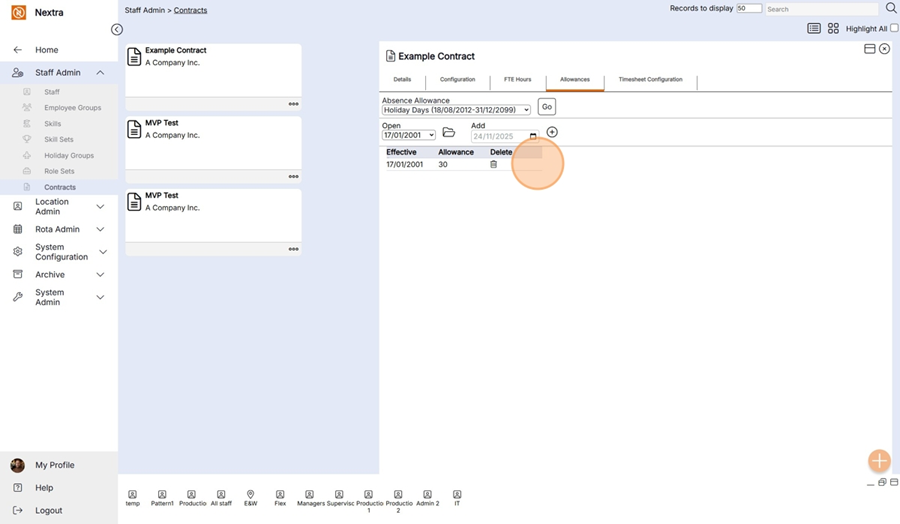
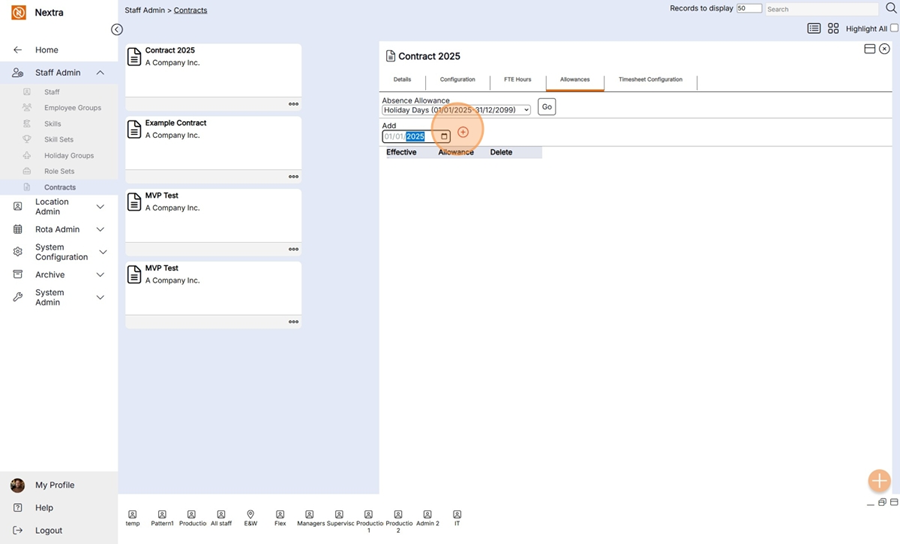
Step 8 - Enter the date the allowance allocation is to start from
Step 9 - Press the + button to add the record
Step 10 - In the Allowances field enter the Absence allocation ie 25 days in the example below
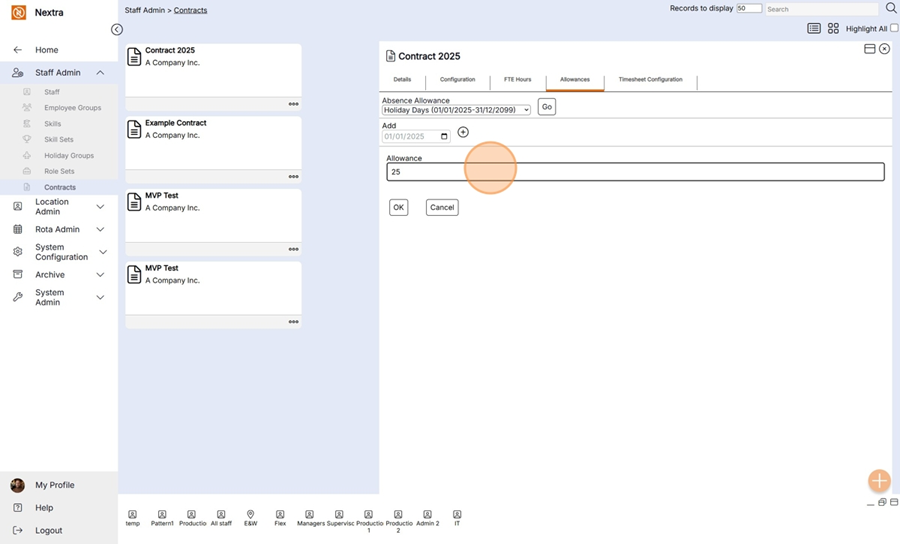
Step 11 - Press OK to save the record

This contract now has 25 days absence allocation and any staff members with this contract will have this allowance. Press the cross in the top right hand corner to close the record.
