
Updating an existing record on the Member List Tab of a Holiday group record
Please note: ‘Holiday Group’ allocation records should only be edited if a mistake has been made when initially assigning it to a staff member. This is to avoid issues where a staff member has already made requests for absence which have been prevented and can then subsequently make a request which is then allowable due to the record being edited. In order to edit an existing record, follow these steps:
Step 1 – Update the details by deleting old data and typing in new data.
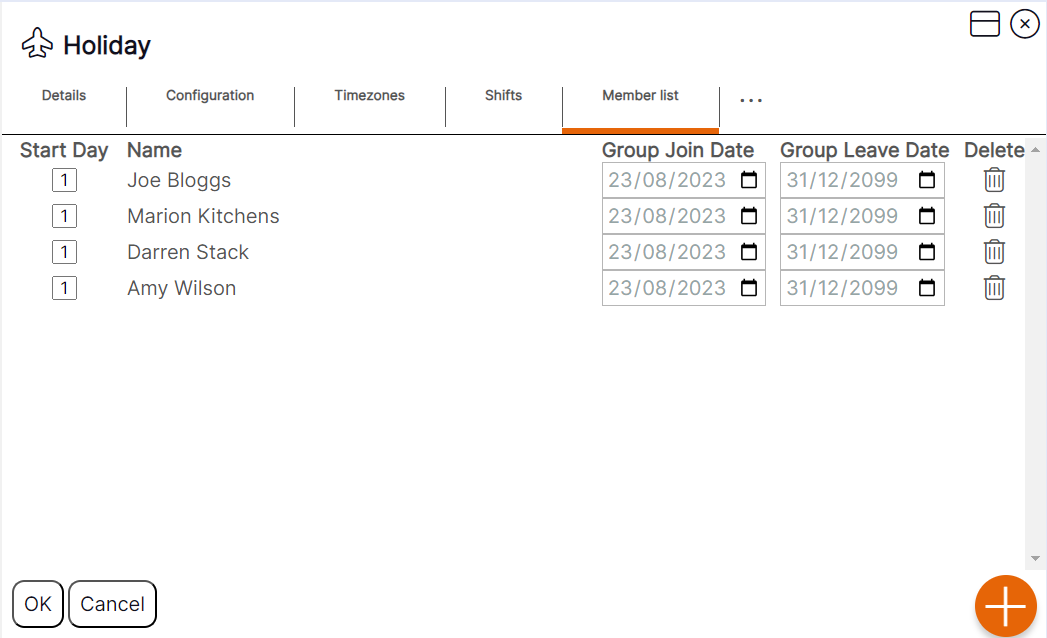
Step 2 – Select ‘OK’ to update the existing record.
HANDY HINT: Amending the dates of a staff member’s allocation to a ‘Holiday Group’ from this view will also update the dates on the record assigned to the ‘Locations’ tab of their staff member record.
WORKING EXAMPLE: You will not be able to make absence bookings for staff without them being assigned to a ‘Holiday Group’. If a staff member is assigned to a ‘Holiday Group’ from 01/01/2022-31/01/2022 and they request absence/manager tries to book absence for 01/02/2022 the software will not allow this booking. If a staff member requests absence/manager tries to book absence for 31/01/2022 – 02/02/2022, the software will allow this as they are assigned to the group for the first day of the booking. If they were to request 01/02/2022-02/02/2022, this would fail as the first day of the request is not covered by the dates they are assigned to the ‘Holiday Group’.