Clocking Buffers
When setting up the NEXTRA system to receive Clockings, users can define buffers to allow auto approval of clockings and enhancements (clocked times either side of an expected start or end time of a shift that require action). Buffers can be defined by location (place, team, department) or by contract type (please contact the support team if you would like to define Clocking Buffers by contract).
This will reduce the amount of time required by management teams to maintain their teams' Clockings, as it allows them to manage by exception.
The following types of Clocking Buffers can be defined in the system:
- Unexpected Clockings - the length of time before and after a shift is starting / ending that a clocked time will be 'attached' to the planned shift. For example, when the unexpected clocking buffers are set for 60 (mins) if a a staff member clocks in more than 60 mins before their shift time the system will create an unexpected clocking record.
- Auto Approval - the length of time either side of the expected shift start and end time that a clocking will be auto approved. If a clocked time is received outside of these buffers, the clocking will show on an exceptions report and require Manager approval.
- Adjustments - the length of time either side of the expected shift start and end time that a clocked time will not generate an enhancement. Clockings received outside of the buffers will show on an exceptions report and require Manager approval, clockings received within the buffers will be marked as over or under hours.
- Adjustments and Auto Approval - the length of time either side of the expected shift start and end time that a clocked time will generate an enhancement that will be auto-approved as per the system default of 'Ignore', in this case the system will not mark this as over or under hours.
Handy Hint: The system default can be changed to 'Pay'/'Deduct' so as to mark the time as over or under hours, if you would like the default to be changed, please contact the support team via your support portal log in
To set up Clocking Buffers
- Log into the system and navigate to the Admin section

- Navigate to the required section of Location Admin or Contracts depending on where you would like to define the buffers.
- Open the Location or Contract by selecting the 3 dots.

- If setting up buffers on a Location, select the Clocking tab, if on a Contract, select the Clocking Buffers tab

- Enter the required buffers. Information on the function of each buffer type can be found below.
Unexpected Clockings
The length of time before and after a shift is starting / ending that a clocked time will be 'attached' to the planned shift. For example, when the unexpected clocking buffers are set for 60 (mins) if a a staff member clocks in more than 60 mins before their shift time the system will create an unexpected clocking record.
The default duration is 480 minutes.
In the example given here, this has been to 60 (minutes)

Auto Approval
The length of time either side of the expected shift start and end time that a clocking will be auto approved. If a clocked time is received outside of these buffers, the clocking will show as an exception and require Manager approval.
In this example, the buffers are all set to 15 (minutes). Should a team member clock in or out, up to 15 minutes early or late, the system will automatically approve the clockings.

Adjustments
The length of time either side of the expected shift start and end time that a clocked time will not generate an enhancement. Clockings received outside of the buffers will show on an exceptions report and require Manager approval, clockings received within the buffers will be marked as over or under hours.
These buffers should be used when early or late clock clocked times should be accepted as worked / not worked time, with no option to change this to generate an enhancement as described below (Adjustments and Auto Approval section).
In this example, the buffers are all set to 30 (minutes), should a staff member clock in or out, up to 30 minutes early or late, the system will NOT generate an enhancement and no action will be required from a Manager.

Adjustments and Auto Approval
The length of time either side of the expected shift start and end time that a clocked time will generate an enhancement that will be auto-approved as per the system default of 'Ignore', in this case the system will not mark this as over or under hours.
In this example, the buffers are all set to 20 (minutes), should a staff member clock in or out, up to 20 minutes early or late, the system will generate an enhancement and auto approve this to 'Ignore' .

Handy Hint: The system default can be changed to 'Pay'/'Deduct' so as to mark the time as over or under hours, if you would like the default to be changed, please contact the support team via your support portal log in
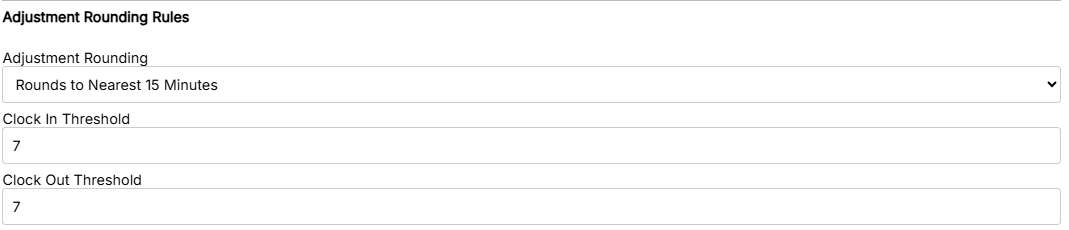
Adjustment Rounding Rules
Adjustment Rounding - this can be set to round to 15 minutes. If selected, the system will round all enhancements to 15 minutes based on the thresholds below.
Clock in / out thresholds - these should be used in conjunction with the 'Round to 15 mins' option and determines the threshold used to round the clockings either up or down to 15 mins.
For example, a Clock In Threshold set to 7 will result in a clocked time of 09:06 for a 09:00-17:00 shift, being rounded down to 0 (no enhancement will be generated), a clocked time of 09:08 on the same shift will be rounded to generate a +15 minute enhancement.