
Adding a shift pattern via the rota
When adding a shift pattern to an individual, the easiest way to do this is directly from the rota.
You will require a predefined Shift Pattern to have been created in the Admin screen, more information on creating a Shift Pattern is available here Creating new Shift Patterns.
To add a shift pattern from the rota
Step 1 - Open the rota and navigate to the location you wish to add the shift pattern at.
Handy Hint: If the team members is not visible on the location you can add them using the Add Person icon
Step 2 - Select the menu icon next to the team member's name and select Add Shift Pattern
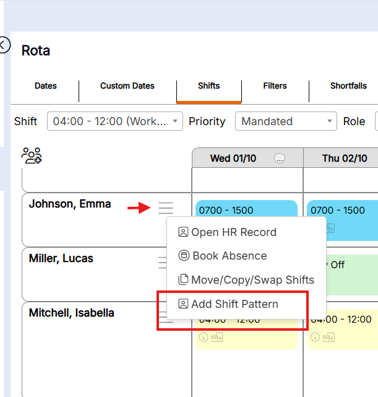
Handy Hint: If this option is not available, it may not be available for your usertype, please speak to your system administrator to request access
Step 3 - Select the required configuration form the pop up
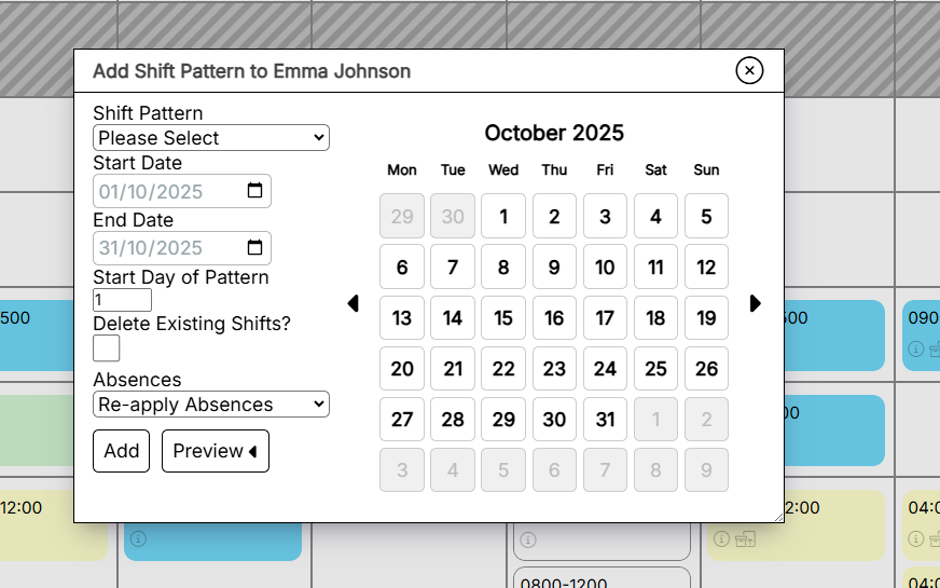
Handy Hint: Use the calendar view to ensure the pattern is being applied to the correct days. Patterns can be applied for up to a year at a time.
Step 4 - Select Add
The system will add the pattern to the selected dates