How to request a part day absence
In order to request a part day absence, users should follow these steps below.
Step 1- From the home page select "Self-Service" from the navigation menu.
Step 2- Select the "My Absences" tile from the available tile list .
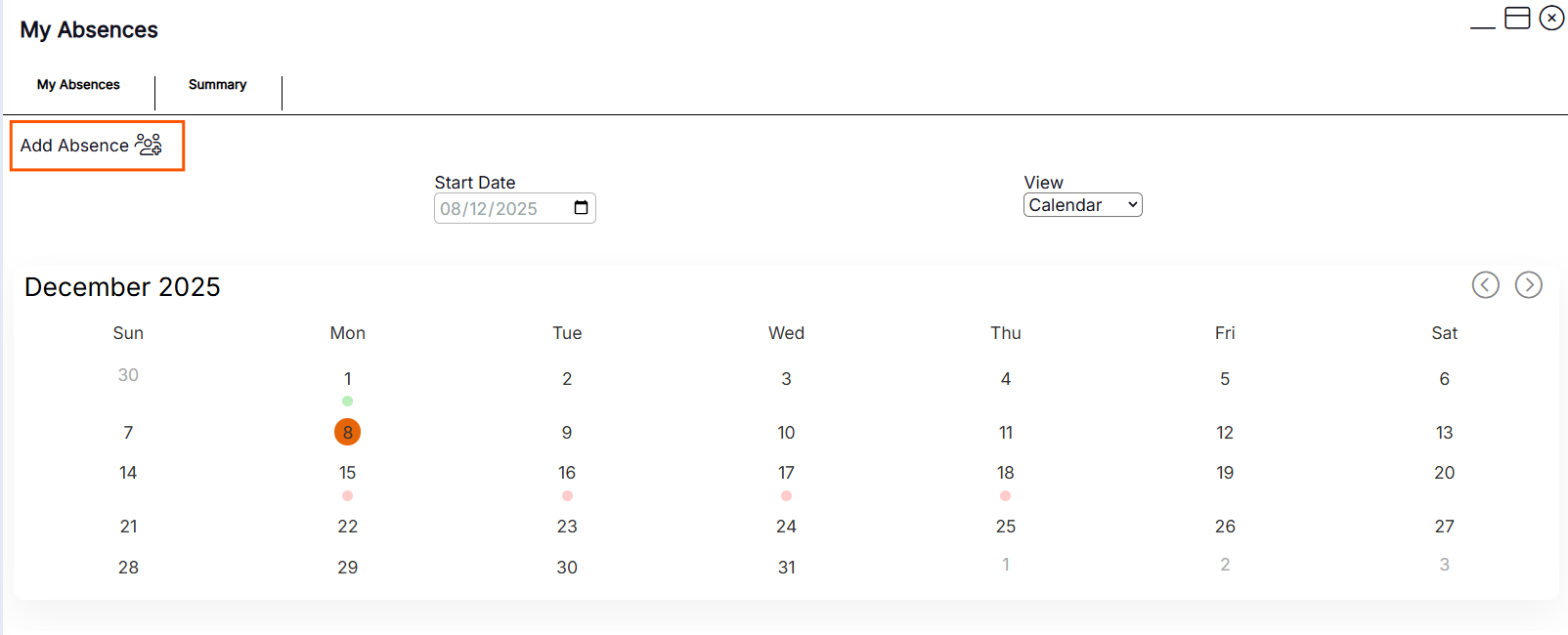
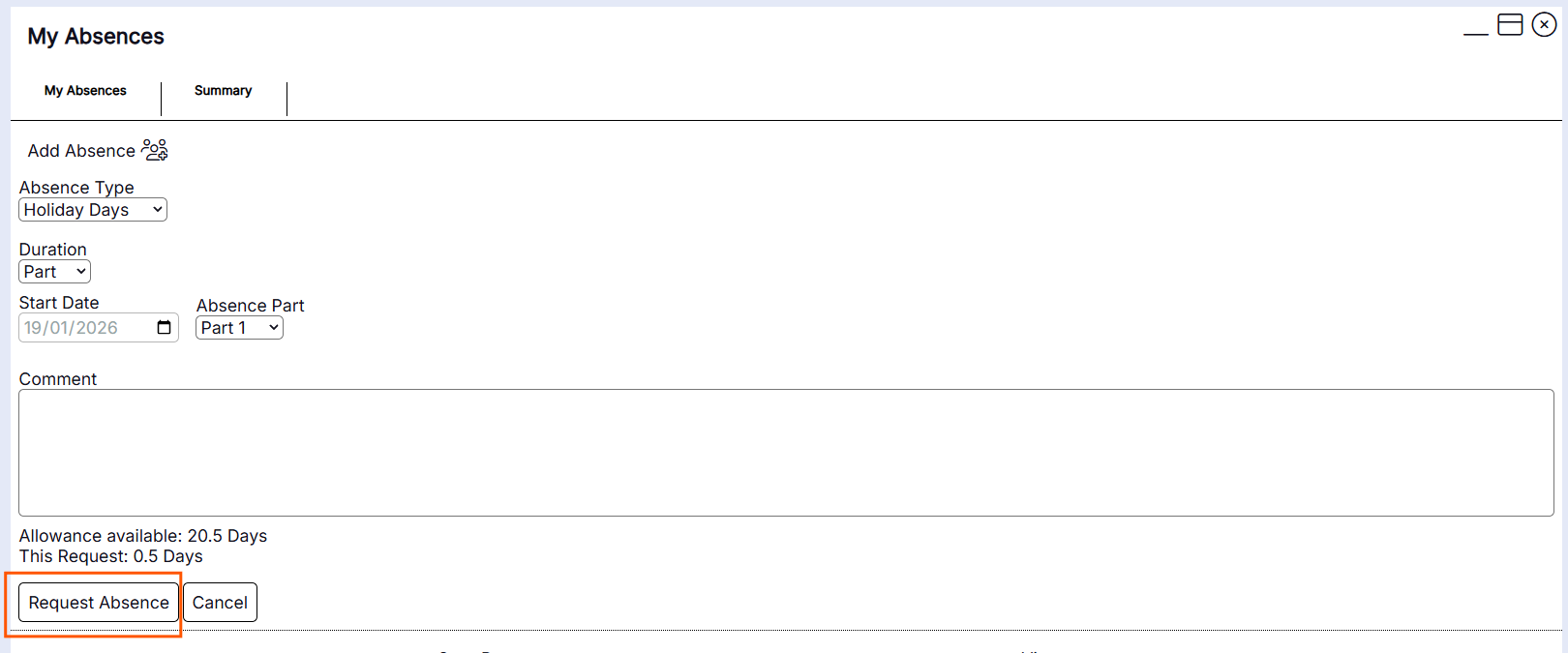
Step 3 – Select the "Add Absence"
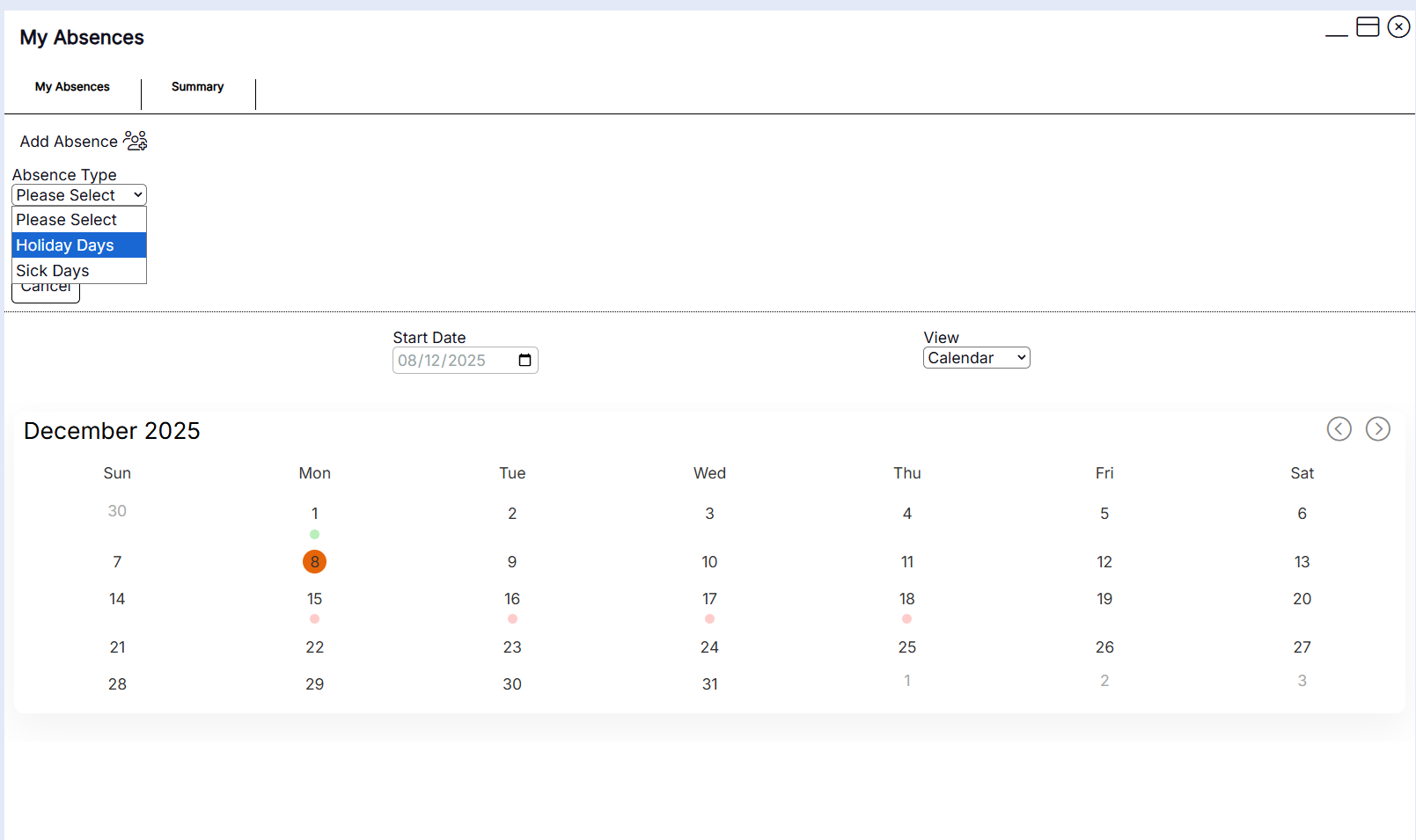
Step 4- Select the "Absence Type - Holiday days"
Step 5- Complete the following
i) Set the Duration to 'Part'
ii) Set the start date to the date the absence is being requested for
iii) Select either Part 1 or Part 2 of the absence Part.
HANDY HINT - Selecting part 1 will book the absence at the start of the shift and selecting part 2 will book the absence at the end of the shift. You cannot book an absence in the middle of a shift. See the working example on how this will affect your shift time on the day if you select either a part 1 or part 2 absence request for an absence type with a value in days. You can only book 0.5 day (i.e. half a day) with a day’s absence.
Day type absence part booking working examples
PART 1 |
PART 2 |
| 9 am-5 pm shift scheduled with a worked duration of 7 hours and a duration of 8 hours (1-hour break). Part 1 absence booked with an absence type in a value of days, a 0.5-day absence will be booked, and the remaining shift will be 1 pm-5 pm with the same duration and worked duration of 4 hours. | 9 am-5 pm shift scheduled with a worked duration of 7 hours and a duration of 8 hours (1-hour break). Part 2 absence booked with an absence type in a value of days, a 0.5-day absence will be booked, and the remaining shift will be 9 am-1 pm with the same duration and worked duration of 4 hours. |
Step 6 - Submit the absence request by pressing the 'Request Absence' button
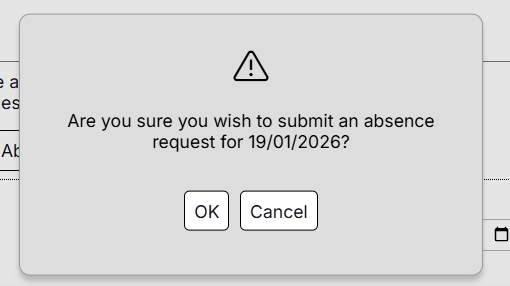
Step 7 - Press 'OK' for the request to go to manager approval - If you wish to cancel the press the cancel button.