
Holiday Group Time zones Tab – Viewing existing records
The user can select the ‘Time zones’ tab to view and configure the number of absence bookings allowable by number of staff within the ‘Holiday Group’ between particular times in any one day.
Every ‘Holiday Group’ must have at least one ‘Time zone’ entered to operate correctly, therefore if the configuration required is for 3 staff within the group to be allowed absence on any one day, a ‘Time zone’ must be set up from 00:00 to 23:59 for the ‘Holiday Group.’
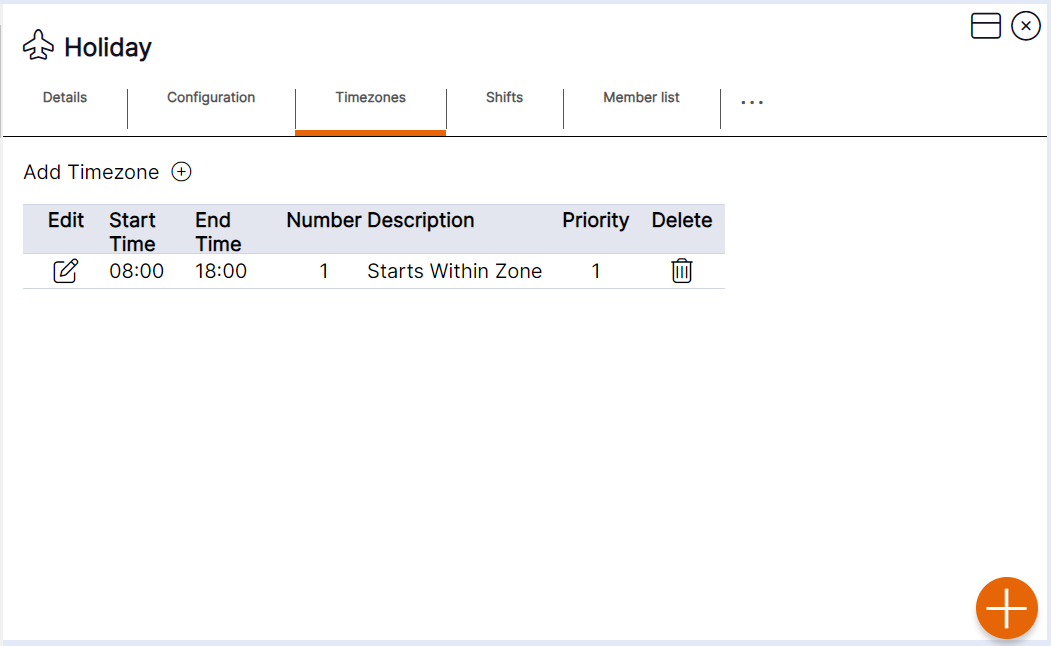
Time zones can be deleted from a ‘Holiday Group’ by using the delete icon; however, it is NEXTRA’s recommendation that records are NOT deleted for audit history purposes and to ensure that the system allows and prevents leave booking requests within the correct parameters accordingly. If there is a change to details, a new ‘Holiday Group’ should be created to maintain a history.
Holiday Group Time zones Tab Guidance:
Start Time – Enter the start time of the slot within a working day that you need to control absences for.
End Time – Enter the end time of the slot within a working day that you need to control absences for.
Type – Select the relevant option for the members of this ‘Holiday group’, for example, Starts Within Zone = if a staff member is on a shift that starts within the time of the slot (i.e., between the start and end time you have chosen), and they book holiday, this will take a slot for this time zone. Other available options for selection are as follows: End Within Zone, Majority in Zone, Over Midnight.
Number – Enter the number of slots available for staff members to book off in this ‘Time zone’.
Priority – Enter the priority of the ‘Time zone’ where more than 1 has been set in the ‘Holiday Group’. Select from 1 to 5. For example, there is more than 1 ‘Time zone’ crossing the same time in the day. A ‘Time zone’ with a priority of 1 would use up a slot first, where a ‘Time zone’ that crossed the same time but had priority 2 assigned would not have a slot taken as it will be assigned to the ‘Time zone’ with priority 1.
HANDY HINT 1: The controls on the time zones tab will prevent staff from continuing with the request via self-service, however if a manager tries to book absence where the criteria set on this tab is not met, they will receive the appropriate warning on the rota, however they will be allowed to proceed with the booking if they choose to override it.
HANDY HINT 2: You can choose to control the number of staff allowed on absence for certain ‘Absence Types’ only within the time zones you are creating, e.g., holiday by using the Holiday group Includes tab.