
Creating a new record on the Time zones tab of a Holiday Group
In order to create a new record on the ‘Time zones’ tab of a ‘Holiday Group’, users should follow these steps:
Step 1 – Select the plus icon to generate a new record.
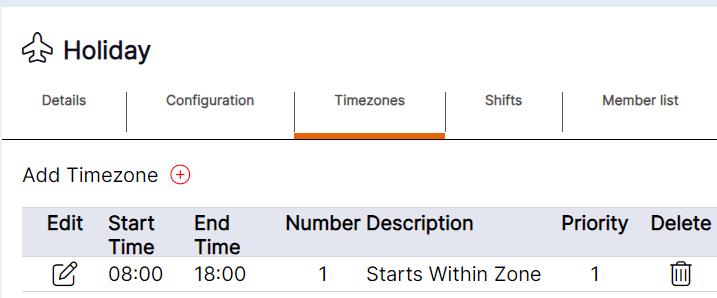
The record will then open as per the example below:
Step 2 – Enter the details of the new ‘Time zone’ record by typing into the fields and using the drop-down menus.
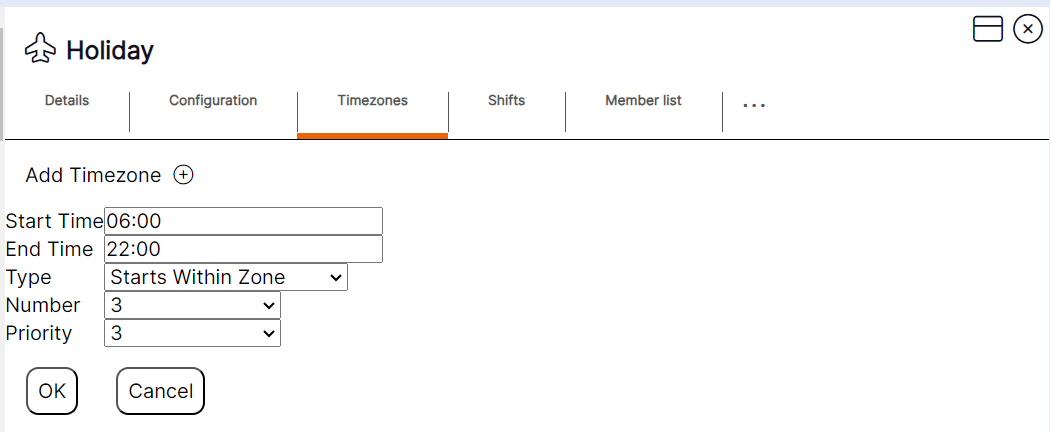
Step 3 – Select ‘OK’ to Save the new record.
WORKING EXAMPLE: A ‘Time zone’ has been added with a start time of 08:00 and an end time of 17:00. The ‘Number’ field has 3 assigned. The ‘Type’ field has ‘Starts within zone’ selected. A staff member on a shift from 09:00 to 18:00 requests absence and it is approved; this request will take one of the 3 slots as the time of their shift starts between 08:00 and 17:00. A staff member on a shift from 07:00 to 16:00 requests absence and it is approved; this request will not take one of the 3 slots as the time of their shift starts before 08:00 which is the start of the zone.