
Asset Management - creating and managing equipment
The Asset Management module allows users to manage assets and equipment.
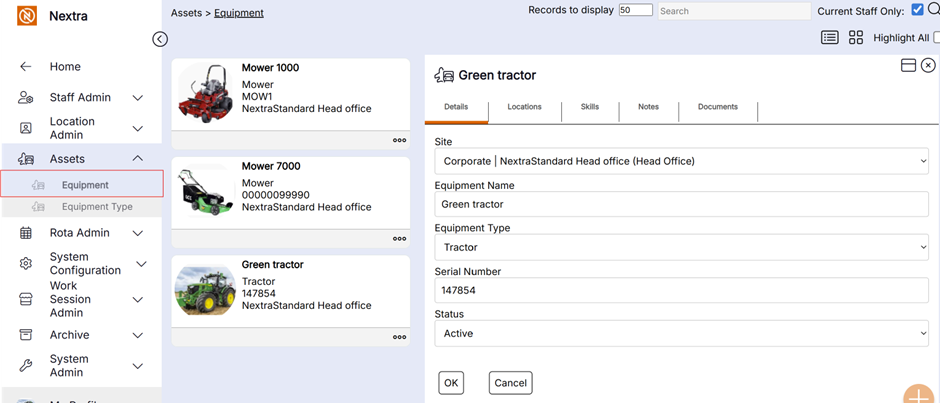
To create a new asset or piece of equipment
- From Admin | Asset Management, select the Equipment menu.
- Select the orange '+' (plus) icon from the bottom right corner.
- Enter the required details for the item
- Select OK/Save
Handy Hint: If the equipment type you wish to use to categorise an item is not available, additional equipment types can be created from the Equipment Type menu.
Adding a Skill to an Asset
- Select the Skills tab
- Select Add Skill
- Select the required Skill from the Skill menu
- Select the validity dates for the Skill from the Start Date and End Date fields
- If you require this skill to be valid at specific locations only, select the required location
- Enter a proficiency level if required
- Select OK
Handy Hint: Skills can be assigned a notification period allowing users to be notified in the Expiring Skills tile when an assets 'skill' is due to expire. This is particularly useful to monitor when services or replacements are due.
Handy Hint: If you cannot find the Skill you require in the drop-down menu, check the Skill’s location within the system. A Skill will only display if it is stored at a Location that you have access to in the system.
Adding a Location allocate to an Asset
Asset will be available to view and manage in the rota screen by loading the rota for the location the asset is assigned to. Should you require an asset to be available at other locations within your system, you can add a Location Allocate to the asset:
- Select the Locations tab
- Select Add Location Allocate
- Select the location you would like to assign the asset to
- Select the dates you would like to assign this location for
- Select OK/Save