
Monitoring the status of absence requests
You can view a full breakdown of all your requests, by following these steps below.
Step 1- From the home page select "Self-Service" from the navigation menu.
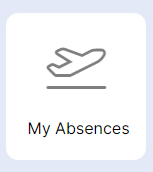
Step 2- Select the "My Absences" tile from the available tile list .
Step 3- Go to the Summary Tab
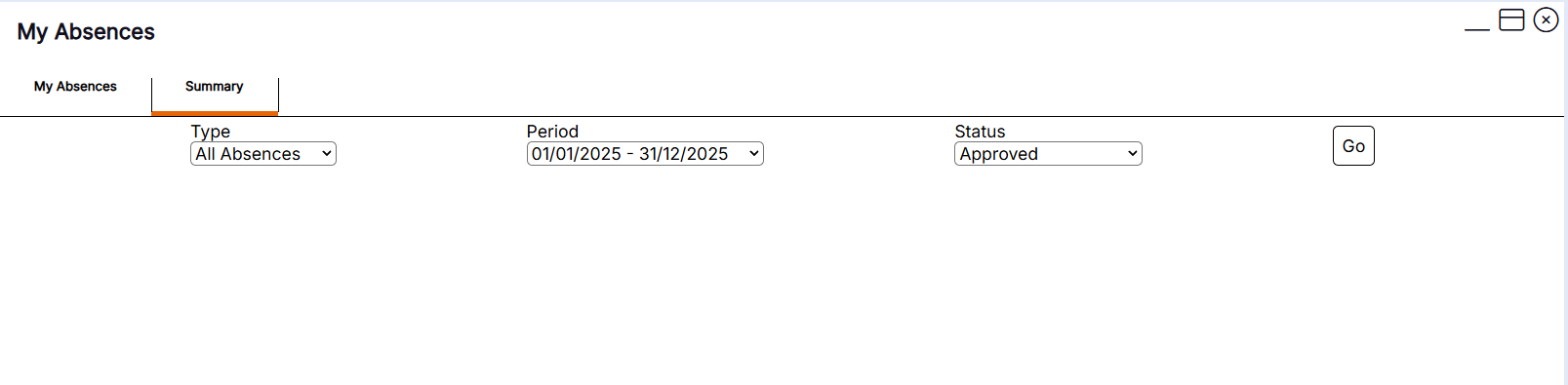
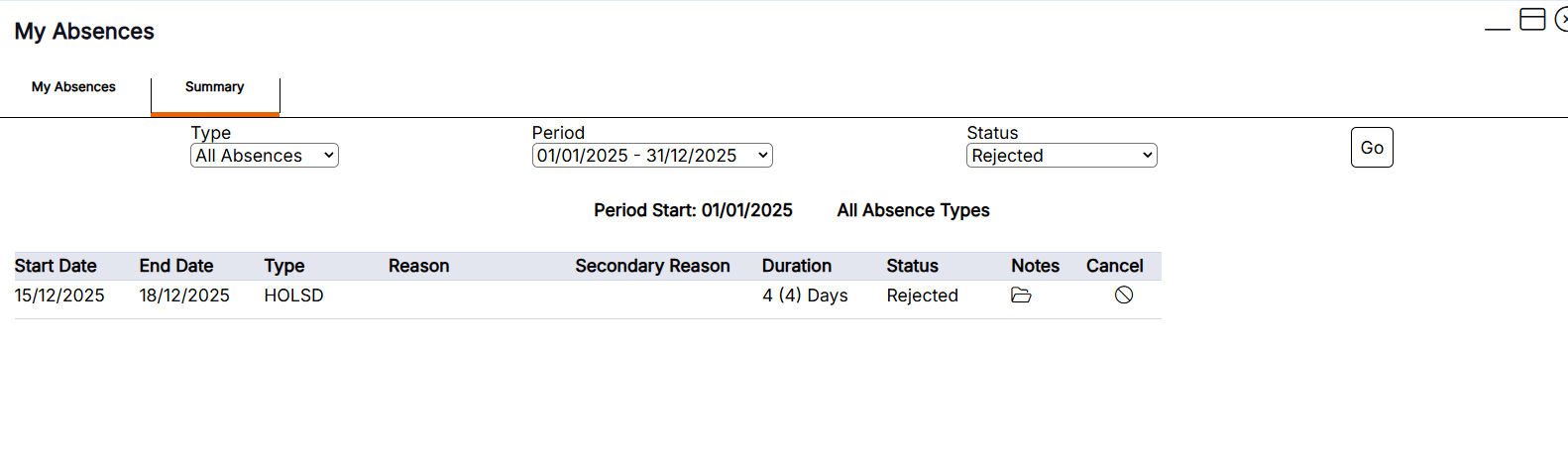
Step 4 - Within the summary screen you can select the Absence type to be viewed or leave the Type to all absences and the report will show them all.
Select the time period
Select the status to be viewed
Press Go
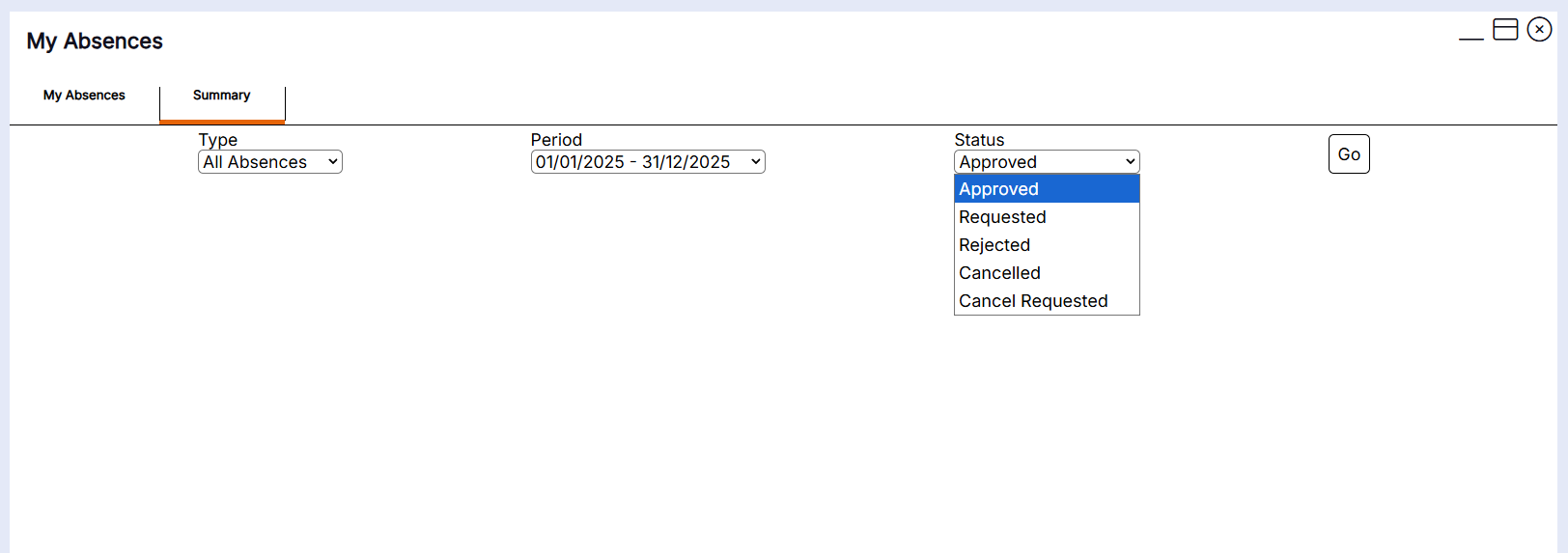
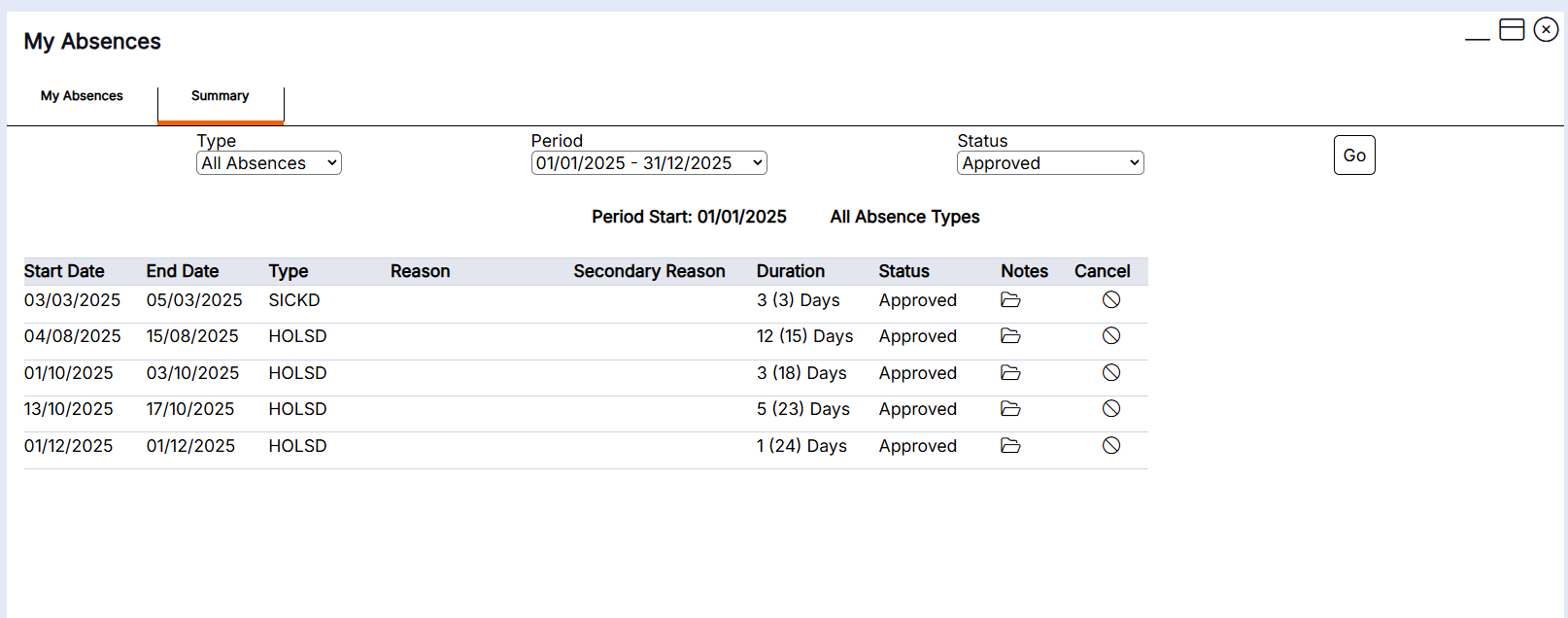
HANDY HINT - Each status listed below has the following meaning:
Approved: Your line manager has approved your request for leave.
Cancelled: Your request to cancel your leave has been approved.
Cancel Requested: Your line manager has received your request to cancel your leave, but it has not yet been actioned.
Rejected: Your line manager has rejected your request for leave. If a folder icon displays in front of the status, click on It to see if you have been left a message to confirm the reason for rejection.
Requested: Your line manager has received your request, but it has not yet been actioned.
You may receive emails from the system to advise of the status of your leave requests in addition to being able to view their progress on the Requests tab. If you are not receiving emails or text messages, speak to a system administrator who can check the contact preference assigned to your account, or advise if they have authorised the system to send communications out for leave request updates.