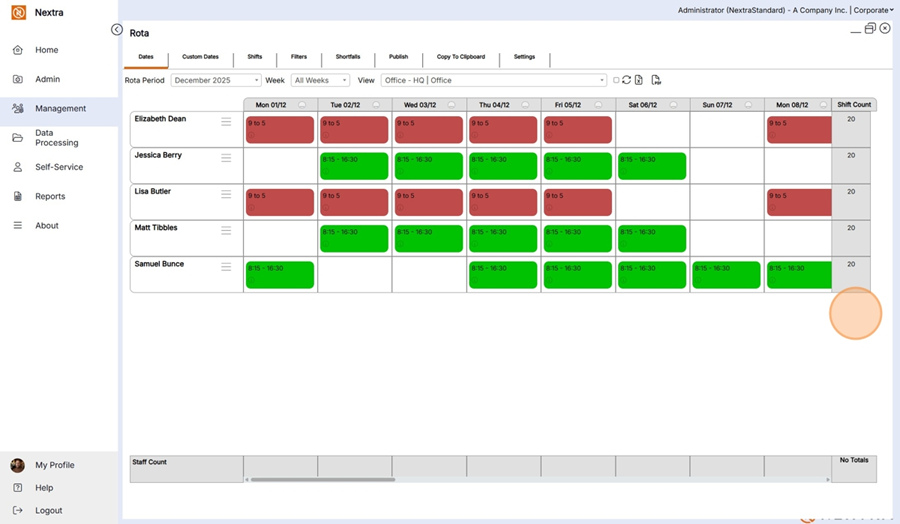
Creating a Rota using Shift Patterns.
The Rota is where shifts are allocated to staff members and staff members can view their shifts.
Rota Check list.
Before a Rota can be created using shift patterns, the following steps need to be completed first or already be set up in the system.
Step 1 - Shift times need to be created - Click here for steps on how to create 'Shift Times'
Step 2 - Shift Patterns. If a member of staff regularly work a rolling pattern 'Shift Patterns' can be used to create the rota - Click here for steps on how to 'Create Shift Patterns'
Step 3 - Pattern Group. - If you have a number of staff who work the same shift they can be grouped together for ease of creating a rota. - Click here for steps on how to 'Create a pattern group'
Step 4 - Rota Periods - are date ranges the user can create to view the rota by. Rota periods created in the Admin screen will appear in the drop-down menu on the Rota. The user can then select a Rota Period as a date range to view the rota. - Click here for steps on how to 'Create Rota Periods'
Step 5 - Shift Priorities - are statuses which can be applied to shifts when generating rotas. For example;-
"Mandated" indicates a working shift,
"Availability" means this is a time period in which the staff member has marked themselves as available to work.
"OT 1.0" indicates the entirety of the shift should be at overtime rate.
"OT 1.5" indicates the entirety of the shift should be at time and a half rate.
"OT 2.0" indicates the entirety of the shift should be at double rate.
Having a record for each of these priorities in the Admin screen, allows the user to select a colour for each of these, so that they can choose to view the shifts on the "Rota" or within "Pattern Management" in the colours chosen for each of the "Shift Priorities".
In this example we are creating a month rota using shift patterns already created for 5 Members of staff as per the shift details below.
These shift have already been created in shift Patterns.
i) 2 Members of staff are on a 9am-5pm Monday to Friday rota
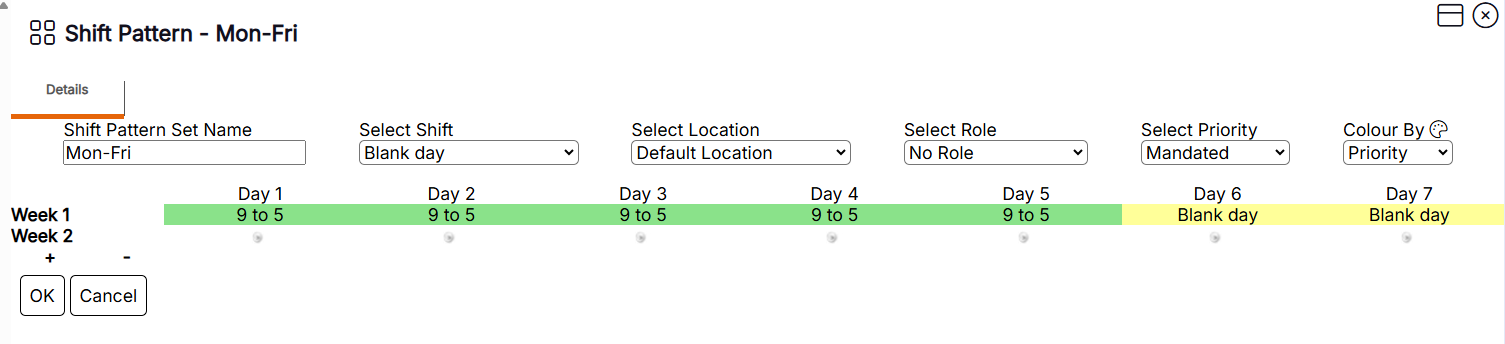
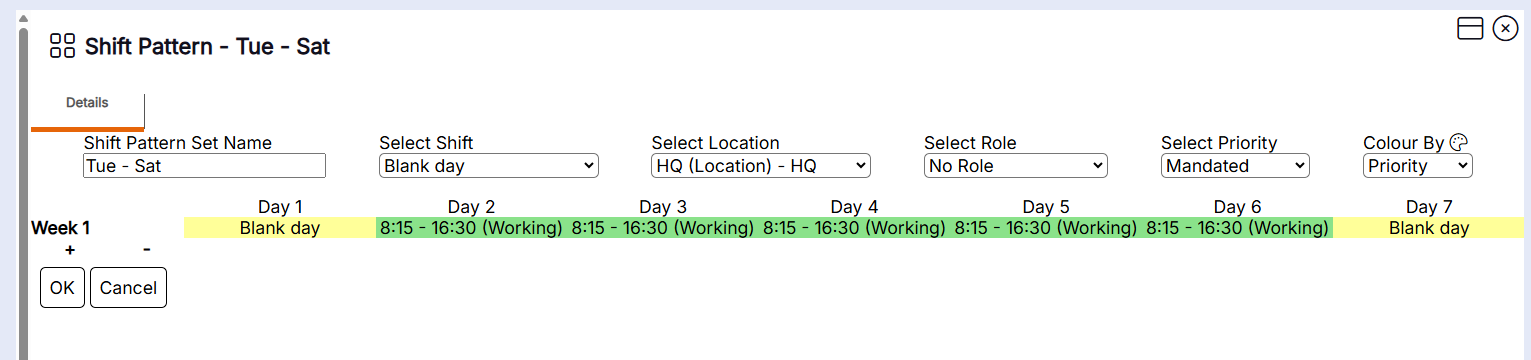
ii) 2 Members of staff are on a 8.15am - 4.30pm Tuesday to Saturday Rota
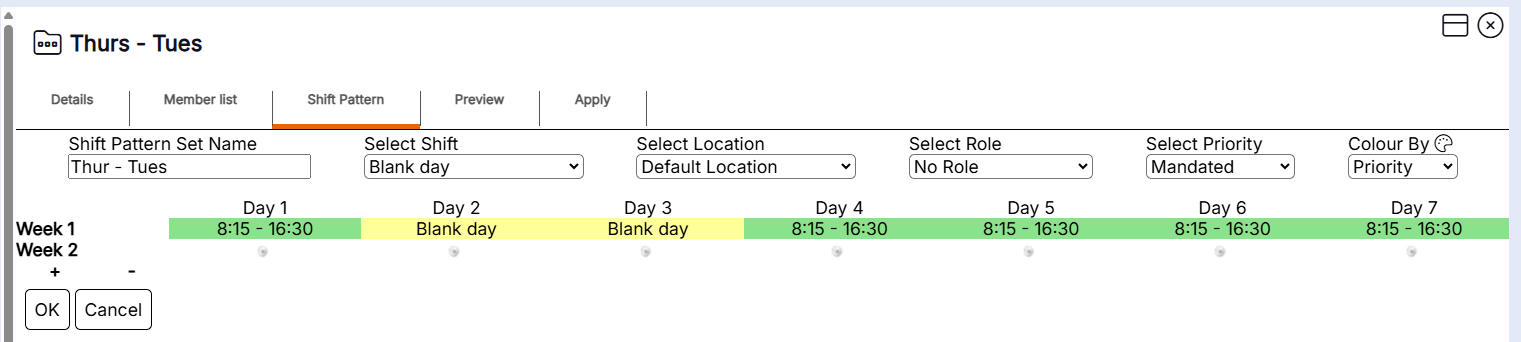
iii) 1 Member of staff is on a 12.30pm - 9.45pm Thursday - Tuesday Rota.
To Create a new rota using Shift Patterns -
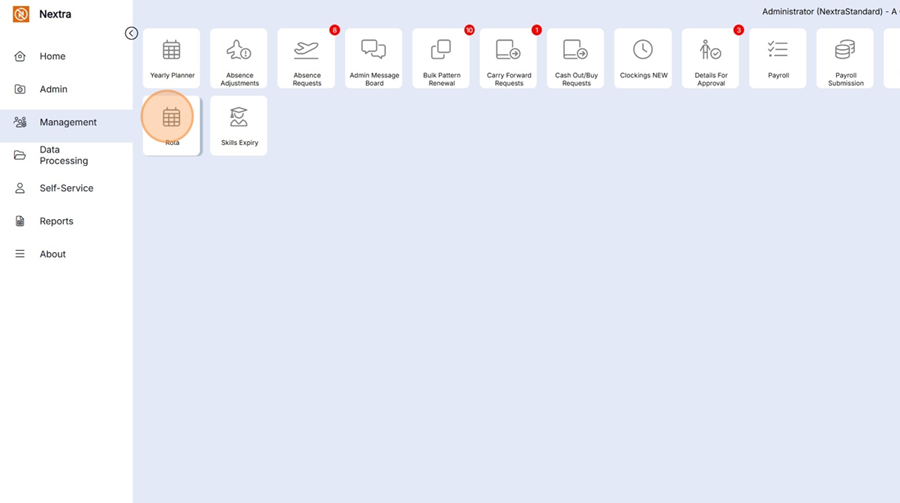
Go to Management | Rota
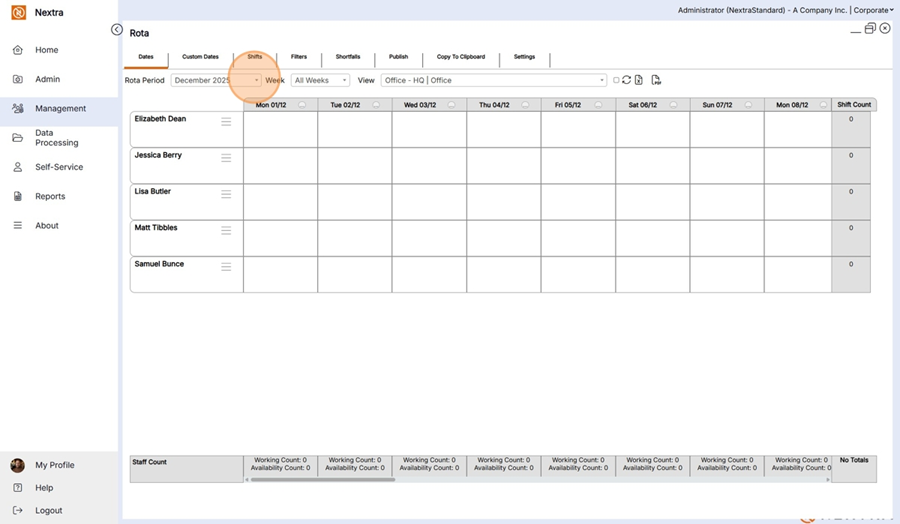
Select the month you are creating the rota for - In this case we are looking at December 2025
As this is the first time we are creating a rota for this month it is blank.
(If previously a rota has been created for the time frame the display will be populated however it can changed and over written)
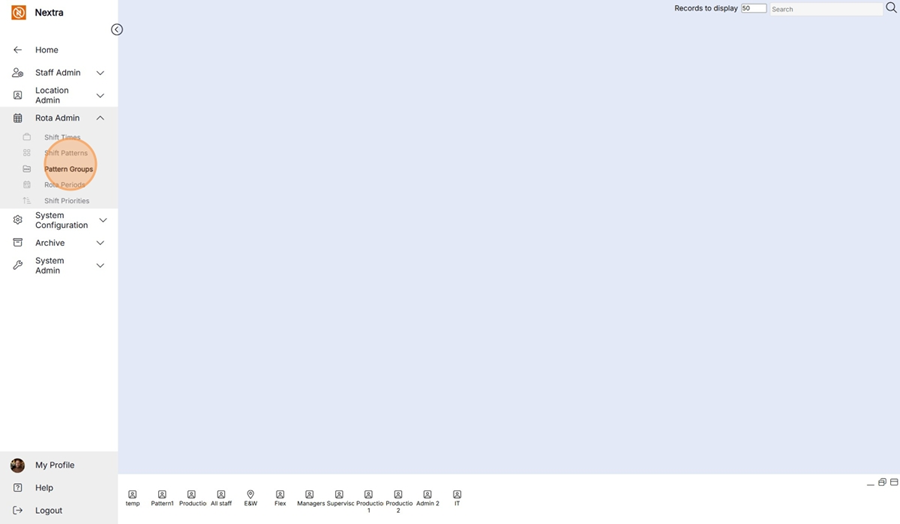
Go back to the Menu | Click Admin | Rota Admin | Pattern Groups
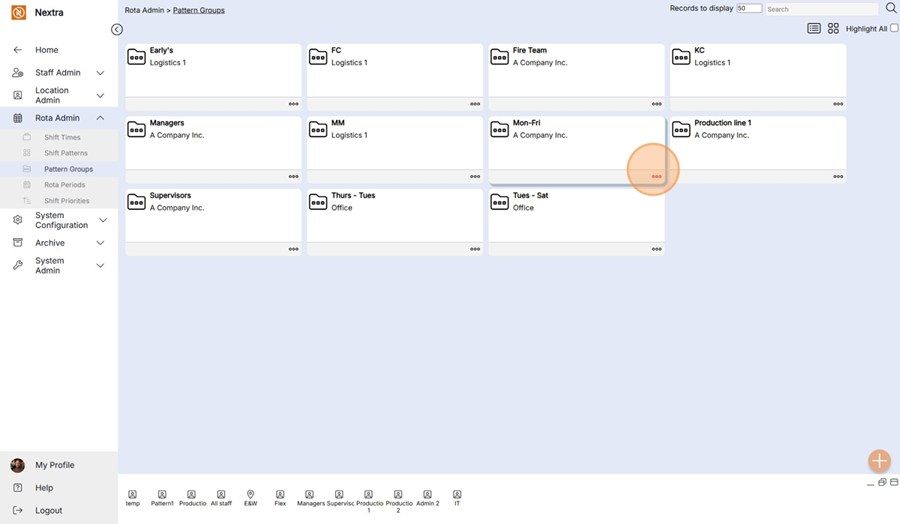
Select the shift pattern you want to add to the Rota - in this case we are using Monday - Friday 9-5pm
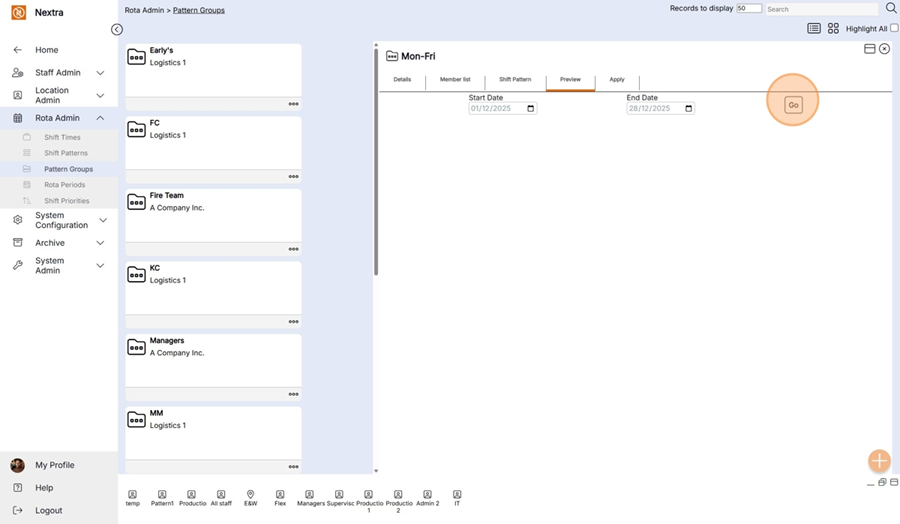
We can double check the pattern we are going to apply is going to populate the rota as expected by clicking the preview tab - Enter the dates the pattern is being applied to a from - In this case its Monday 1st December - Sunday 28th December 25
NB In this example the Rota period needs to start on a Monday as the pattern group has been created to start on a Monday
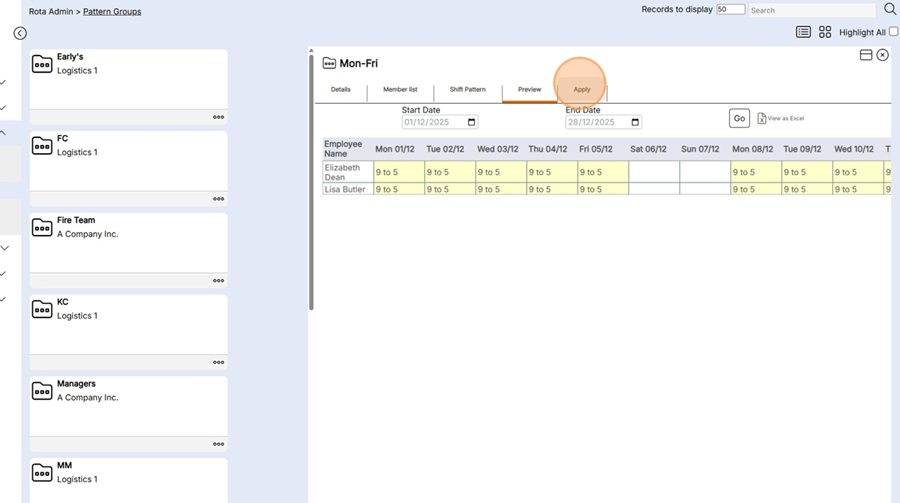
This is a preview of how the pattern will be applied.
If the preview is correct click the 'Apply tab' - this is where the data is transferred to the Rota
Step 1 - Select the location
Step 2 - Select the date the rota is to start on In this instance Monday 1st December 25
Step 3 - Select the date you want the pattern to end on in this instance 28th December 25
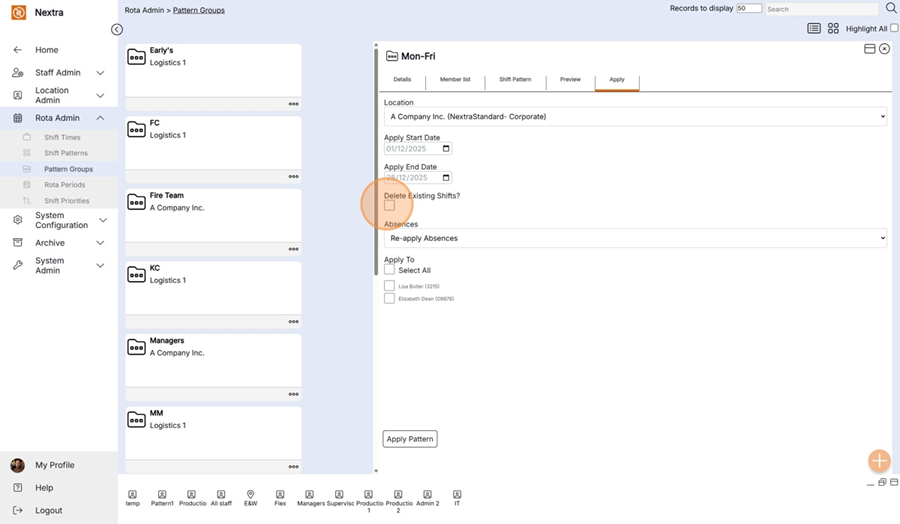
Step 4 - Click - Delete existing shifts - (this is only required if shifts already exist in the system that you want to over write. If like in our example there were no shifts this can be left blank).
Step 5 - Click - Re-apply Absences so any absences already booked will remain in the system. If this is not selected the system will over write any absences with the rota.
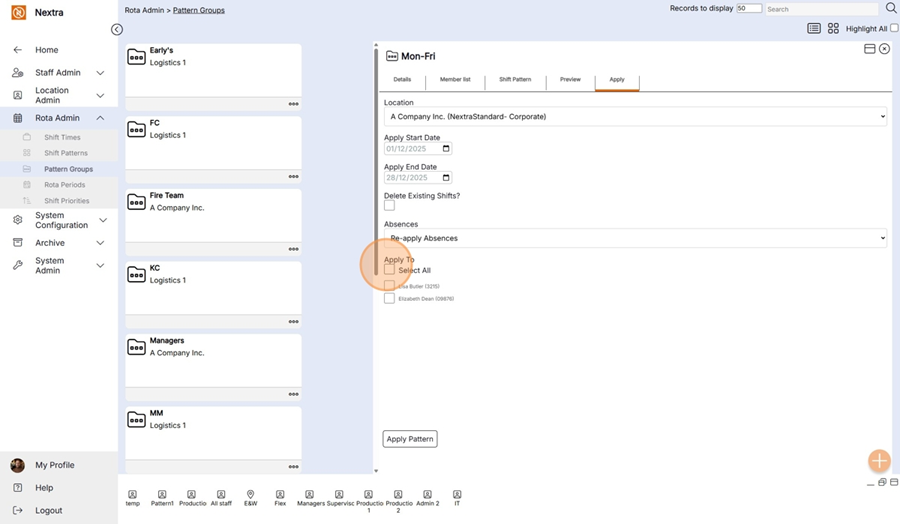
Step 6 - Select who you want to apply this rota pattern to
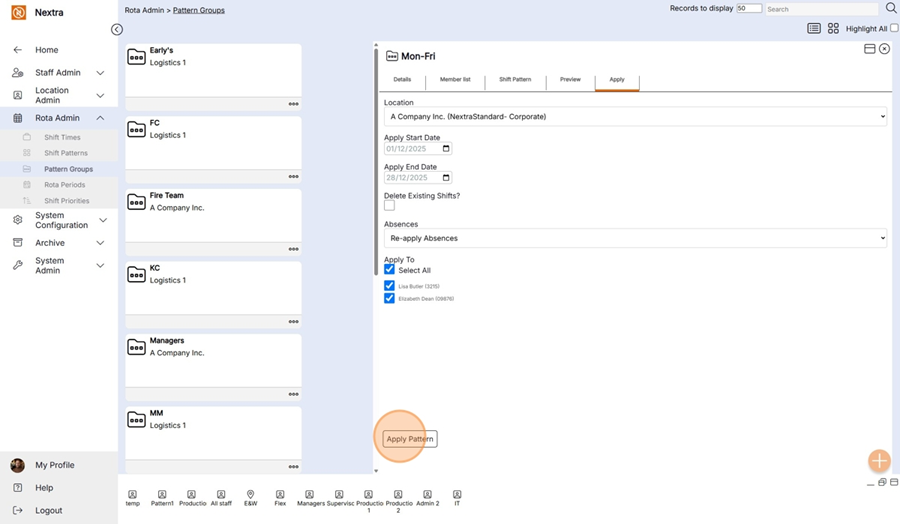
Step 7 - Click the apply pattern for the Rota to now be updated.
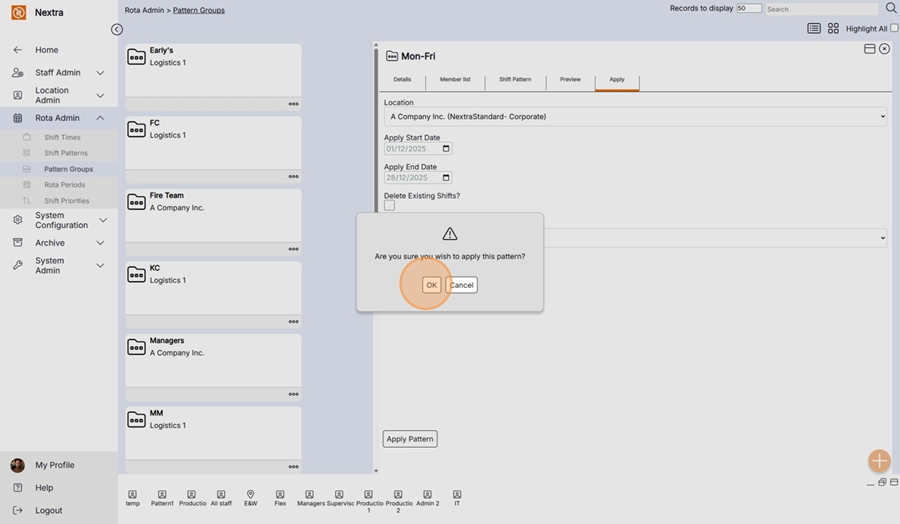
Step 8 - Click OK if you are sure you want to apply pattern.
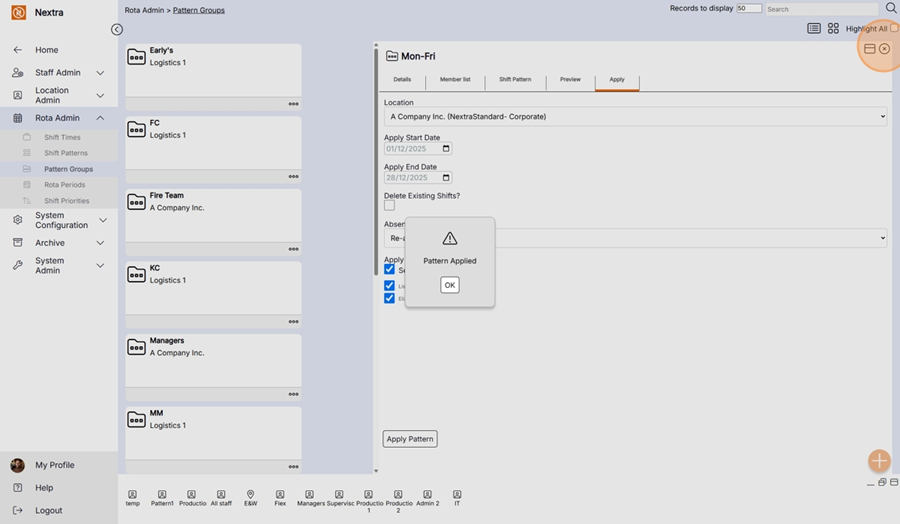
The Rota has now been up dated and can be checked. To do this Go to the Rota
Menu | Management | Rota
Our Rota now has our two staff members scheduled to work Monday - Friday 9am - 5pm between 1st December - 28th December
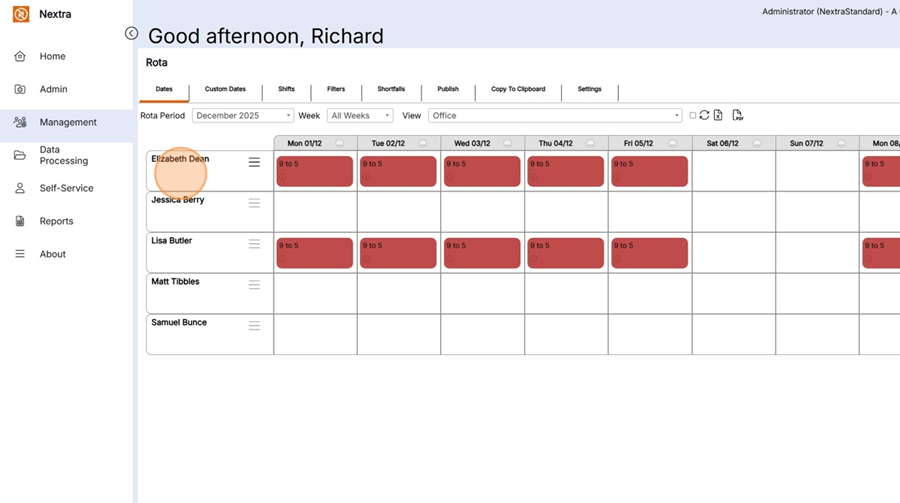
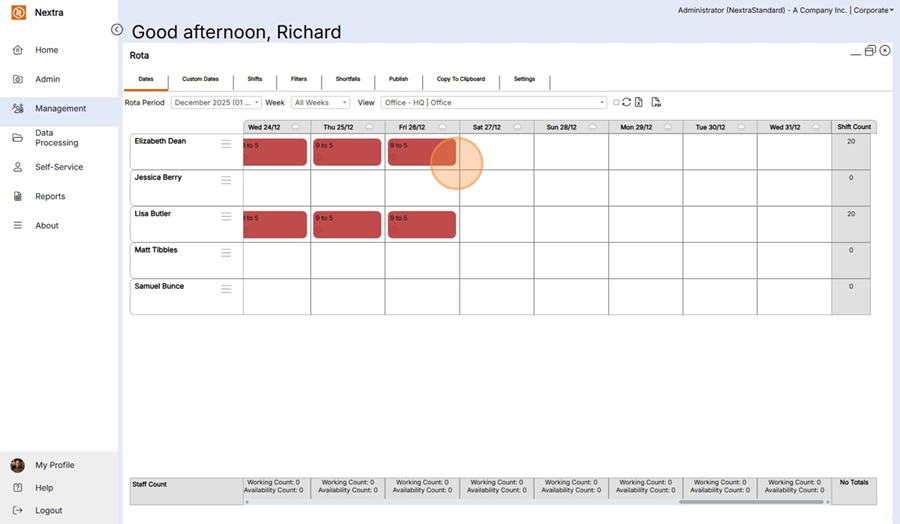
We are now going to add the other 2 shift patterns to the remaining staff.
Go to Staff Admin | Rota Admin | Pattern Groups
Select the next pattern group to be added - In this example its adding
2 Members of staff are on a 8.15am - 4.30pm Tuesday to Saturday Rota
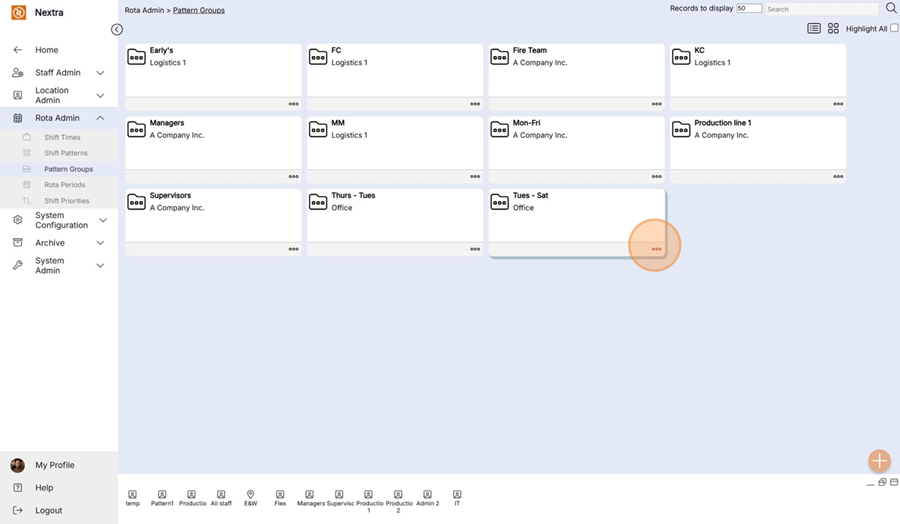
Step 1 - Go to the Preview Tab
Enter the Dates the rota is being applied too - In this case 1st December - 28th December 25 - Click Go to save
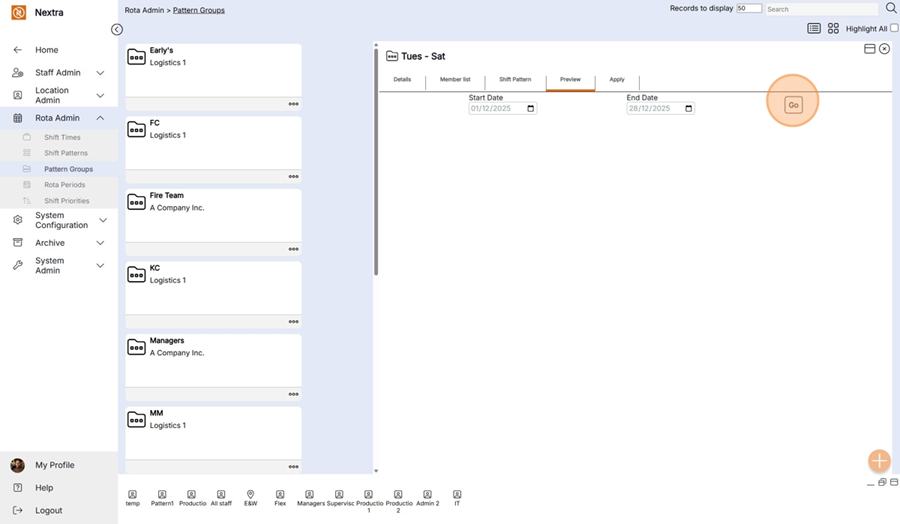
A preview of the shift pattern will then display so it can be checked before being applied
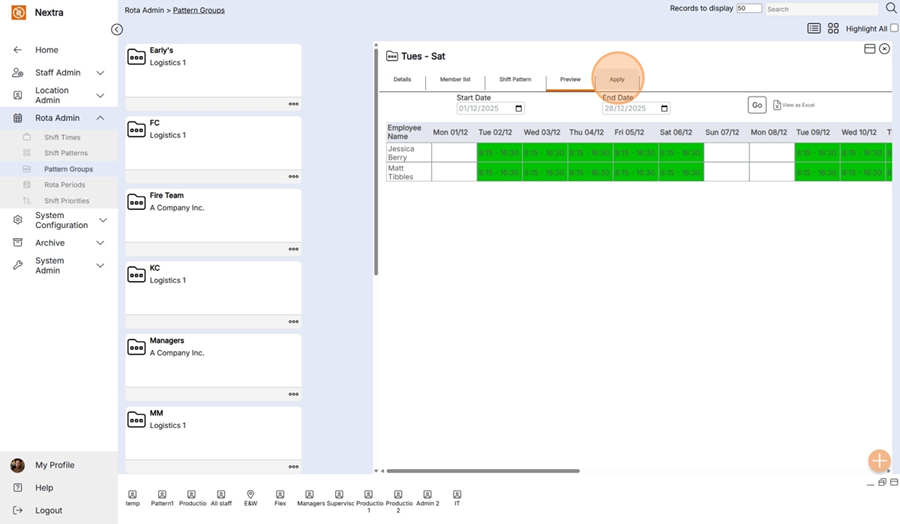
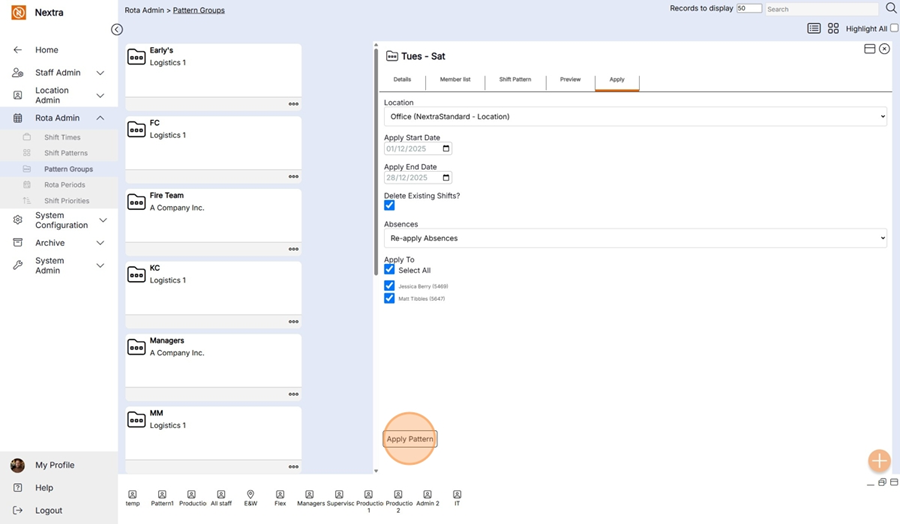
Complete the fields as before -
Step 1 - Enter the start date the pattern is being applied for - In this instance 1st December 25
Step 2 - Enter the end date the pattern is to end by - In this instance 28th December 25
Step 3 - Delete Existing shifts - Click this is shifts already exist
Step 4 - If absences that are already booked are to be keep - select the Re-Apply Absence
Step 5 - Apply to the members of the staff you want to add to the rota
Step 6 - Apply pattern for the rota to be created.
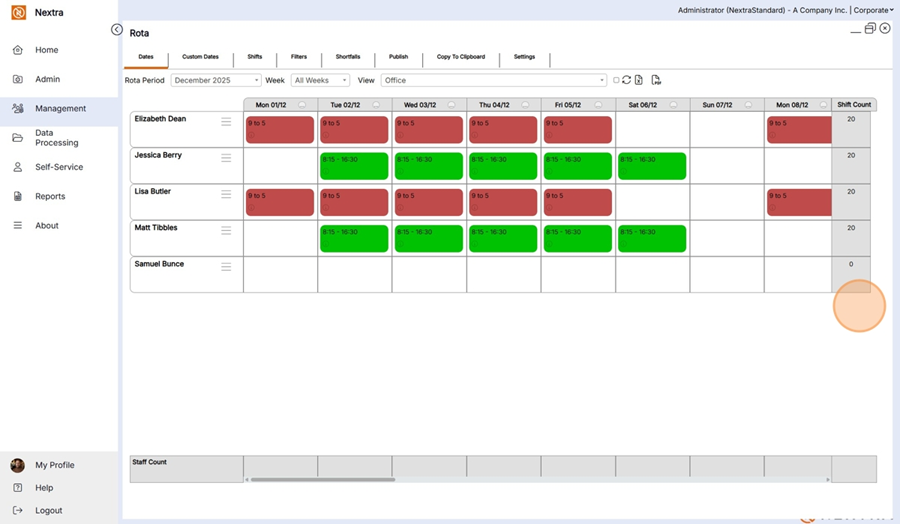
To view the updated rota - Menu | Management | Rota
Check the dates are the ones the rota is being created for - 1st Dec - 28th Dec 25
The Rota now has both shift patterns
We are now going to add the other Last shift pattern to the remaining staff.
Go to Staff Admin | Rota Admin | Pattern Groups
Select the next pattern group to be added - In this example its adding
1 Member of staff is on a 12.30pm - 21.45pm Thursday - Monday Rota.
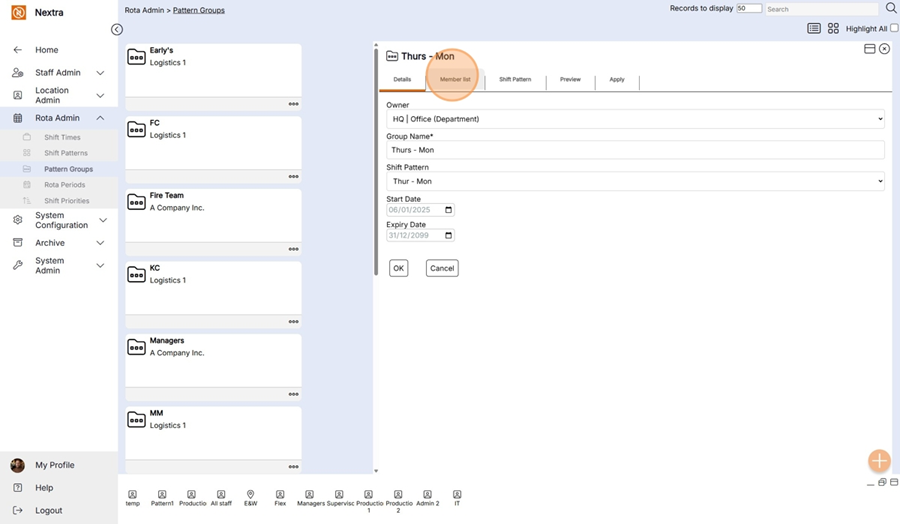
Step 1 - Go to the Preview Tab
Enter the Dates the rota is being applied too - In this case 1st December - 28th December 25 - Click Go to save
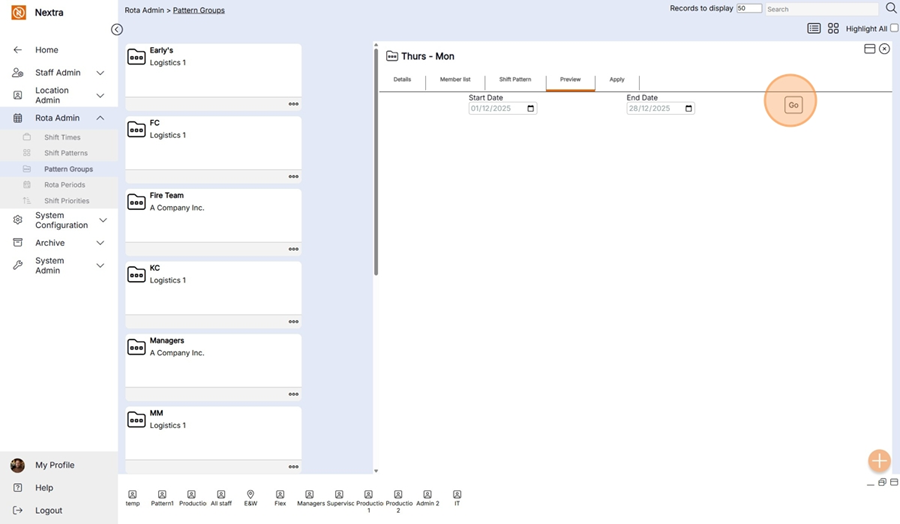
A preview of the shift pattern will then display so it can be checked before being applied
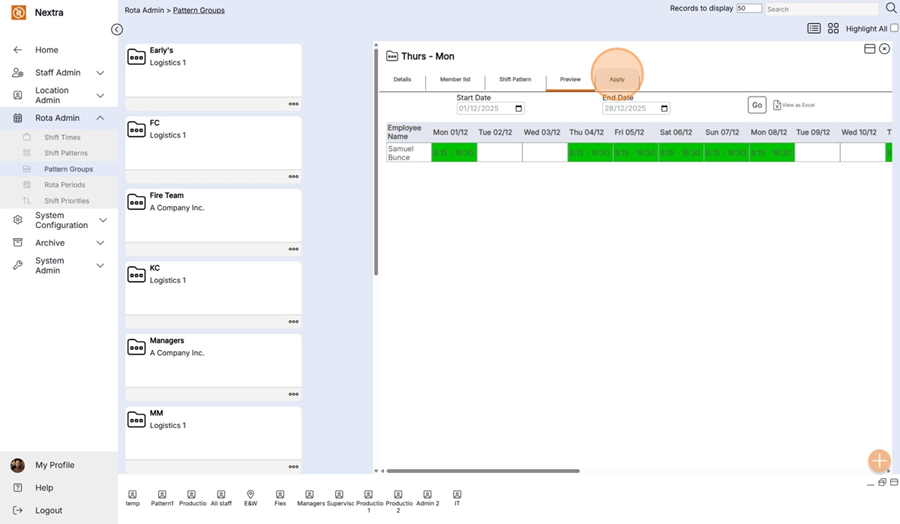
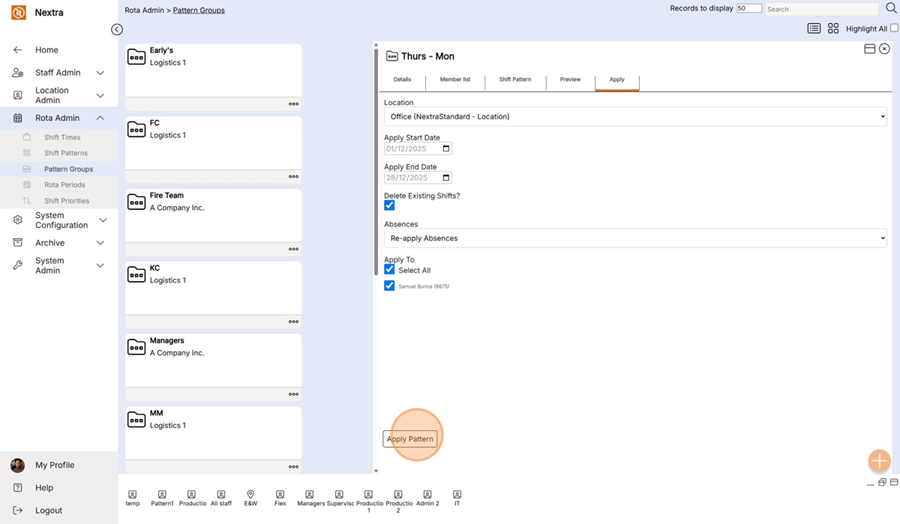
Complete the fields as before -
Step 1 - Enter the start date the pattern is being applied for - In this instance 1st December 25
Step 2 - Enter the end date the pattern is to end by - In this instance 28th December 25
Step 3 - Delete Existing shifts - Click this is shifts already exist
Step 4 - If absences that are already booked are to be keep - select the Re-Apply Absence
Step 5 - Apply to the members of the staff you want to add to the rota
Step 6 - Apply pattern for the rota to be created.
To view the updated rota - Menu | Management | Rota
Check the dates are the ones the rota is being created for - 1st Dec - 28th Dec 25
The Rota now has both shift patterns